Learning Screenshot for Kids
A screenshot is a way to capture an image of what appears on a computer screen. On this page, kids will learn:
Taking screenshots is an important computer skill for kids. Screenshots help children save pictures, share homework, and remember what they see on the screen. This tutorial is designed to be simple, safe, and easy to follow.
- What a screenshot is
- How to take a screenshot using the Print Screen key
- How to use the Snipping Tool
- How to save screenshots on the computer
Note: On some laptops, you may need to press the Fn key together with PrtSc.
1. What Is a Screenshot?
A screenshot is a picture of the computer or laptop screen showing what we are currently seeing.
2. Using the Print Screen Key
Steps to Use the Print Screen Key
- Press the PrtSc / Print Screen key on the keyboard to capture the entire screen.
- Optional: Press Alt + PrtSc to capture only the active application window.
- Open Paint or Word.
- Press Ctrl + V to paste the image.
- Save the file with the desired name.
Example: Taking a Screenshot and Pasting into Word
Kids can capture the entire desktop using the Print Screen key and then paste it into Word. This example shows the process in two steps:
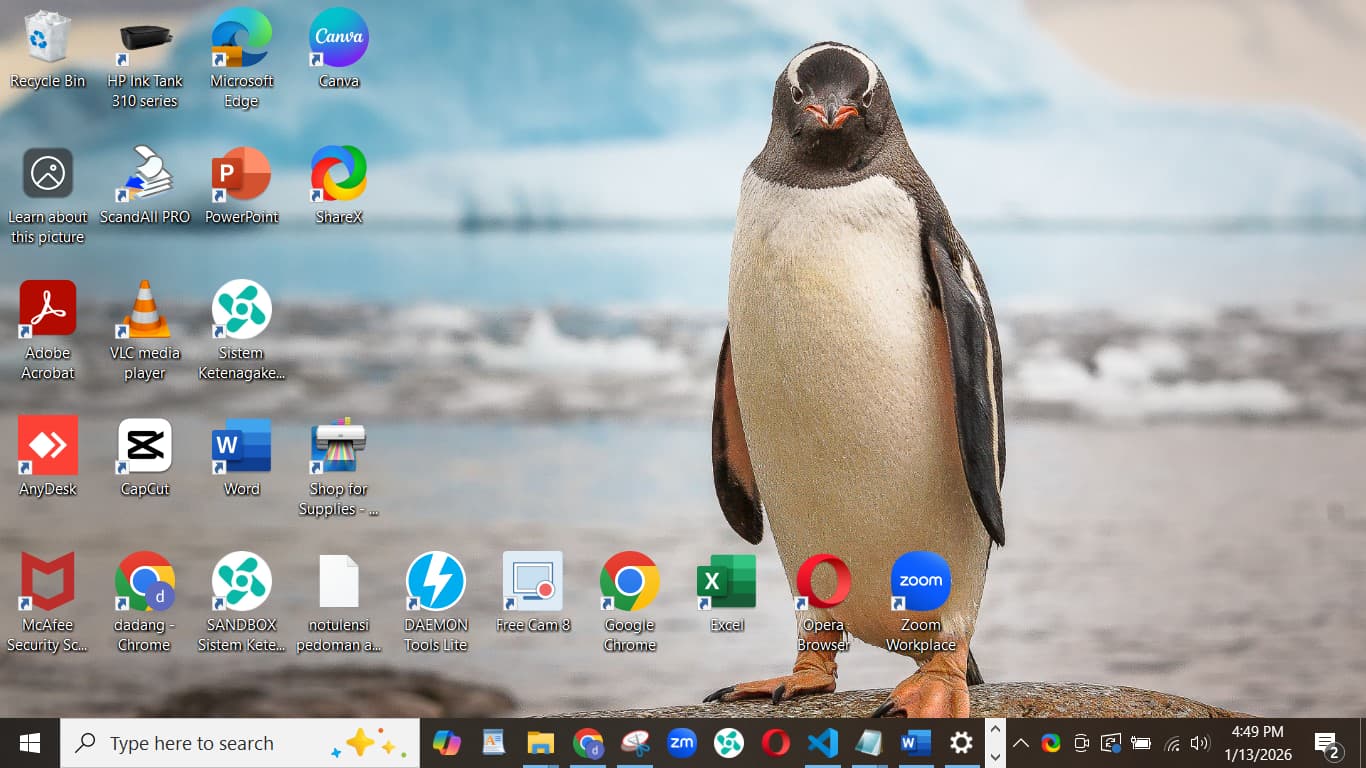
1️⃣ Full Desktop Screenshot
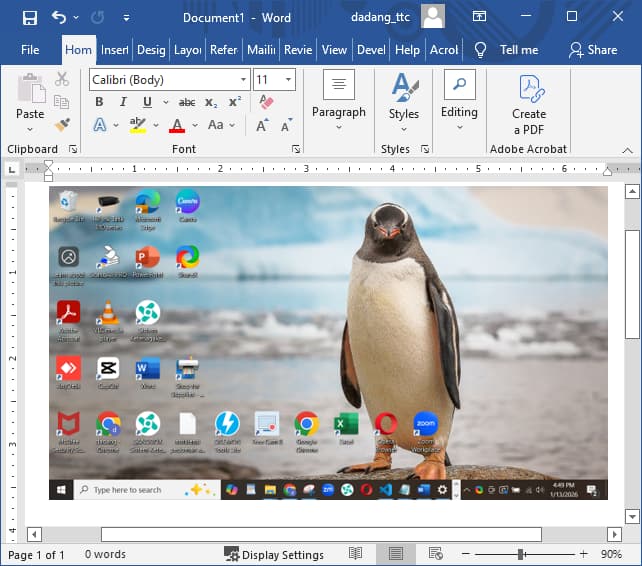
2️⃣ Desktop Screenshot pasted into Word
Note: Kids can now edit, annotate, or save the screenshot directly in Word.
Tip: Use Alt + PrtSc when you want to capture only the active window instead of the full screen.
3. Using Snipping Tool
Easy Screenshot with Snipping Tool
- Open the Snipping Tool application in Windows.
- Select the screenshot type: Rectangle, Free-form, Window, or Full-screen.
- Capture the screen based on your choice.
- Click File > Save As to save the image.
Example: Snipping Desktop Icons and Pasting into Word
Kids can capture just the icons on the desktop using the Snipping Tool and paste them into Word. This helps focus on specific items without capturing the whole screen.
Snipping desktop icons and pasting into Word
Note: Kids can now edit, annotate, or organize the desktop icons screenshot directly in Word.
4. Tips for Saving Screenshots
- Use an easy-to-remember file name, for example screenshot1.png.
- Save screenshots in a special folder so they are easy to find.
- Use PNG or JPEG format for good image quality.
Additional visual materials will be explained directly during the class session.
🚀 Continue Your Learning
Great job learning how to take screenshots! 📸
Now let’s use your screenshots inside Microsoft Word.
Turn your screenshots into neat and professional documents!