Part 10: How to Create Headers & Footers in Word (5 Easy Steps + Pro Tips)
⏳ Training Duration: 2 Hours
🎯 Level: Beginner
🧠 Method: Theory & Practice
📦 Format: Interactive (offline/online)
📌 Requirements: Basic understanding of page setup
🎯 Objective: Participants will be able to add consistent information to the top and bottom of document pages.
📌 Note: The Header & Footer feature is one of the most commonly used tools in professional documents, especially for reports and formal files.
🎯 This article is trending on Google! Learn how to create Headers & Footers in Word 2016/2019/2021 step by step, complete with images and practical tips to make your documents look professional and easy to navigate.
Headers and footers are used to display information such as document titles, author names, dates, or page numbers that appear on every page.
1. Steps to Add a Header
- Click the Insert tab.
- Select Header.
- Choose a design or create one manually.
- Enter the information you want to display.
- To exit header/footer mode, double-click the main document area.
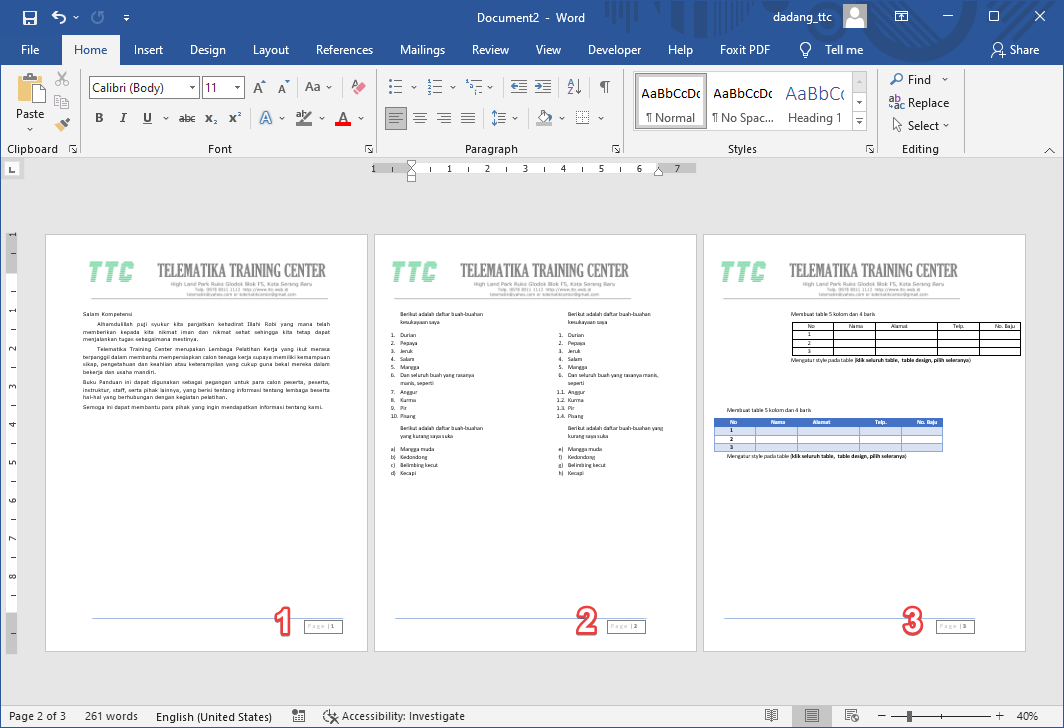
Many users still type page numbers manually or create messy headers. With the right technique, everything can be automated and look professional.
2. Steps to Add a Footer
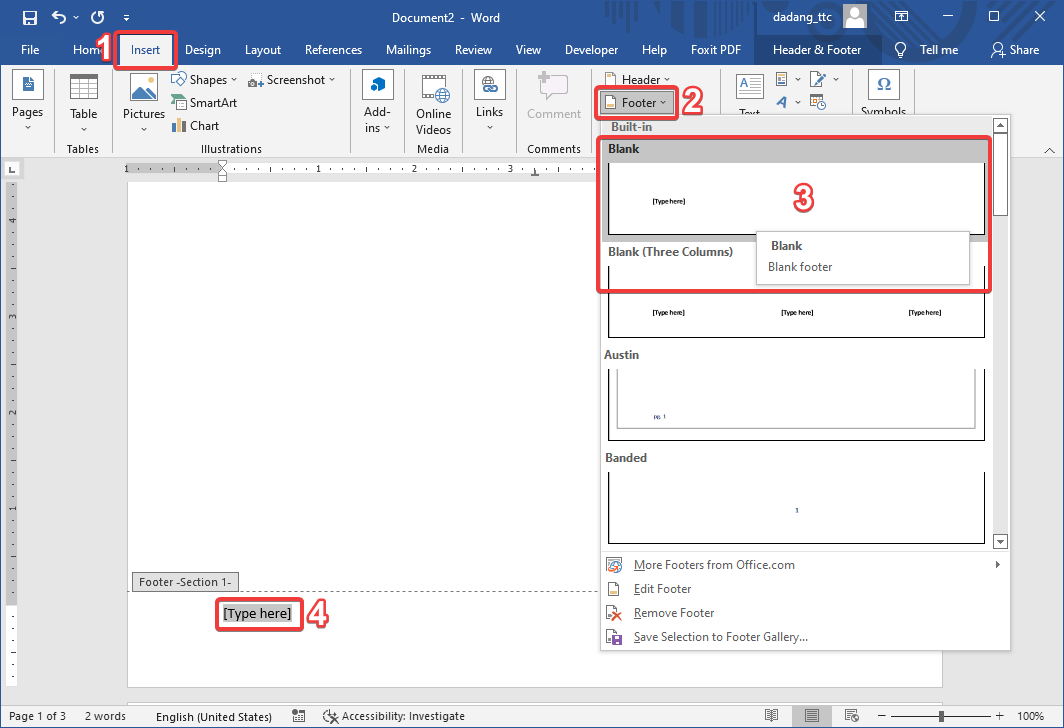
- Click the Insert tab.
- Select Footer.
- Choose a design or create one manually.
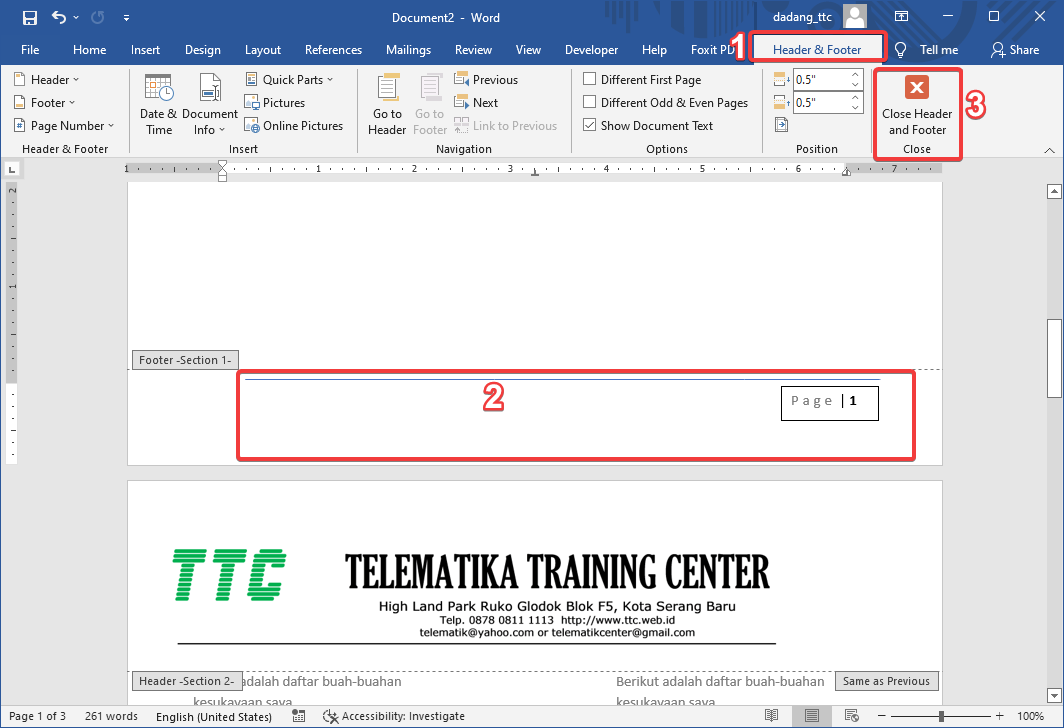
- Enter the information you want to display.
- To exit header/footer mode, double-click the main document area.
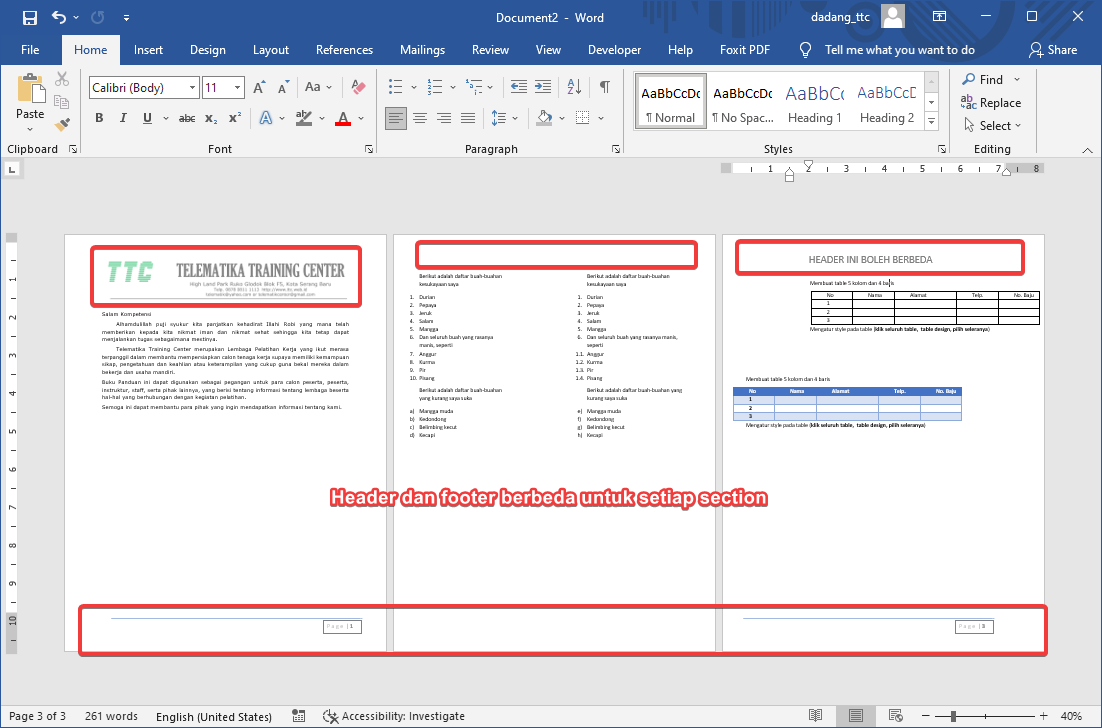
3. Customizing Different Headers & Footers
By default, Word uses the same header and footer on all pages. However, you can create a different first page or unique headers/footers for each section.
🔸 Different Header/Footer on the First Page
To create different headers or footers for each part of a document, Microsoft Word uses Section Breaks. Before creating a Section Break, it is important to understand the difference between a Page Break and repeatedly pressing the Enter key.
If you only want to start a new page, use the Ctrl + Enter shortcut or choose Layout → Breaks. This inserts a proper Page Break, keeping your document layout clean and ensuring consistent formatting while editing.
🎬 Quick Demo
Learn how to create a new page instantly using Ctrl + Enter. This method is faster, cleaner, and more professional than pressing Enter multiple times.
💡 Learn how to use Ctrl + Enter to insert a Page Break instantly and keep your document neat and well organized.
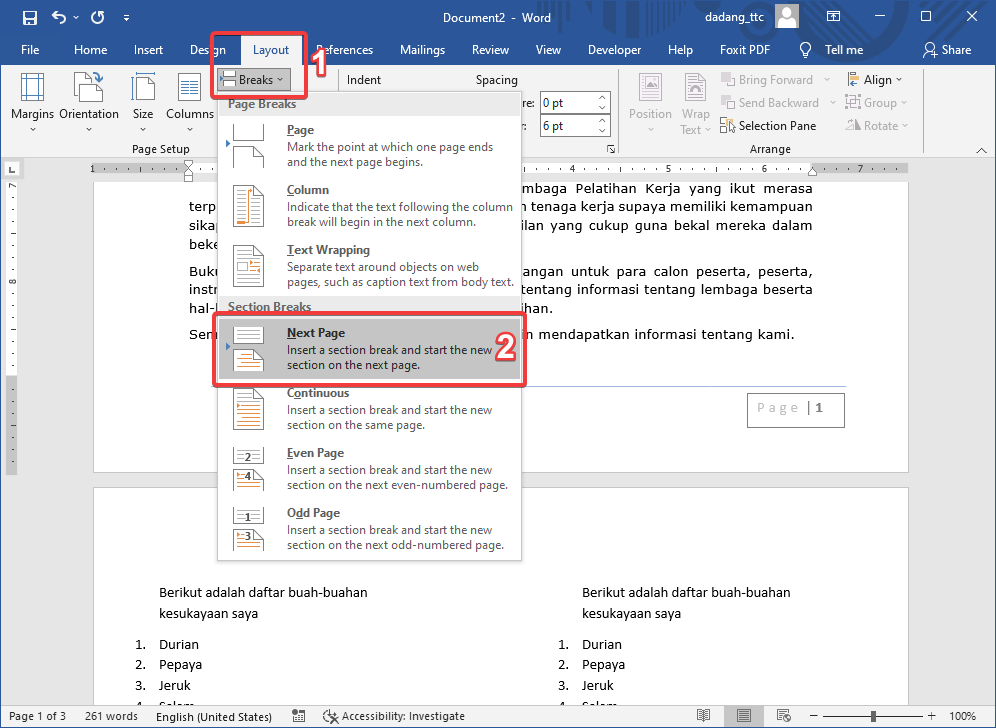
After learning how to create a Page Break using Ctrl + Enter, the next step is to create a Section Break. Unlike a Page Break, which simply moves content to a new page, a Section Break allows each section of a document to have different settings, including headers, footers, page orientation, and margins. Follow the steps below to create a Section Break.
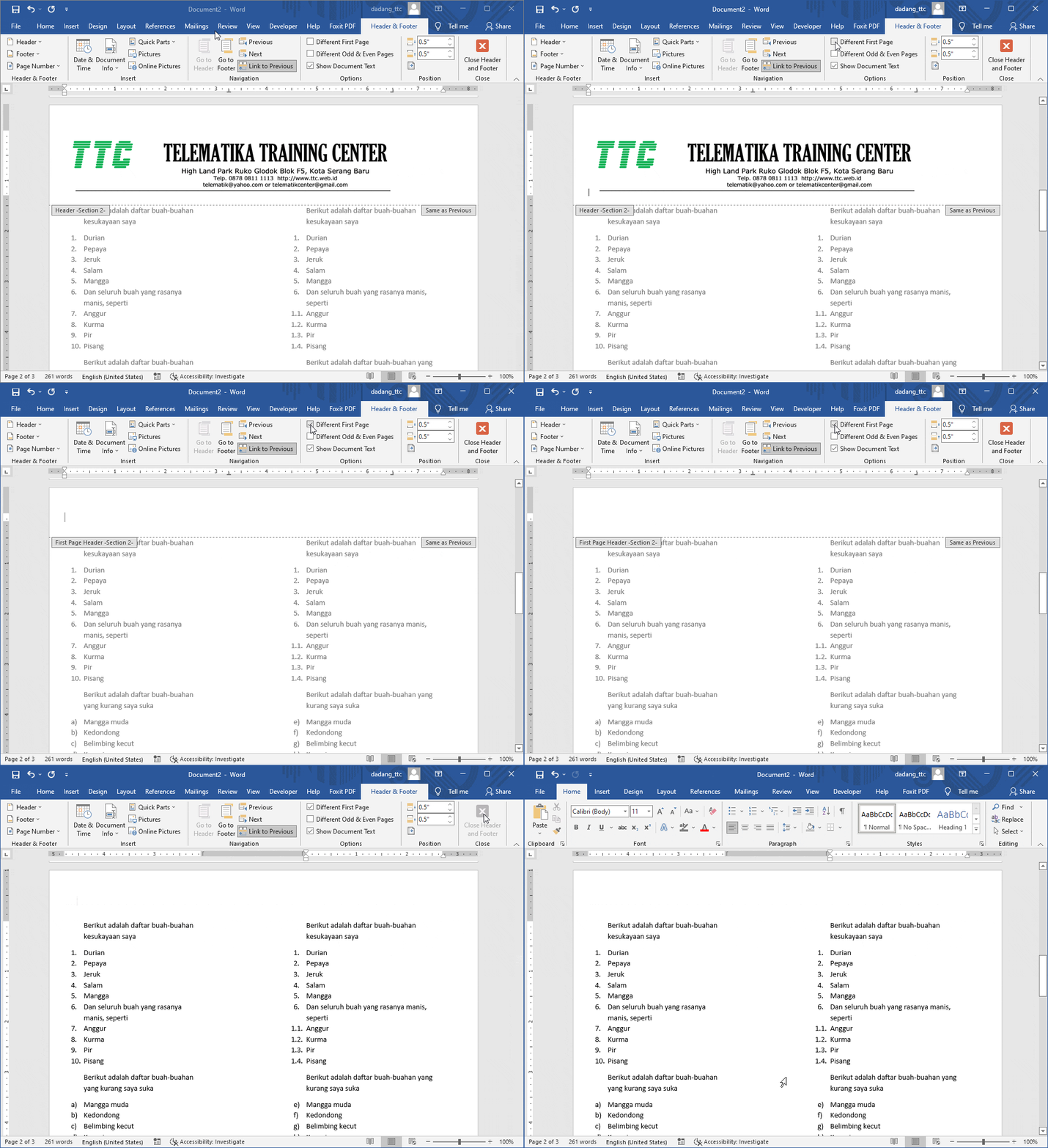
- Double-click the header or footer area on the first page.
- On the Header & Footer tab, check Different First Page.
- Customize the header/footer for the first page.
🔸 Different Header/Footer per Section
- Place the cursor at the end of a page, then go to Layout → Breaks → Next Page.
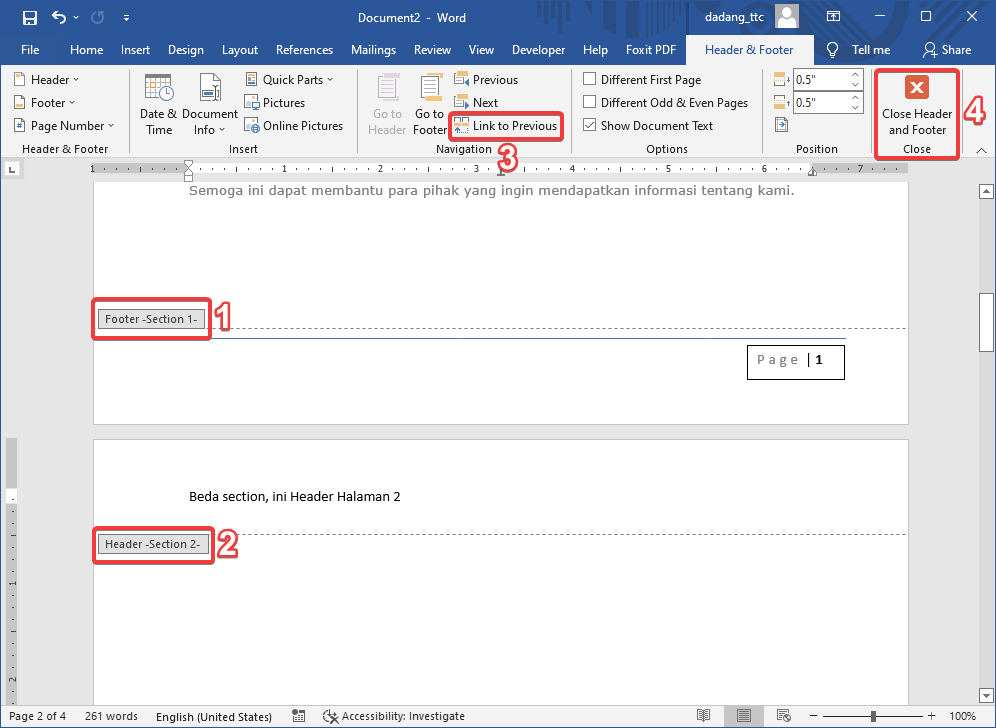
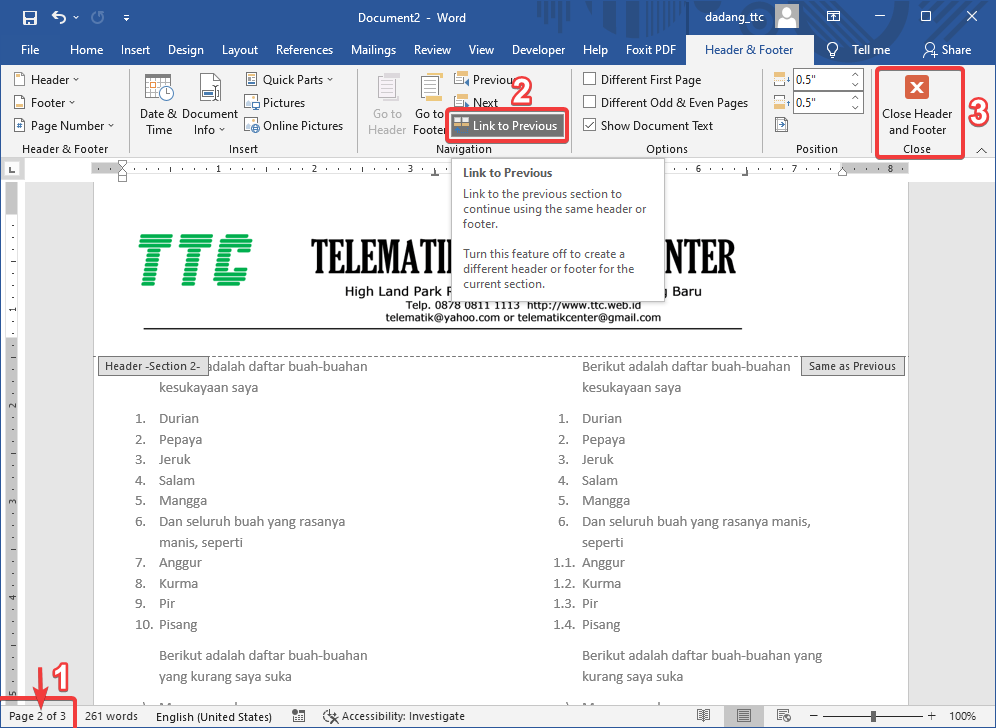
- Double-click the header/footer area on the new page.
- Turn off Link to Previous.
- Enter a different header/footer.
📝 Practice:
- Add a header with the title: Microsoft Word Practice.
- Add a footer with automatic page numbers.
- Make the header on the second page different from the first page.
- Create two sections and apply different headers to each.
By mastering Headers & Footers in Microsoft Word, you can create documents that are more organized, professional, and consistent.
This feature is essential for reports, papers, theses, and official documents.
🚀 Master this basic skill and stay ahead of other Word users!
💡 Already understand Headers & Footers? Time to level up!
📑 Want More Professional Word Documents?
Headers and footers work best when your document structure is well organized. Learn how to create an automatic Table of Contents using headings and page breaks.
🚀 Hands-On Lab: Automatic Table of Contents in Word