Part 4: Formatting Text in Word
⏳ Training Duration: 2 Hours
🎯 Level: Beginner
🧠 Method: Theory, Case Study
📦 Material Format: Interactive (offline/online)
📌 Prerequisites: Basic knowledge of Word
🎯 Goal: Participants can change text appearance including font, color, and style.
Formatting text in Microsoft Word helps adjust the appearance of your writing to make it more attractive and suitable for your document's purpose. This includes font type, size, color, and effects such as bold, italic, and underline.
Mastering text formatting features makes your documents look cleaner, more professional, and easier to read. By understanding how to adjust fonts, colors, and styles, we can highlight important information and create more communicative documents. Simple adjustments like changing the font or applying bold often have a significant impact on the overall document appearance.
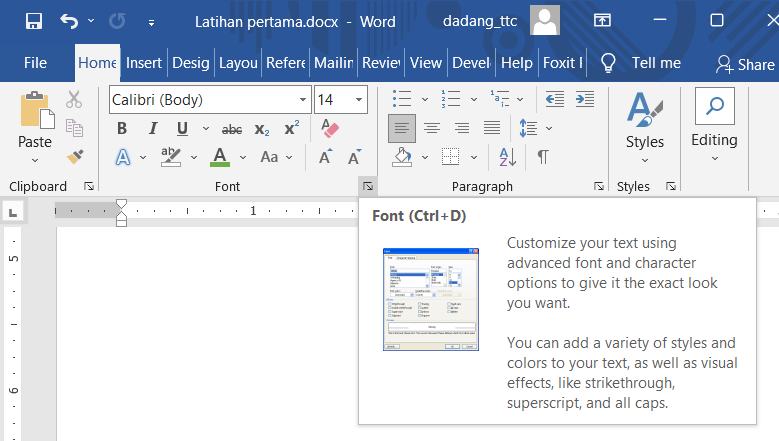
In Microsoft Word, text formatting features are located in the Home tab, particularly in the Font group. By understanding all functions in this group, we can control text appearance in detail and professionally.
Text Formatting Features
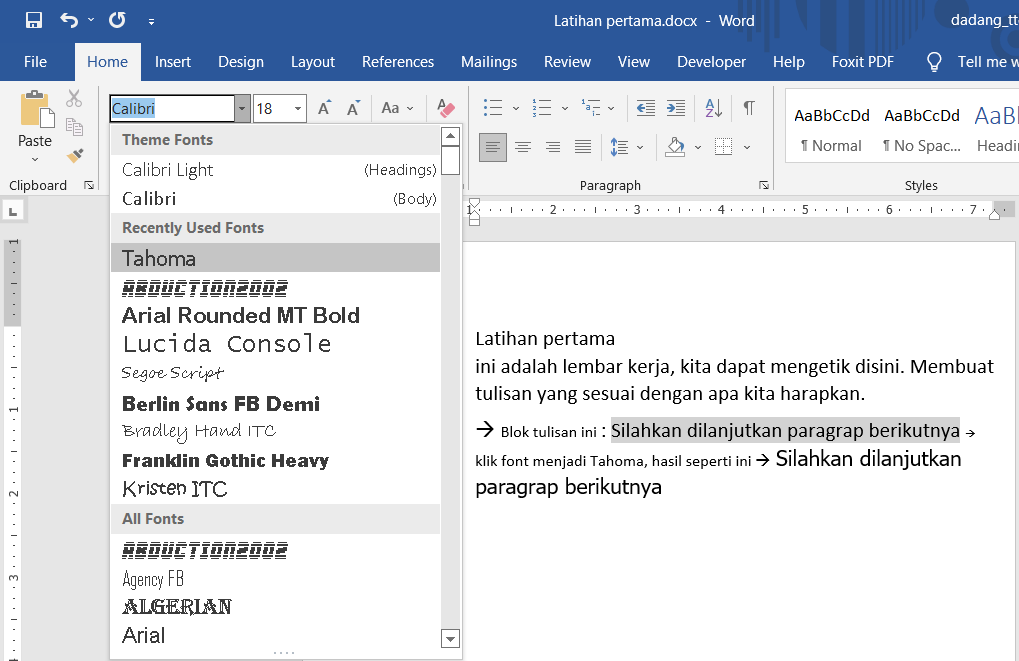
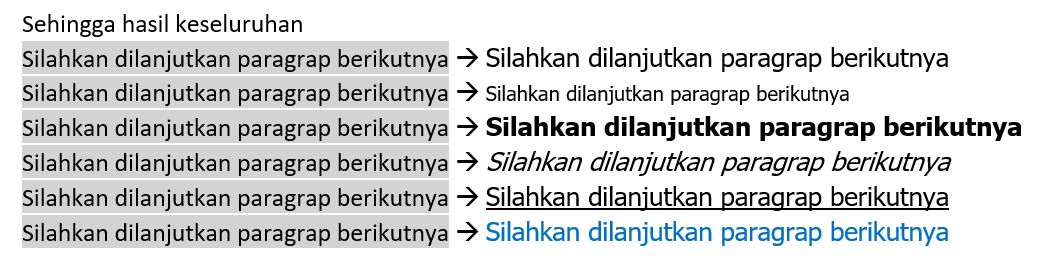
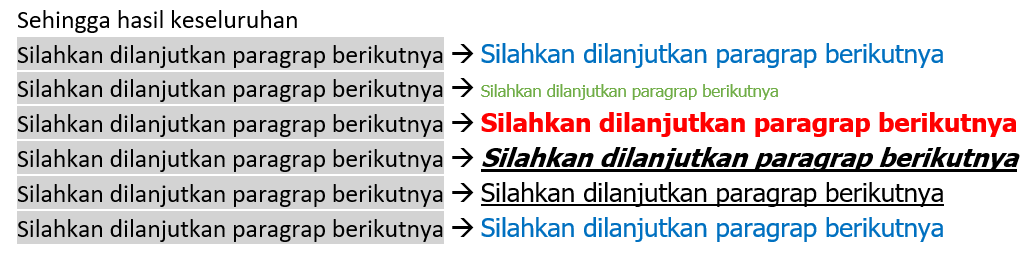
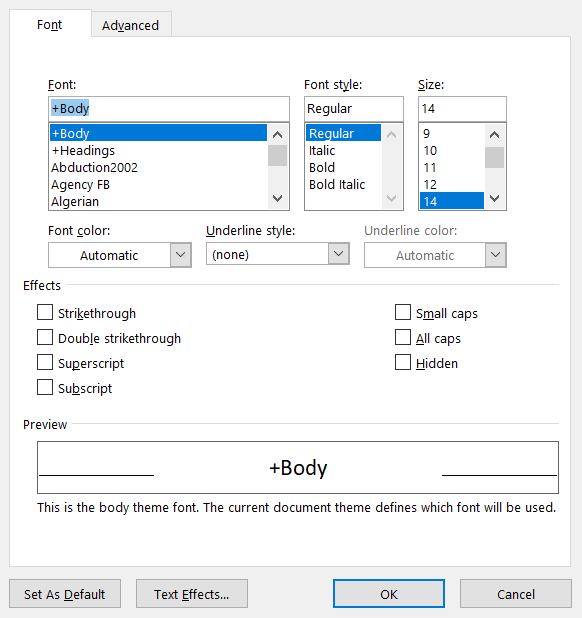
- Font: Choose a font such as Calibri, Times New Roman, Arial, etc.
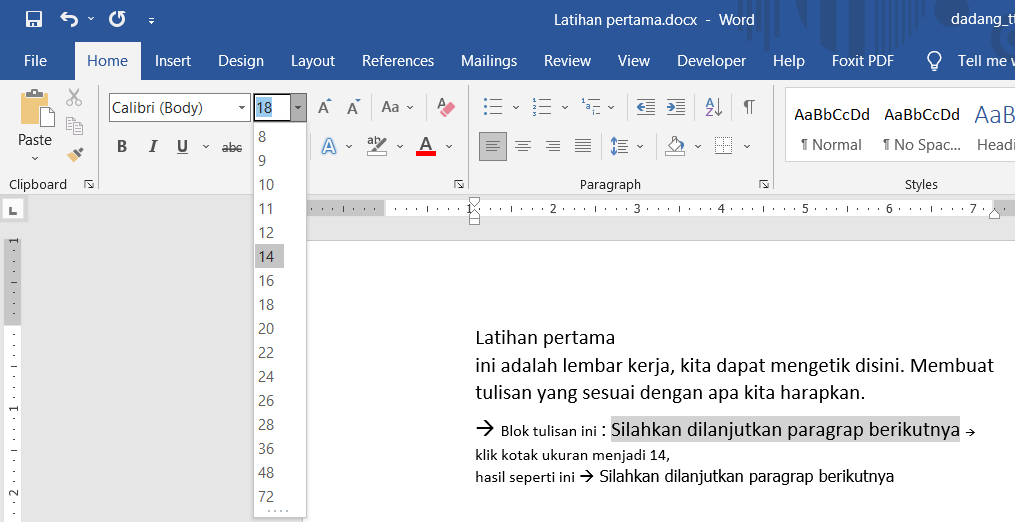
- Font Size: Font size, e.g., 11pt, 14pt, 18pt.
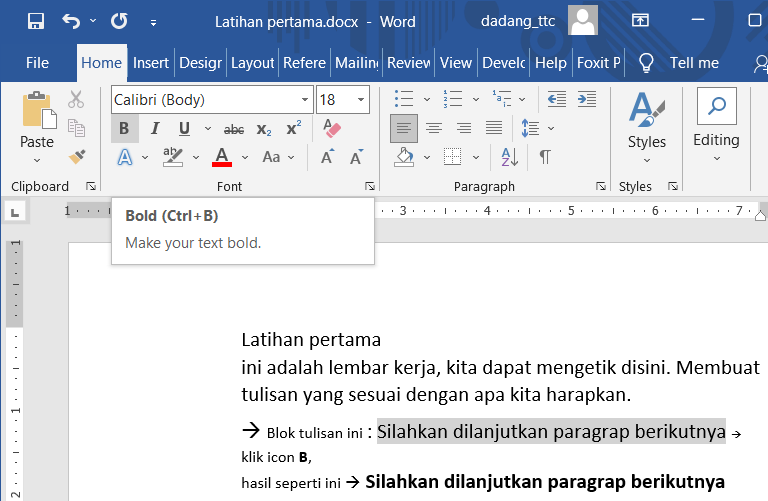
- Bold: Emphasize text.
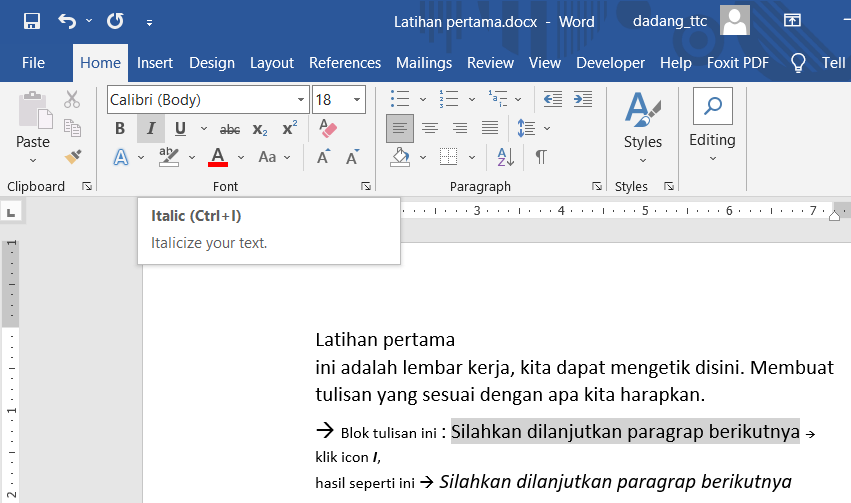
- Italic: Italicize text.
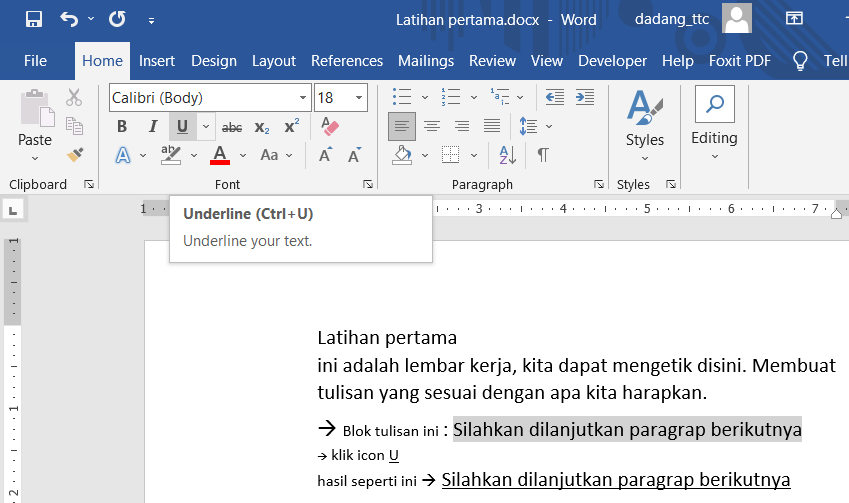
- Underline: Add an underline.
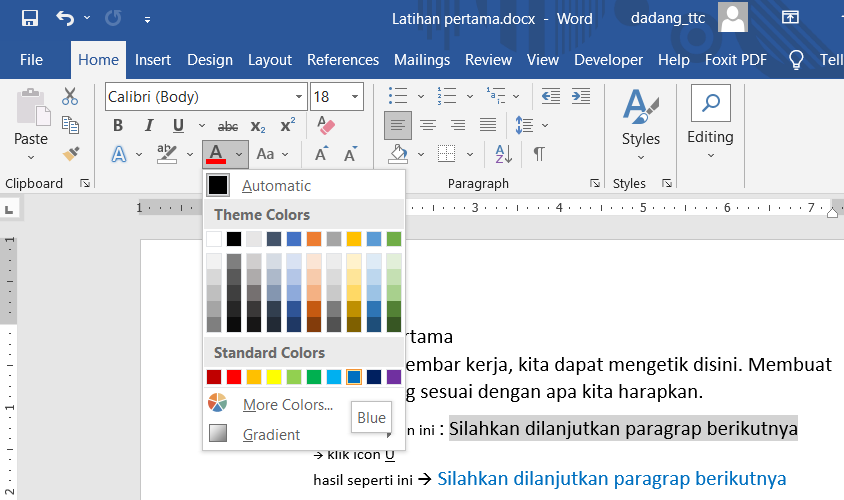
- Text Color: Change text color as desired.
Advanced Text Formatting Features
- Change Case: Automatically change text to uppercase, lowercase, or capitalize each word.
- Text Effects: Add shadow, outline, or glow effects.
- Text Highlight: Highlight important text with color.
- Clear Formatting: Remove all formatting and revert to default.
The Change Case feature makes it easy to convert lowercase text to UPPERCASE, or vice versa, without retyping. In addition to using the Home → Change Case menu, Microsoft Word also provides the Shift + F3 shortcut, making the process much faster.
🎬 Watch the Demo
Learn how to quickly switch between lowercase, UPPERCASE, and Capitalize Each Word using the Shift + F3 shortcut. Simply select the text and press the shortcut—no need to retype anything.
💡 A quick tip in under one minute to help you master the Change Case feature in Microsoft Word.
Important Text Formatting Shortcuts
- Ctrl + B → Bold
- Ctrl + I → Italic
- Ctrl + U → Underline
- Ctrl + Shift + > → Increase font size
- Ctrl + Shift + < → Decrease font size
Use a maximum of 2–3 fonts in a document to keep it tidy and professional. Avoid excessive colors to maintain readability.
Practical Examples
In report writing, text formatting plays an important role to make the document clean and professional. Examples include:
- Title: Use larger size and bold effect to stand out.
- Subtitle: Use italic to differentiate from body text.
- Key points: Use text color or highlight to make them easy to find.
- Body paragraphs: Use standard font for readability.
With this combination, your document will be well-structured, readable, and professional-looking.
Conclusion
Formatting text in Microsoft Word is not only about enhancing appearance but also about delivering information clearly and professionally. By understanding various features like font, size, color, text effects, and clearing formats, we can organize documents as needed.
Proper formatting helps readers understand content easily and provides a neat and structured impression. Therefore, it is important to use text formatting features wisely and not excessively.
- Use consistent fonts
- Avoid too many colors
- Use bold & highlight for emphasis
- Use Clear Formatting if formatting is messy
📝 Exercise:
- Type the sentence: “Microsoft Word greatly helps my work.”
- Change the font to Arial, size 14, and color to blue.
- Apply bold and underline effects.