Learning to Use a Mouse
On this page, children will learn how to use a computer mouse. We will cover:
- How to hold an external mouse correctly
- How to use left click, right click, and double or triple clicks
- How to drag and drop items
- How to scroll pages
Everything is explained simply and clearly, with tips for both kids using external mice and those using laptop touchpads.
What is a Mouse?
A mouse is a device used to control the pointer on the computer screen. It helps you select, drag, click, and interact with programs.
Types of Mouse
- Integrated / Touchpad (on laptops) – a flat surface built into the laptop. You move the pointer by sliding your finger over it.
- External Mouse – a separate device connected via USB or wireless. This is the one we will practice holding.
Mouse Settings on Your Computer
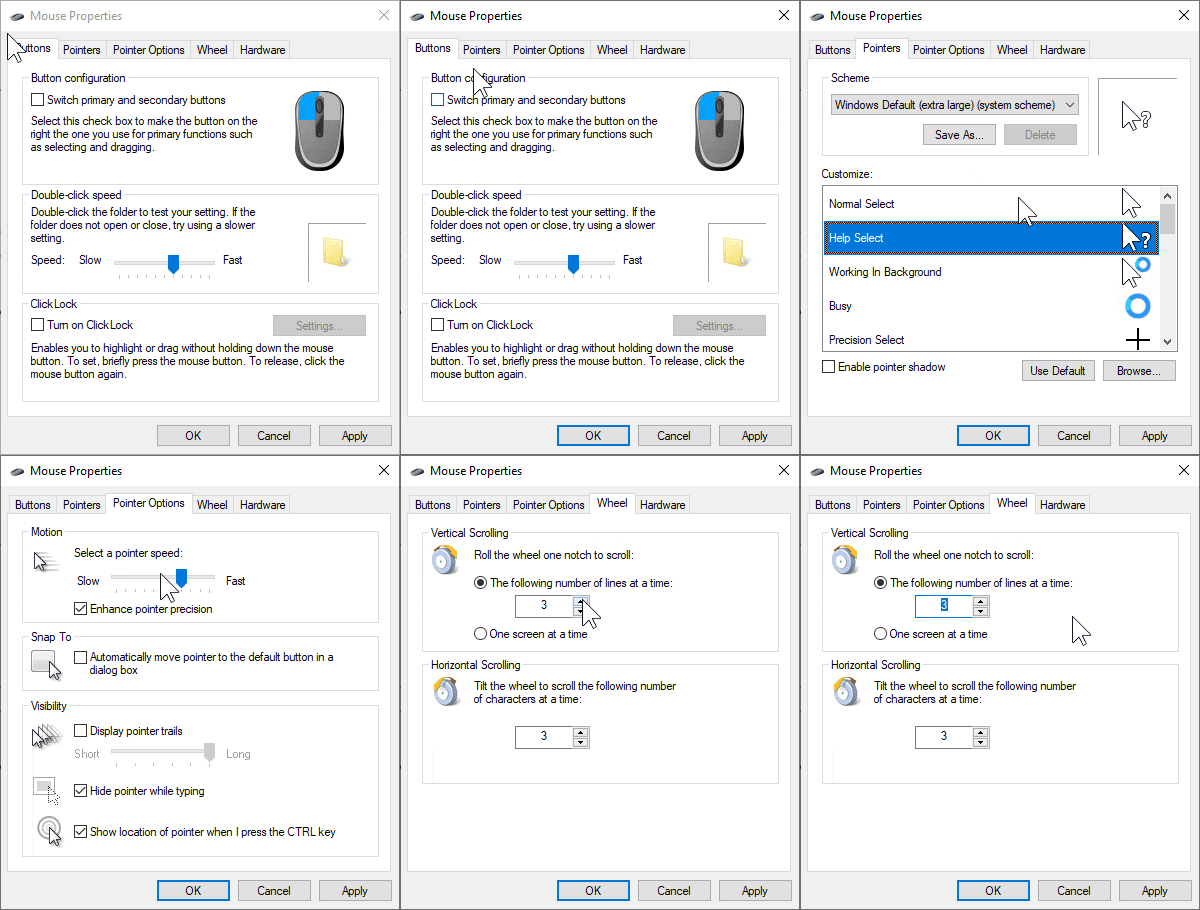
On Windows computers, you can adjust your mouse in Settings → Devices → Mouse → Additional Mouse Options. This opens the full mouse menu, which is exactly the same as the classic Control Panel → Mouse. Here, you can customize:
- Primary button (left or right)
- Pointer appearance
- Pointer speed
- Wheel behavior
- And other advanced options
Once you have set the options according to your preference, click Apply and then OK to save your settings.
How to Hold a Mouse Properly
Note: This applies only to an external mouse. If you are using a laptop touchpad, the handling is different.
Hold the mouse with your right hand (or left hand if you are left-handed). Place your index finger on the left button and your middle finger on the right button.
- Keep your hand relaxed
- Do not press too hard
- Move the mouse gently on the table
🖱️ Click Practice
Try single, double, and triple clicks on the icons below!
Learning Left Click
Left click is used to select or open things, like folders, icons, or buttons.
Learning Right Click
Right click opens a menu. It is usually used to copy, rename, or open settings. It can also show Properties of the active program.
Learning Right Click in Different Places
Right click opens a menu with different options depending on where you click. Here are some examples:
1. Right Click on a File or Folder
This menu lets you open, rename, copy, delete, or view properties of the selected file or folder.
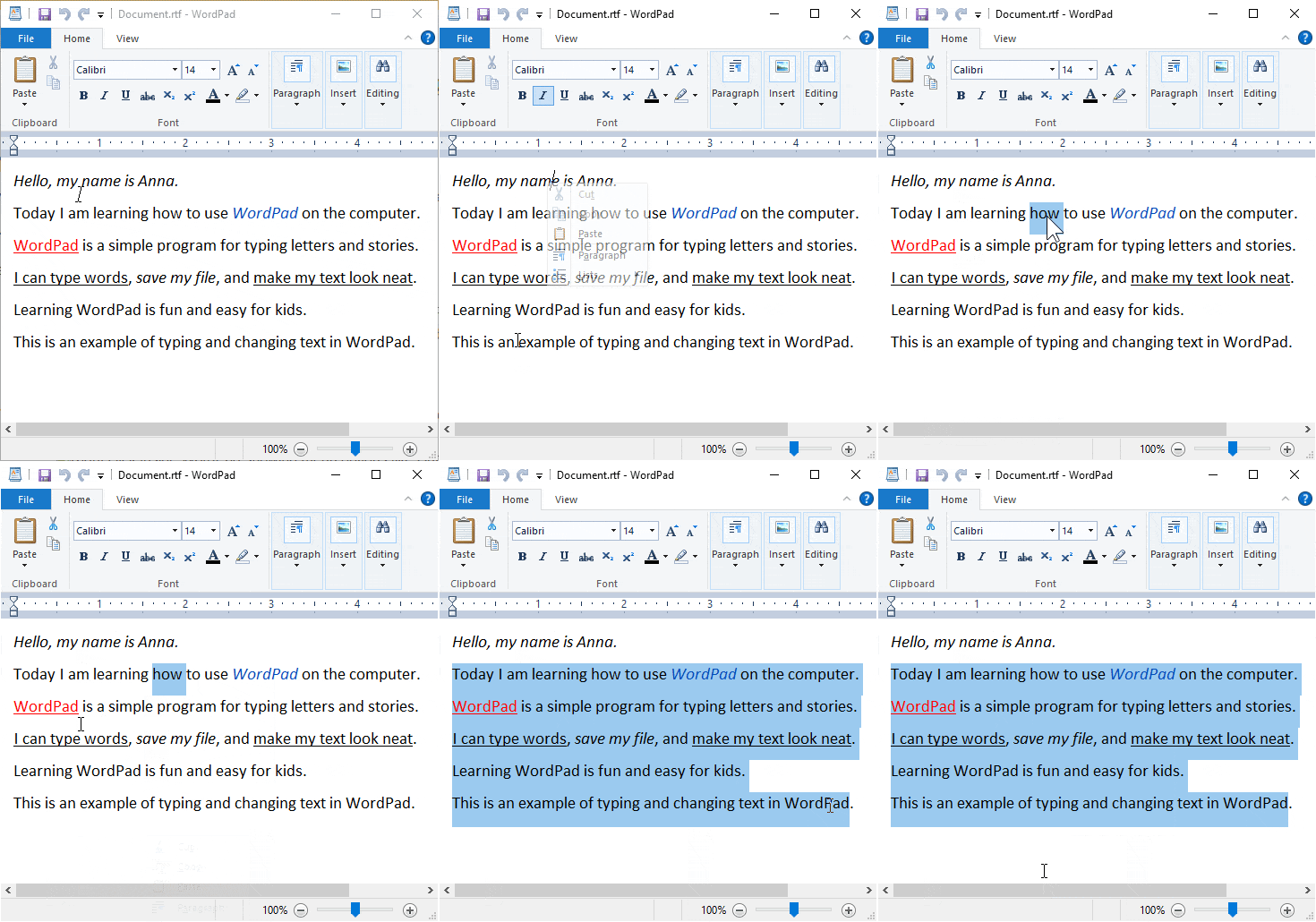
2. Right Click in WordPad
When you right click inside WordPad, you can cut, copy, paste text, change font, or view properties of the document.
3. Right Click on the Desktop
Right clicking on the desktop gives you options to change the display, view icons differently, refresh, or access properties of the desktop.
Learning Scroll
Scroll is used to move a page up or down. Rotate the small wheel in the middle of the mouse.
Learning Drag and Drop
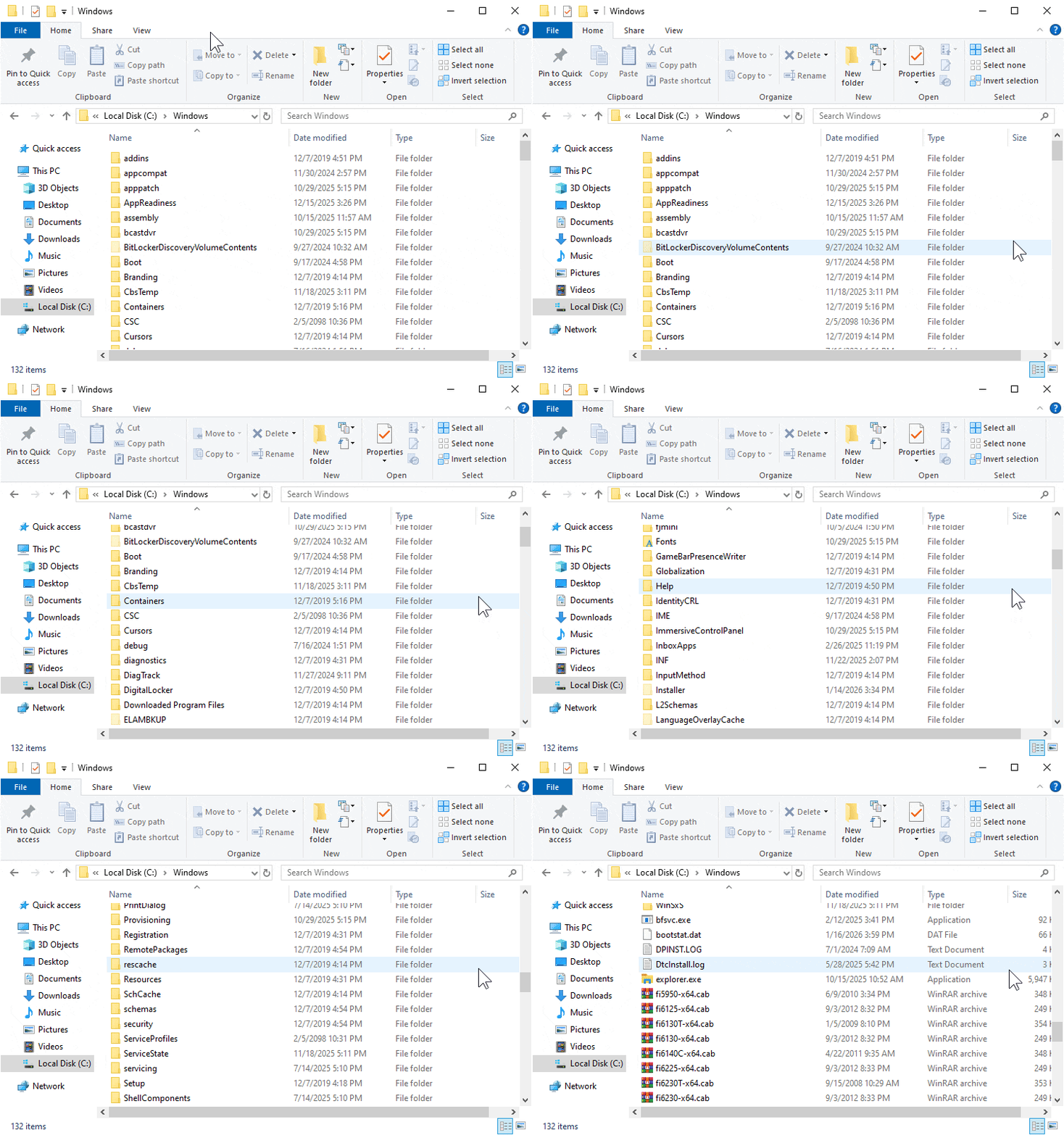
Drag means holding a mouse button while moving the mouse. Drop means releasing the button to place the item.
- Drag is used to move files, folders, or icons
- You can select and drag multiple files or folders at once
- Drag can move or copy items to another place
Drag with Left Click
If you drag a file or several files using the left mouse button, the computer will usually move the files to a new location.
Drag with Right Click
If you drag using the right mouse button, a menu will appear when you drop. This menu lets you choose:
- Move here
- Copy here
- Cancel
Tip: To move or copy many files at once, select (block) multiple files first, then drag them together.
🤖🎬 Video Illustration Created with AI Assistance
To make the lesson easier to understand, we use Artificial Intelligence (AI) technology to help create an illustrative video about how to use a computer mouse.
This video is not a replacement for the learning material. It is an additional visual aid to help us see examples of how to hold a mouse, click, right-click, scroll, and drag and drop.
🎬 Let's Learn to Use a Mouse!
Now that we have learned the basics of using a mouse, let's see some examples in action. Computer Kid demonstrates several basic mouse movements that we can practice on a real computer.
Fun Practice for Kids
- Point to animal pictures and say their names
- Practice double-clicking to open folders
- Drag icons to the correct place
- Scroll the page to the bottom
Additional visual materials will be practiced directly during class sessions.