Part 6: Writing and Editing Text in Word
⏳ Training Duration: 2 Hours
🎯 Level: Beginner
🧠 Method: Theory, Case Study
📦 Material Format: Interactive (offline/online)
📌 Prerequisites: Understand how to create and save documents
🎯 Objective: Participants can write and edit text effectively in Microsoft Word.
In this section, you will learn how to write and edit text, from basic typing and deleting to using copy-paste and find-replace features.
Mastering writing and editing techniques will make your documents neat and easy to read. By combining shortcuts, copy-paste, find-replace, and paragraph formatting, you can speed up editing while minimizing errors.
Writing and Editing Techniques
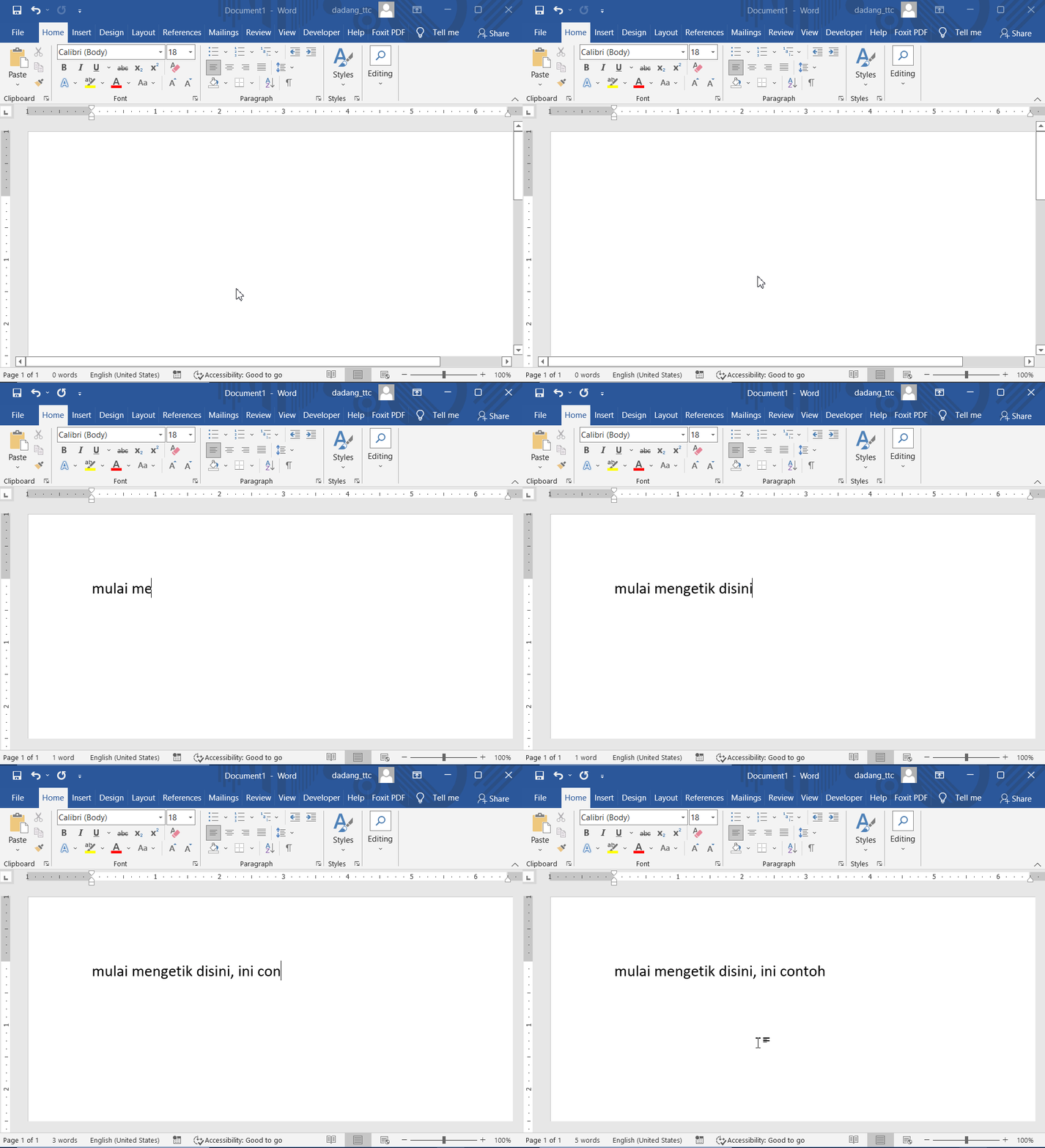
- Typing Text: Place the cursor and start typing.
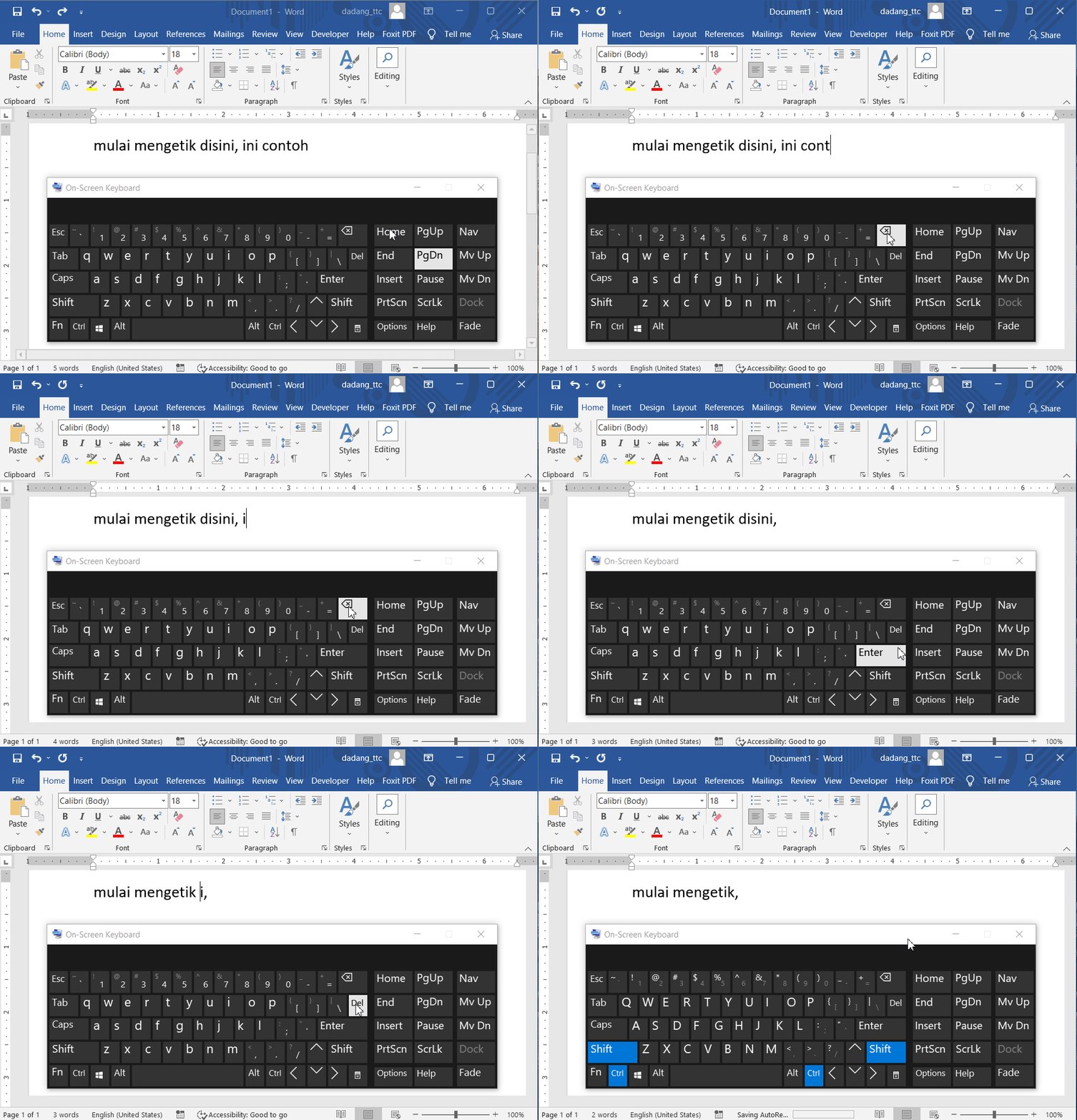
- Deleting Text: Use
Backspace(delete left) orDelete(delete right). - Copying and Pasting: Use
Ctrl + CandCtrl + V. - Moving Text: Use
Ctrl + Xand paste in a new location. - Find and Replace: Press
Ctrl + Hto replace words automatically.
Selecting Text Quickly
In document editing, the ability to select (highlight) text is essential. Almost all editing actions, such as deleting, copying, or moving text, begin by selecting the desired portion.
Microsoft Word provides several quick ways to select text, using either the mouse or keyboard.
Using Mouse
-
Click and Drag:
Click and drag the mouse to manually select text. -
Double Click:
Automatically selects a word. -
Triple Click:
Automatically selects an entire paragraph.
Using Keyboard
-
Shift + Arrow:
Selects text character by character (left, right, up, down). -
Ctrl + Shift + Left/Right Arrow:
Selects one word at a time. -
Ctrl + Shift + Up/Down Arrow:
Selects one paragraph at a time. -
Ctrl + A:
Selects the entire document instantly.
Use double-click to quickly select a word, and triple-click to select a paragraph without dragging the mouse.
Combine Ctrl + Shift + Arrow to quickly select text when editing long documents without using the mouse.
🎬 Watch a Quick Demo
Learn how to quickly select words, sentences, and paragraphs using simple mouse clicks. This easy technique can significantly speed up document editing.
💡 A quick tip in under one minute to help you master Microsoft Word more efficiently.
🎬 Watch a Quick Demo
Besides selecting words and paragraphs, Microsoft Word also provides the Ctrl + Click shortcut to instantly select an entire sentence. This technique is especially useful when editing documents.
💡 Learn how to use Ctrl + Click to instantly select an entire sentence without dragging the mouse.
Cursor Navigation Using Keyboard
Besides using the mouse, you can move the cursor with the keyboard. This is crucial to speed up typing and editing.
Mastering keyboard navigation allows faster and more precise movement without constantly switching to the mouse.
- Arrow Keys: Move cursor one character left, right, up, or down.
- Ctrl + Arrow: Move cursor one word at a time.
- Home: Move cursor to the beginning of the current line.
- End: Move cursor to the end of the current line.
- Ctrl + Home: Move cursor to the top of the document.
- Ctrl + End: Move cursor to the bottom of the document.
- Page Up / Page Down: Scroll document one screen up or down.
Use Ctrl + Arrow to move between words quickly in long text editing.
Combine cursor navigation with selection (Shift + Arrow) to select text without the mouse.
👉 Typically used by professional users.
Important Details: How to Delete Text in Word
In Microsoft Word, there are several ways to delete text depending on the need. Understanding these options speeds up editing.
- Backspace: Deletes 1 character before the cursor.
- Delete: Deletes 1 character after the cursor.
- Delete Word/Sentence: Select text and press Delete or Backspace.
- Delete Paragraph: Select entire paragraph and press Delete.
- Delete All Text: Press Ctrl + A to select all, then Delete.
Use Ctrl + A + Delete to clear the document fast without deleting manually.
Pressing Backspace repeatedly to delete long text is slow.
👉 Use select + Delete for faster and more efficient editing.
🎬 Watch a Quick Demo
In addition to using Backspace and Delete, you can quickly delete an entire word with the Ctrl + Backspace and Ctrl + Delete shortcuts. This technique is especially useful when editing long documents.
💡 Learn how to quickly delete one word to the left or right of the cursor using Ctrl + Backspace and Ctrl + Delete.
Copying, Moving, and Pasting Text
Often, we need to duplicate or move text without retyping. Microsoft Word provides Copy, Cut, and Paste functions essential to master.
- Copy (Ctrl + C): Copies text without removing the original; paste it elsewhere.
- Cut (Ctrl + X): Moves text; deletes from original location, ready to paste.
- Paste (Ctrl + V): Pastes copied or cut text at desired location.
Use Copy to duplicate text, Cut to move text without leaving a copy behind.
Select text → Ctrl + C → move cursor → Ctrl + V.
To move text: Ctrl + X → Ctrl + V.
Find and Replace Text Automatically
Manually searching or replacing words in long documents is time-consuming. Microsoft Word’s Find and Replace features speed up this process.
1. Find Text (Ctrl + F)
Press Ctrl + F to find specific words or phrases. Word highlights all matches instantly.
- Press Ctrl + F
- Type the word to find
- Word highlights all occurrences
For a 10-page report, to find the word "income", Ctrl + F shows all instances instantly without reading manually.
2. Replace Text Automatically (Ctrl + H)
Press Ctrl + H to replace words or phrases automatically, even multiple instances at once.
- Press Ctrl + H
- Fill "Find what" with the word to replace
- Fill "Replace with" with the new word
- Click Replace (one by one) or Replace All (all at once)
If you typed "reportt" incorrectly throughout the document:
Find what: reportt
Replace with: report
Click Replace All and all errors are corrected instantly.
Use Replace All carefully. Make sure the replacement word is correct, as it affects the entire document.
Using Undo and Redo
Often we make changes and realize the previous state was better. Microsoft Word offers Undo and Redo to reverse or repeat actions quickly.
- Undo (Ctrl + Z): Reverts the last action.
- Redo (Ctrl + Y): Reapplies a previously undone action.
If you make a typing mistake, press Ctrl + Z multiple times to quickly return to the previous state.
Undo only works while the history is stored. Closing the document clears this history.
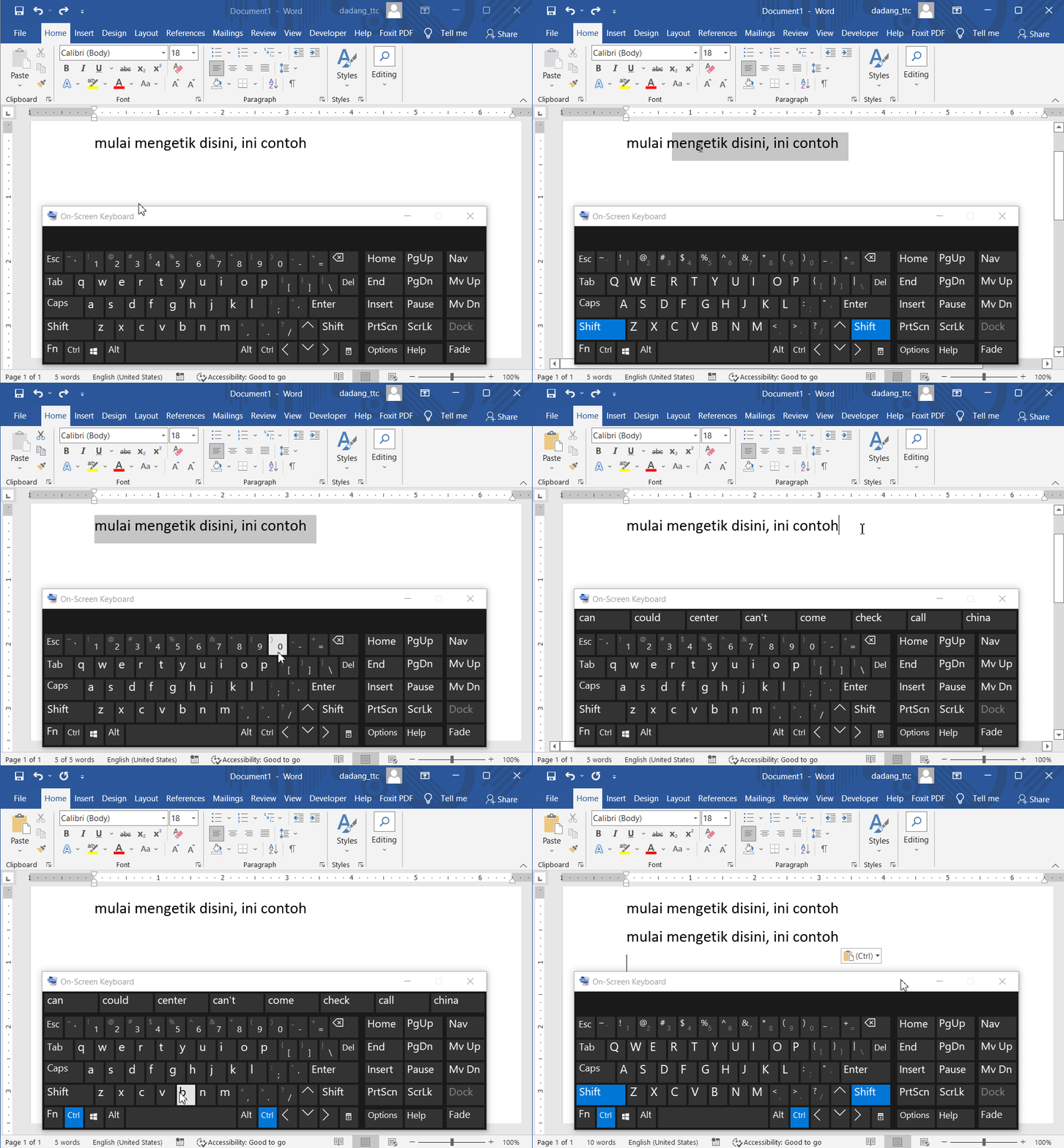
Ctrl + C to copy, and Ctrl + V to paste.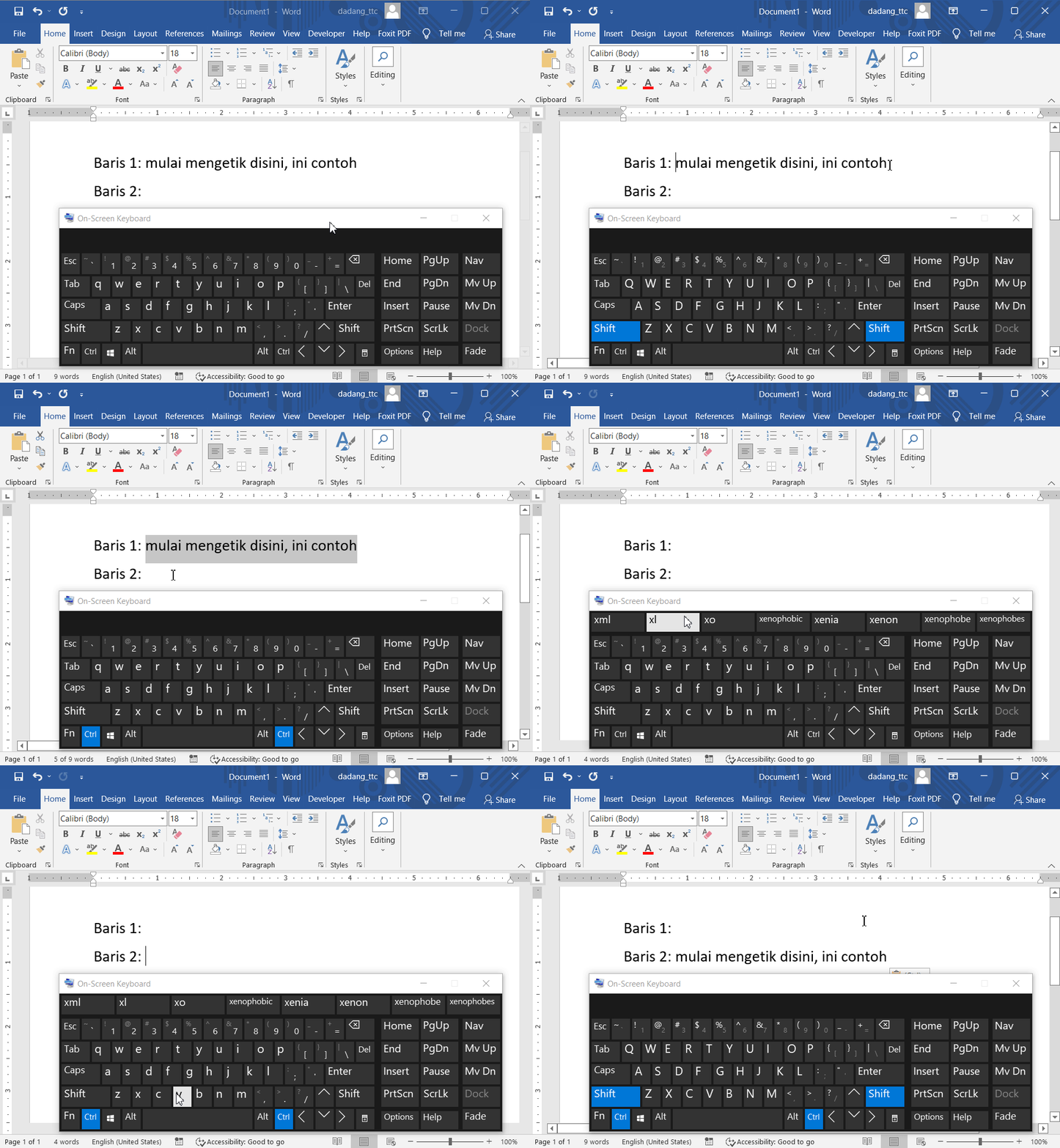
Ctrl + X to cut text and move it to a new location.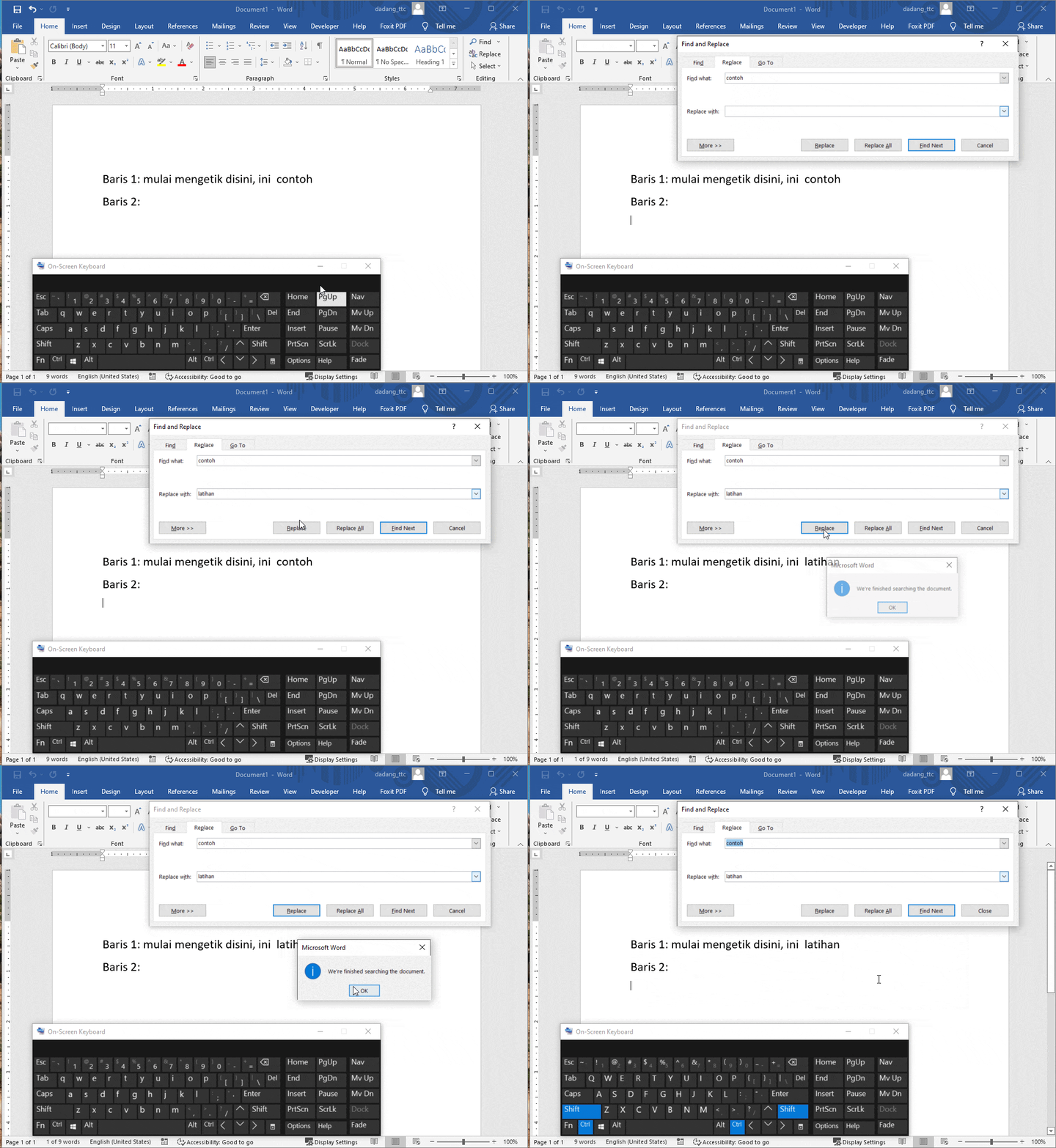
Ctrl + H to replace words quickly.

Automatic Correction (Spelling & Grammar)
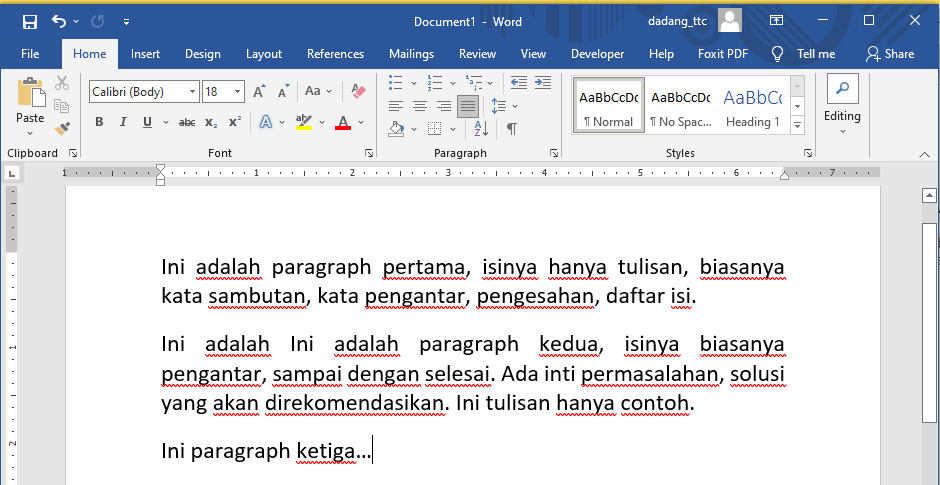
Microsoft Word includes automatic correction features to detect spelling and grammar errors.
- Red line: Spelling error
- Blue line: Grammar issue
This feature is very helpful when typing in English, as Word provides suggestions automatically.
Using Indonesian and English
Many users in Indonesia type in both Indonesian and English, so language settings affect this feature.
-
If using English:
Keep spelling & grammar enabled for automatic correction. -
If using Indonesian:
Red lines may appear even if words are correct.
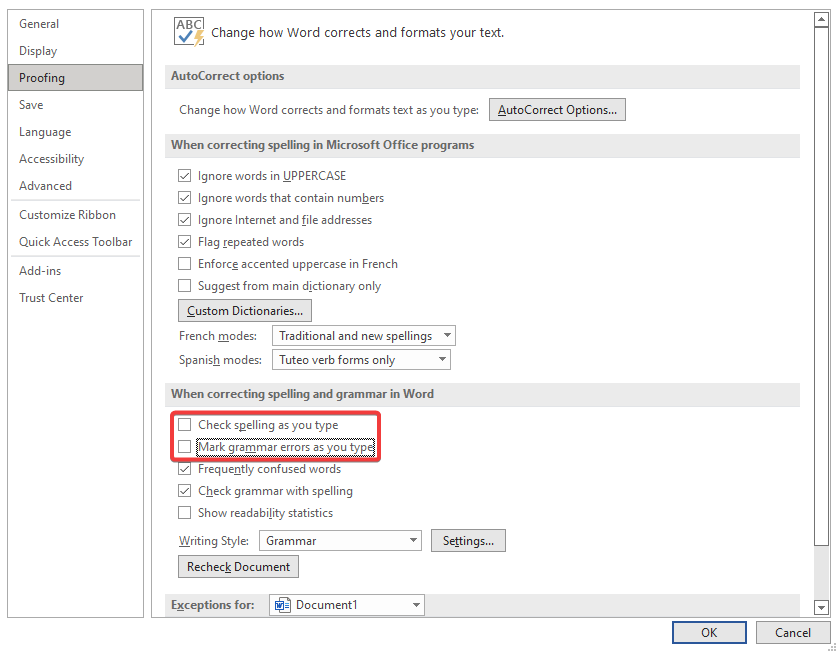
How to Disable Red Lines
- Click File
- Select Options
- Go to Proofing
- Uncheck:
- Check spelling as you type
- Mark grammar errors as you type
- Click OK
Keep this feature enabled for English typing, but disable it for Indonesian to avoid distractions.
Red lines do not always mean errors—they may indicate language mismatch.
Conclusion
In this section, we learned essential techniques for writing and editing text in Microsoft Word.
- Typing and deleting correctly
- Selecting text efficiently
- Using copy, cut, paste
- Keyboard navigation
- Undo & Redo control
- Find & Replace automation
- Understanding spelling & grammar tools
The more you use keyboard shortcuts, the faster and more efficient you become.
With these skills, you are ready to move to the next step: formatting text and paragraphs professionally.
📝 Exercise:
- Open your practice document
- Copy the first paragraph and paste it below
- Use Find and Replace to change "latihan" into "practice"