Part 1: Introduction to Microsoft Word
What is Microsoft Word?
Learning Microsoft Word is an important first step for anyone who wants to improve work skills and productivity. Through the guide prepared by LPK Telematika Training Center (TTC), we can understand the basic functions of Word step by step in an easy-to-follow way. This makes it suitable for beginners as well as users who want to refresh their fundamental skills. This tutorial is designed to be practical so that each step can be directly applied in creating everyday documents.
Microsoft Word is the most widely used word processing application in the world. With Word, you can create, edit, and format documents such as letters, reports, papers, brochures, and more.
How to Open Microsoft Word
Many new users feel confused when using Microsoft Word for the first time. Therefore, the first step we need to master is how to properly open the Word application.
Before creating documents, we need to know how to open Microsoft Word on a computer. Here are several methods you can use:
1. Using the Start Menu
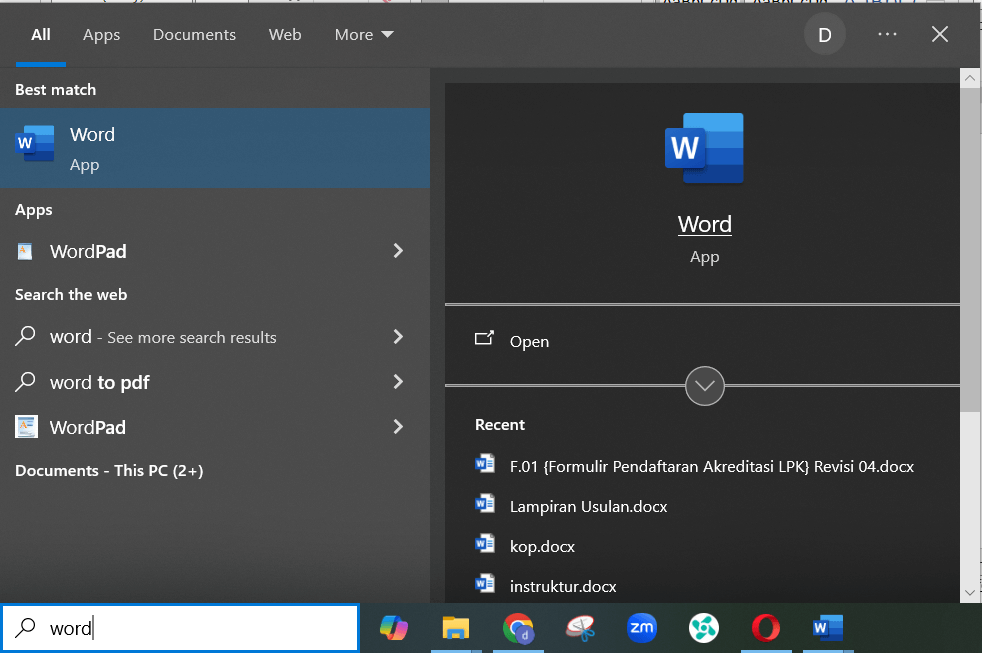
- Click the Start button at the bottom-left corner of the screen
- Type Word in the search box
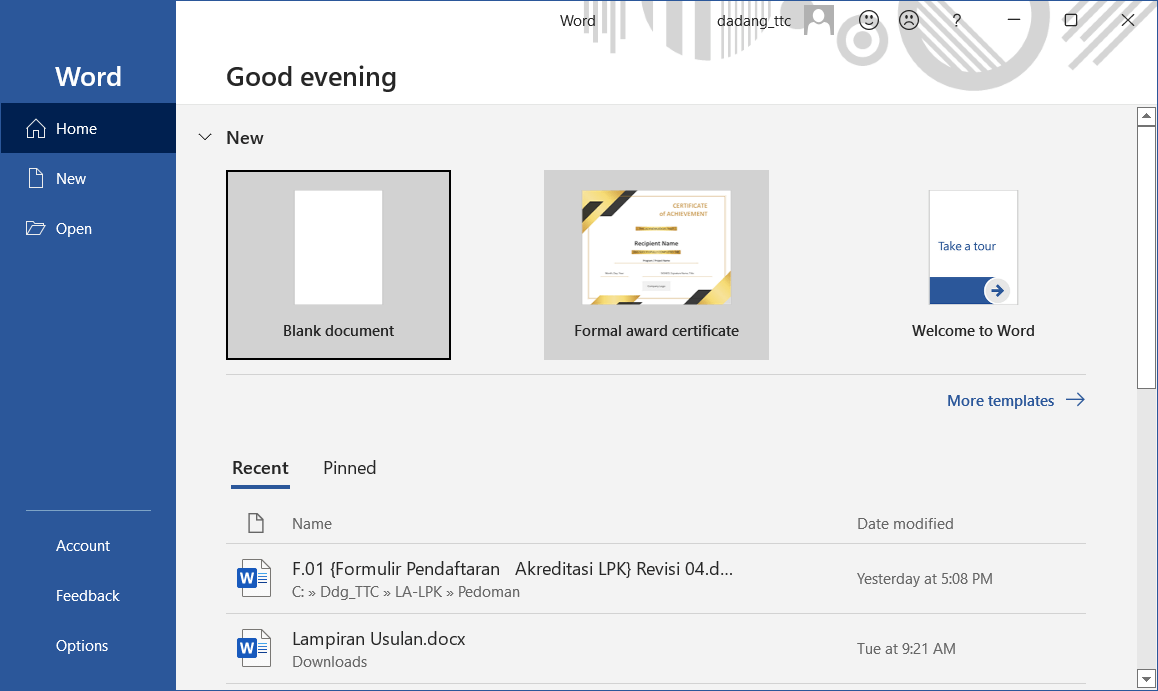
- Click Microsoft Word from the search results
2. Using Desktop Shortcut
- Find the Microsoft Word icon on the desktop
- Double-click to open it
3. Using a Document File
- Open a folder containing a Word file (.docx)
- Double-click the file
- Microsoft Word will open automatically
Main Functions of Microsoft Word
- Create and edit text documents
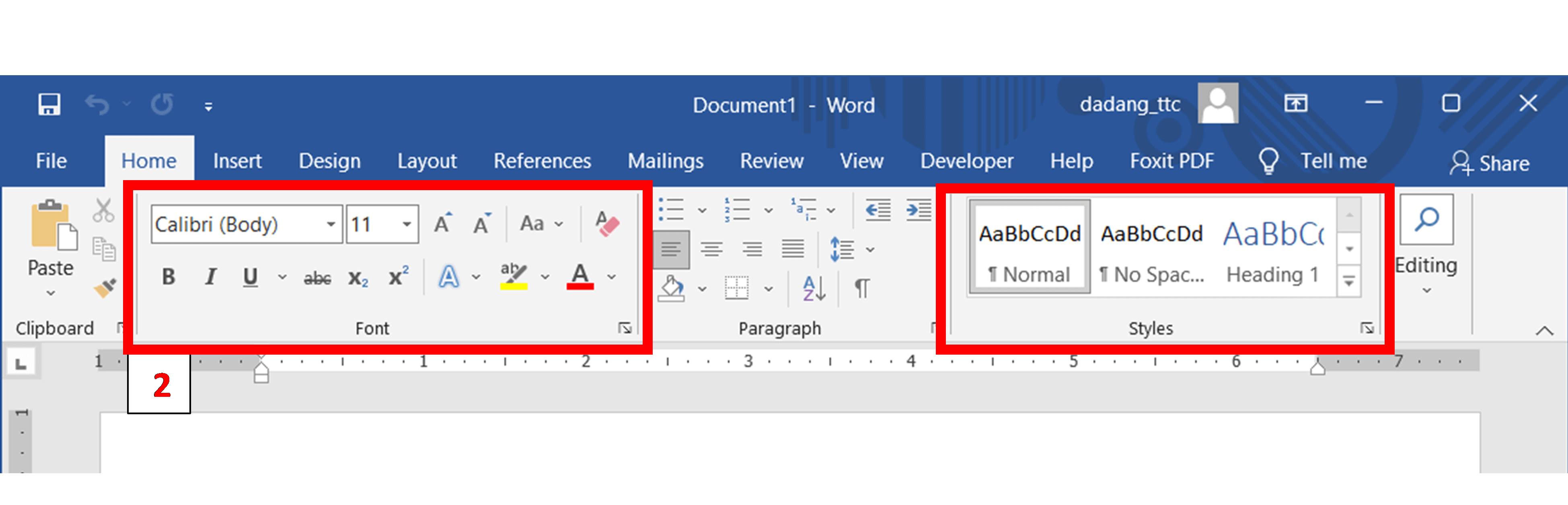
- Format text: fonts, paragraphs, colors
- Add images, tables, and charts
- Check spelling and grammar
- Save and print documents
Word Interface
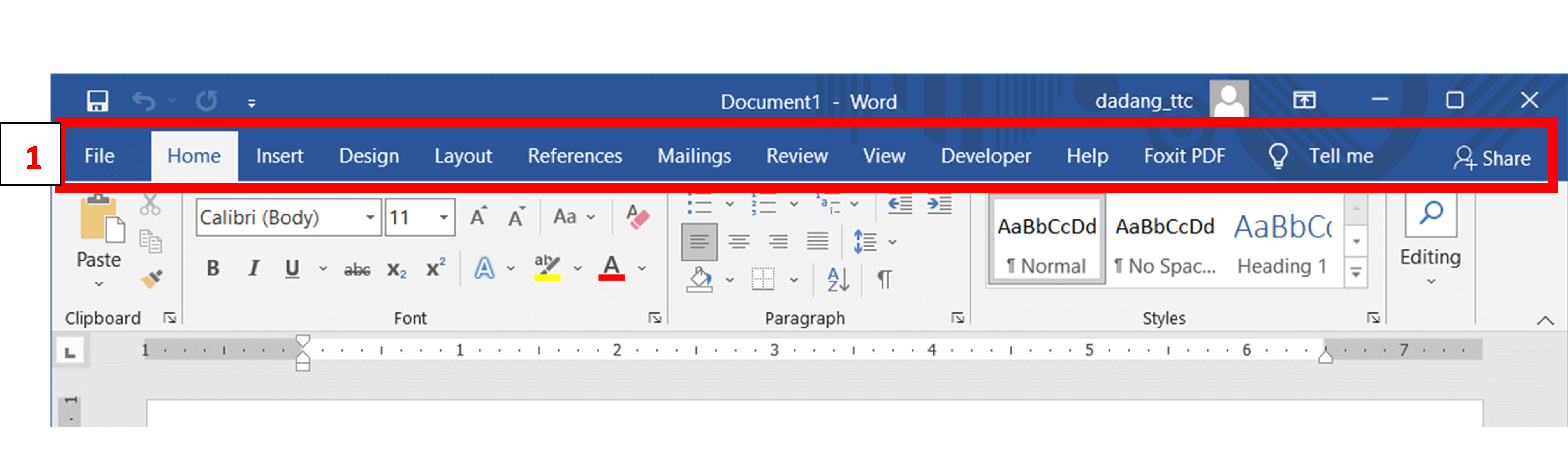
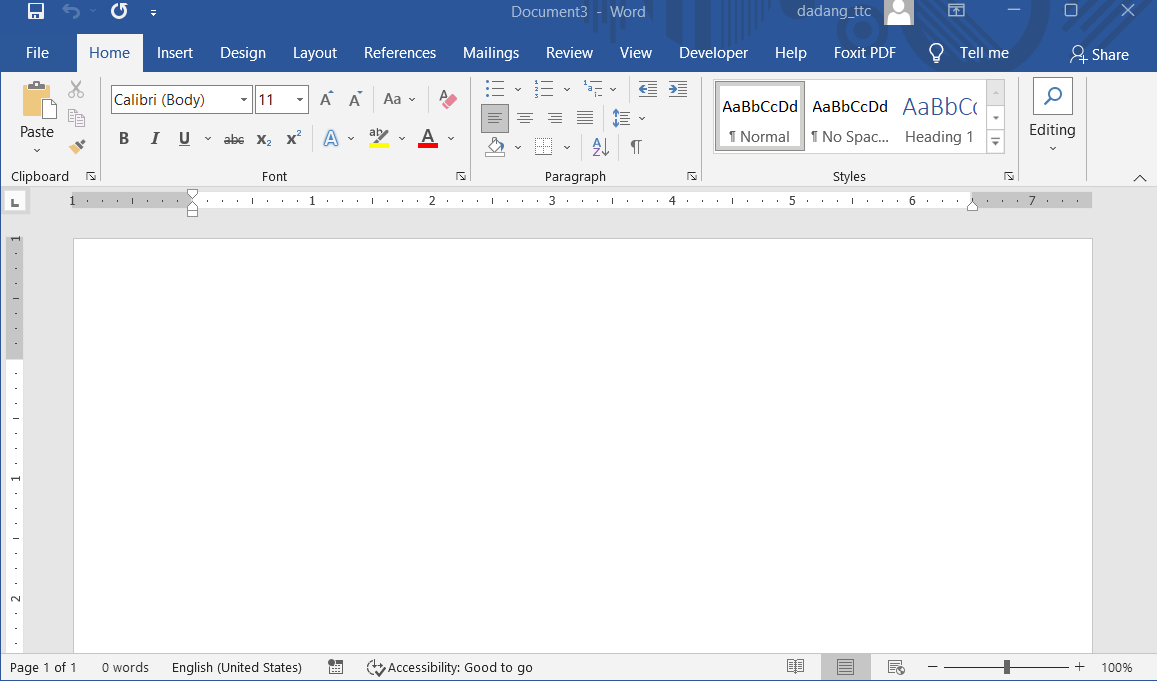
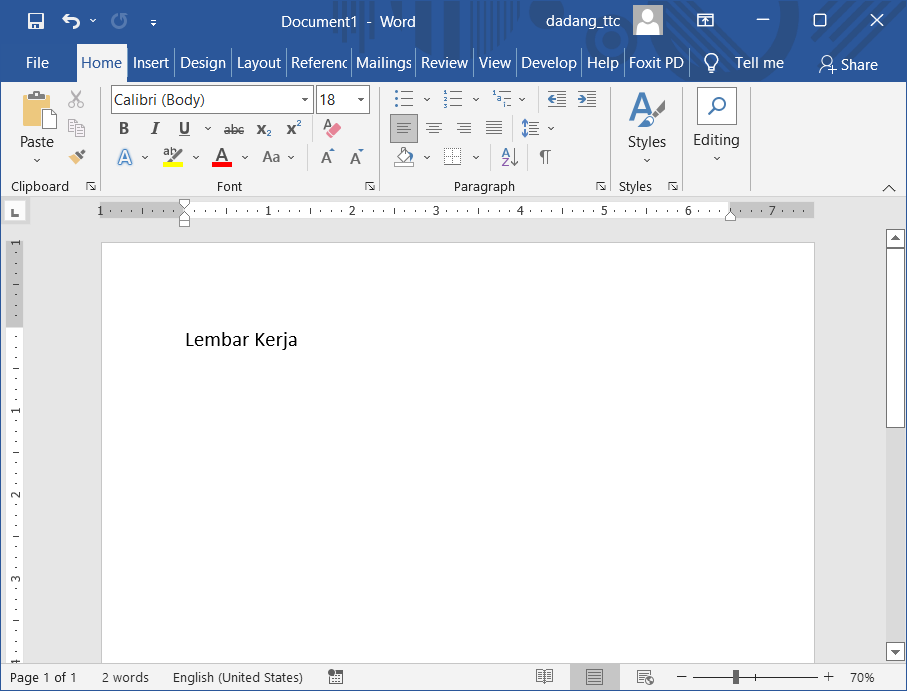
The Microsoft Word interface consists of various elements that help users create and edit documents more efficiently. Understanding this layout will speed up the learning process and the use of Word features.
Here are some key parts you should know:
| Section | Function |
|---|---|
| Ribbon | Contains menu tabs such as Home, Insert, Page Layout |
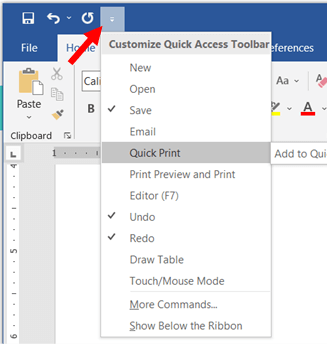
| Quick Access Toolbar | Provides quick access to buttons like Save, Undo, Redo |
| Working Area | The area where you type your document content |
| Status Bar | Displays information such as page number, word count, etc. |

Conclusion
In this section, we have learned the basics of Microsoft Word, starting from its definition, main functions, to the interface used in document creation. We have also learned how to open the Word application easily.
By understanding these initial steps, we are now ready to create our first document. Next, we will learn how to save and protect documents to keep them safe and well-organized.
💡 Tips: Don’t rush. Make sure you fully understand this section before moving on to the next material.
Exercise: Opening and Saving a Document
- Open Microsoft Word on your computer
- Type "This is my first practice in Word"
- Save it as
Practice1.docx