Learning How to Shut Down a Computer for Kids
This lesson is designed for kids and beginners who are learning basic computer skills for the first time. It is suitable for students, parents, and teachers around the world.
On this page, kids will learn:
- How to shut down a computer
- How to restart a computer
- Safe tips for turning off a computer
1. Shutting Down the Computer
- Click the Start button at the bottom-left corner of the screen.
- Select Shut Down.
- Wait until the screen is completely off before pressing the power button again.
2. Restarting the Computer
- Click Start → select Restart.
- The computer will close all applications and turn on again.
- This is useful when the computer needs updates or has minor issues.
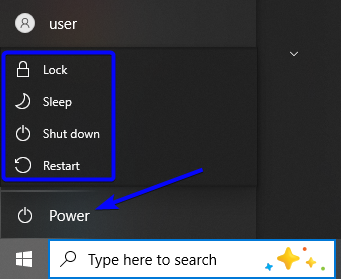
This picture shows the power menu on a Windows computer. Kids can choose Shutdown to turn off the computer, Restart to start it again, Sleep to save power, or Lock to protect their work.
3. Safe Tips for Turning Off a Computer
- Always save your work before turning off the computer.
- On modern desktop computers, the power button is integrated with Windows. Press the power button once to safely shut down the computer.
- Do NOT press and hold the power button for more than 7 seconds. This will force the computer to turn off and may cause problems with the disk drive.
- Forced shutdown should only be used in emergency situations.
4. Sleep, Shutdown, and Restart – What Is the Difference?
On modern Windows computers, the power system is already smart and integrated with the operating system. That is why we must choose the correct option.
😴 Sleep
Sleep is used when we stop using the computer for a short time. The screen turns off, but the computer is still ready to continue quickly.
- Good for short breaks
- Saves electricity
- Work stays open
🔄 Restart
Restart means the computer turns off and then turns on again automatically.
- Used after updates
- Helps fix small problems
- Closes all programs safely
⏻ Shutdown
Shutdown means turning the computer off completely.
- Best when finished using the computer
- Saves electricity
- Keeps the computer healthy
5. Using the Power Button Safely
On most modern desktop and laptop computers, the power button is already connected to Windows.
- Press the power button once → Windows will shut down safely.
- Do NOT press and hold the power button.
⚠️ Warning:
Pressing and holding the power button for more than 5–7 seconds will force the computer to turn off. This is called a force shutdown.
- Can cause unsaved work to be lost
- Can damage the system or disk drive
- Should be used only in emergencies
Before we continue, let's take a quick look at some key reminders that will help you turn off your computer safely every time. Pay close attention, these tips are very important!
💻 Power Options for Kids
Learn how to safely turn off, restart, or sleep your computer!
✅ Safe Tips for Kids
6. Simple Rule for Kids
- 🟢 Finished using the computer → Shutdown
- 🟡 Short break → Sleep
- 🔵 Computer problem or update → Restart
Learning to shut down the computer correctly helps keep it safe, fast, and long-lasting.
Additional visual materials will be explained directly during class sessions.