Learning WordPad for Kids
WordPad is a simple word processing program included in Microsoft Windows. It is used to type text, make simple documents, and practice basic computer skills.
WordPad is perfect for kids because it is easy to use, safe, and does not have too many buttons. Children can focus on learning how to type, save files, and format text neatly.
🎬 Short Tutorial: Learn WordPad
Learn WordPad basics with Computer Kid.
How to Open WordPad
- Click the Start button.
- Type WordPad using the keyboard.
- Press Enter.
Tip: You can also pin WordPad to the taskbar so it is easier to open next time.
Typing Simple Sentences
After WordPad opens, click inside the white area. This is the place where we type.
- Click once in the typing area.
- Start typing simple sentences.
- Use Enter to go to the next line.
Example:
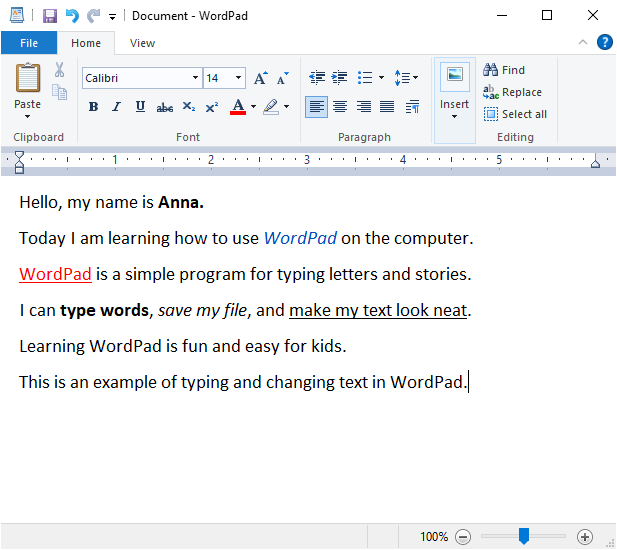
Hello, my name is Anna.
Today I am learning how to use WordPad on the computer.
WordPad is a simple program for typing letters and stories.
I can type words, save my file, and make my text look neat.
Learning WordPad is fun and easy for kids.
Main Parts of WordPad
- Title Bar – Shows the file name and program name.
- Quick Access Toolbar – Small buttons for Save and Undo.
- Ribbon – The top area that contains menus, groups, and icons.
- Typing Area – The white space where we type text.
- Status Bar – Shows zoom level and page view.
The ribbon is the most important part of WordPad.
Menus in WordPad
📁 File Menu
Used to create new documents, open files, save, print, and close WordPad.
🏠 Home Menu
The Home menu contains tools to edit and format text.
👀 View Menu
Used to zoom in, zoom out, and adjust how the document looks on screen.
Groups in the Home Menu
Clipboard Group
- Paste
- Cut
- Copy
Clipboard tools are used to move text from one place to another.
Font Group
- Font type
- Font size
- Bold, Italic, Underline
- Text color
Tip: Do not use too many fonts. One font is usually enough.
Paragraph Group
- Align left, center, right
- Line spacing
Insert Group
- Pictures
- Paint drawings
- Date and time
Editing Group
- Find
- Replace
- Select All
Saving a File (Save As)
- Click File.
- Select Save As.
- Choose a folder.
- Type the file name.
- Click Save.
Tip: Save your file often so your work is not lost.
How to Exit WordPad
- Click File → Exit, or
- Click the X button in the top-right corner, or
- Press Alt + F4 on the keyboard.
Alt + F4 works in almost all Windows programs to close them safely.
Why WordPad Is Good for Kids
- ✅ Easy to use
- ✅ Free and included in Windows
- ✅ Great for typing practice
- ❌ Not for complex documents
WordPad is the best place to start learning typing on a computer.
🚀 Ready to Level Up?
Great job learning WordPad! 🎉
Now it's time to move to something more powerful:
Microsoft Word 💼
Create beautiful documents, add pictures, and make your work look amazing!
👉 Start Learning Microsoft WordFun, easy, and perfect for beginners!