Learning Files and Folders
On this page, children will learn how to create, save, copy, move, and delete files and folders on a computer. Learning these skills helps kids stay organized and complete computer tasks faster!
What Is File Explorer?
To manage files and folders on a computer, we use a program called File Explorer.
File Explorer helps us see, open, create, move, copy, search, and delete files and folders easily.
Think of File Explorer like a school bag 🧒🎒 — it helps kids keep homework, pictures, and documents neat and easy to find.
How to Open File Explorer
There are several easy ways to open File Explorer. Kids can choose the way they like best.
-
🖱️ Using the taskbar:
Click the folder icon on the taskbar. -
⌨️ Using the keyboard:
Press Windows + E together. -
🖥️ From the Desktop:
Double-click This PC or My Computer.
Tip: The folder icon is the fastest way to open File Explorer!
File Explorer can be opened using a mouse or a keyboard
✨ Cool Keyboard Trick
We can open more than one File Explorer window to work faster. This is very useful when moving or copying files.
-
🪟 Open a new File Explorer window:
Press CTRL + N -
❌ Close the current window:
Press CTRL + F4
These keyboard shortcuts also work in many other Windows applications. Learning them helps kids work faster and more confidently on the computer.
Keyboard shortcuts help us work faster
Now, let’s practice using File Explorer by creating our first folder.
🎬 Learning Video
Watch the following video to learn how to manage files and folders, including creating folders, saving, copying, moving, and deleting files.
Creating a Folder
- Open File Explorer.
- Choose the location where you want to create a folder.
- Right-click on an empty area → choose New → Folder.
- Give the folder a name.
- Tip: Give your folder a name that is easy to remember, so you can find it quickly later!
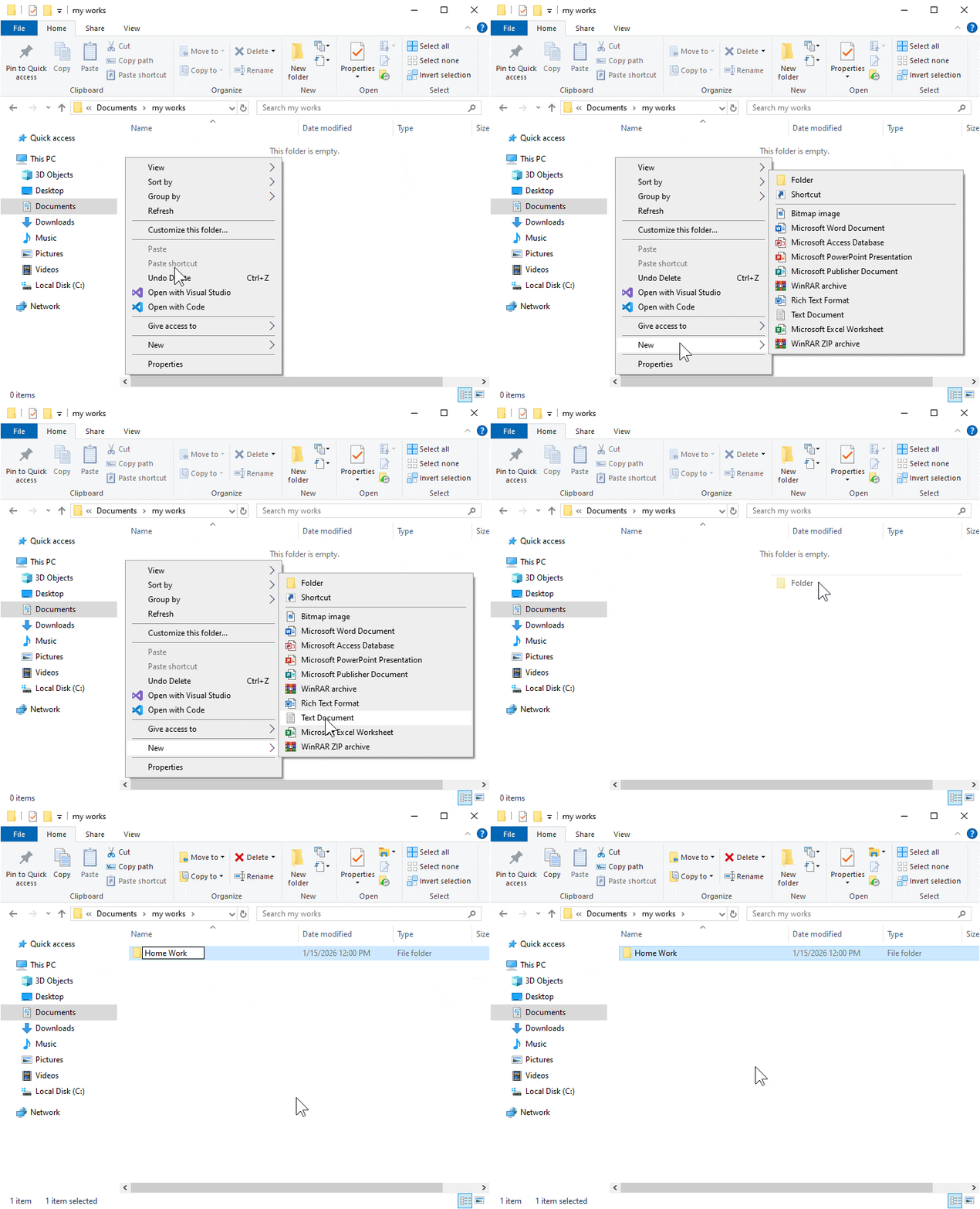
We created a folder named "Home Work" to keep our files organized.
Folders are used to organize files
Saving a File
-
Open Paint:
Click Start → type Paint → press Enter. - Create a simple picture in Paint.
- Click File → Save As.
- Choose a folder, name the file, then click Save.
- Tip: Use a simple name and save your file in a folder you can easily find later.
Saving the file "mountain" into the folder "Home Work"
Save files so they are not lost
Copying and Moving Files
Kids can duplicate or move files easily using right-click or keyboard shortcuts.
- Copy: Select mountain.jpg → right-click → Copy → paste in the same folder → rename to hill.jpg.
- Move: Select mountain.jpg → right-click → Cut → paste into the parent folder of Home Work.
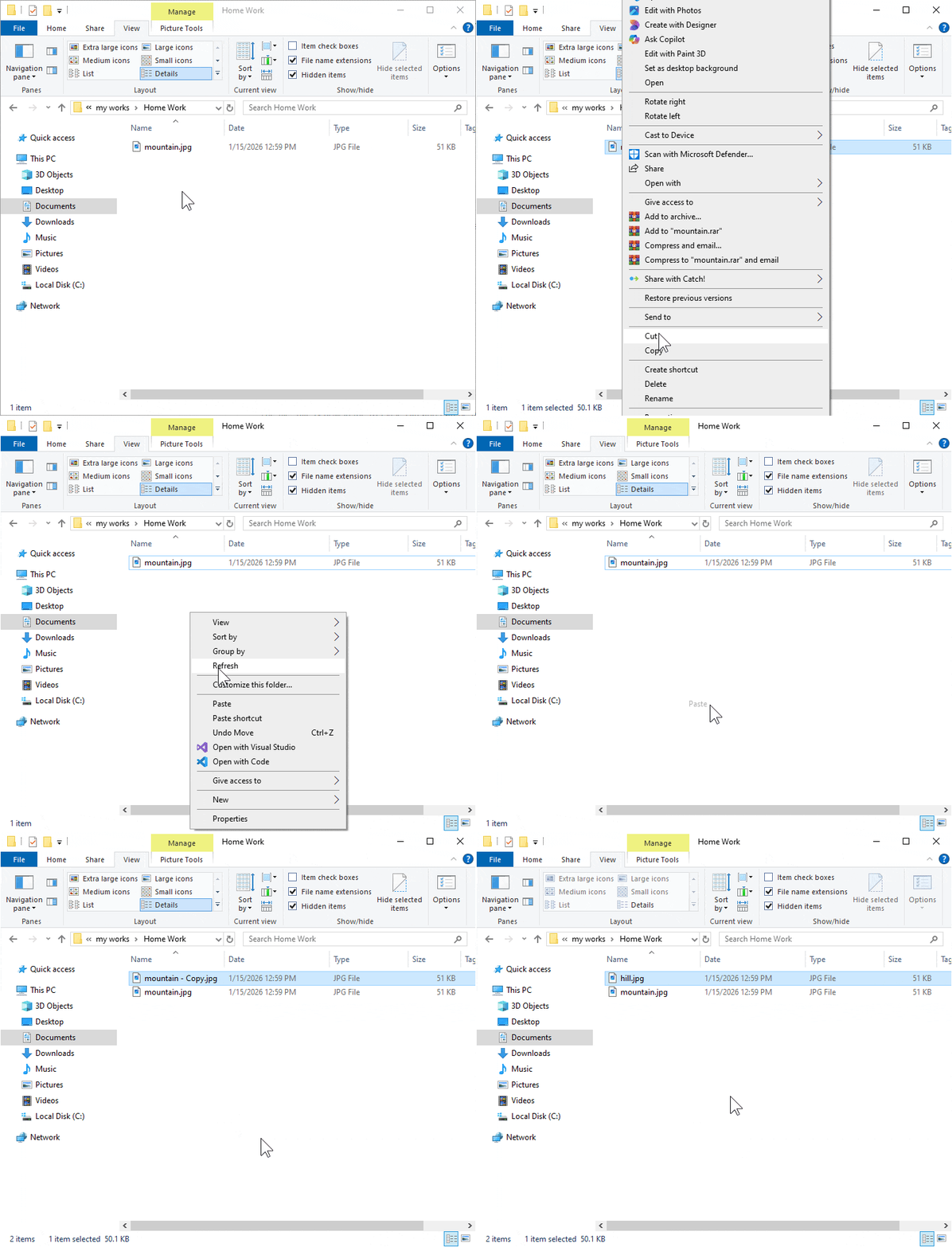
1️⃣ Copy mountain.jpg and rename to hill.jpg
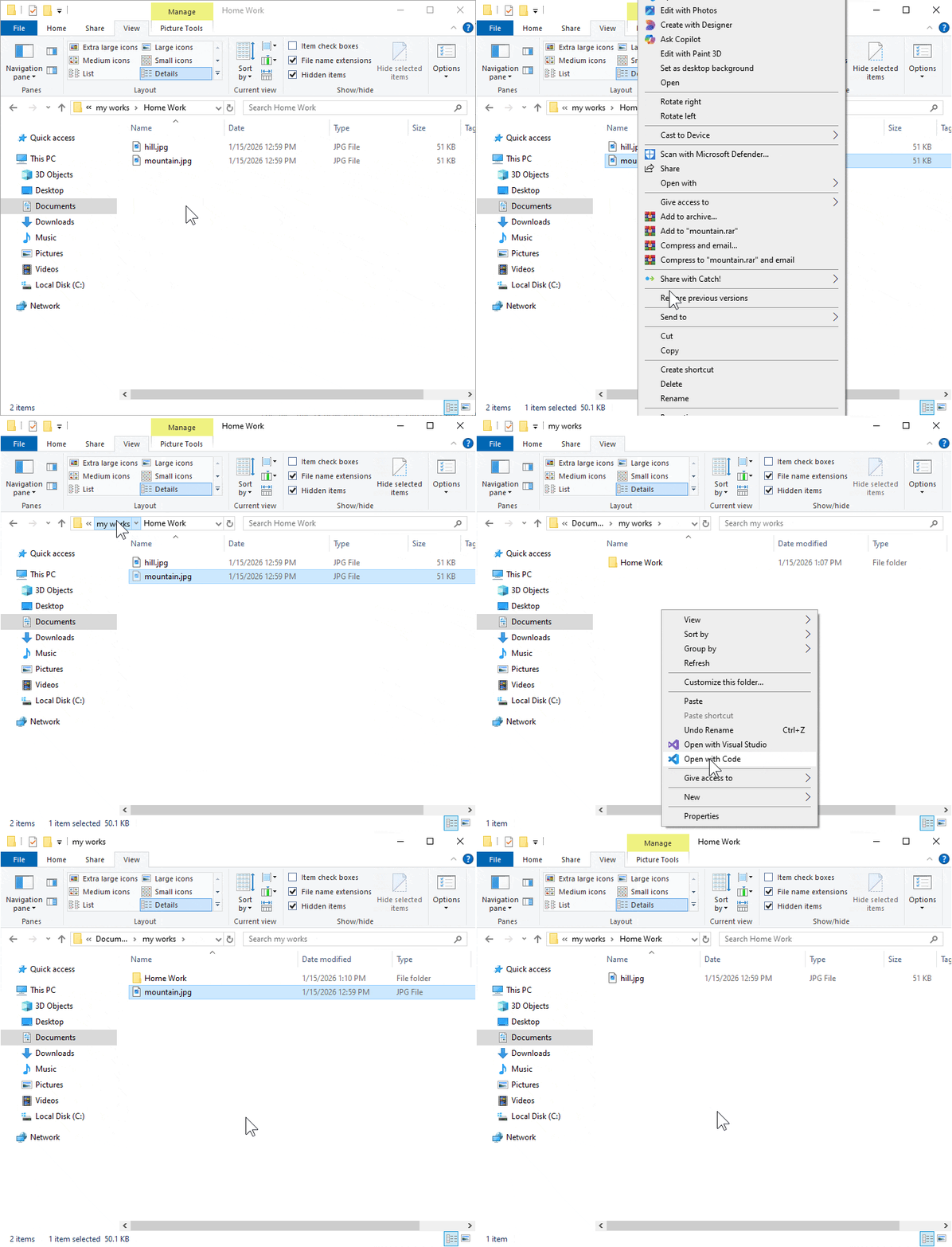
2️⃣ Cut mountain.jpg and paste in upper folder Home Work
Tip: Kids can also use CTRL + C and CTRL + V for copying, or CTRL + X and CTRL + V for moving files quickly!
Copy duplicates, Cut moves files
Deleting Files or Folders
- Select a file or folder → right-click → Delete.
- Deleted items go to the Recycle Bin and can be restored if needed.
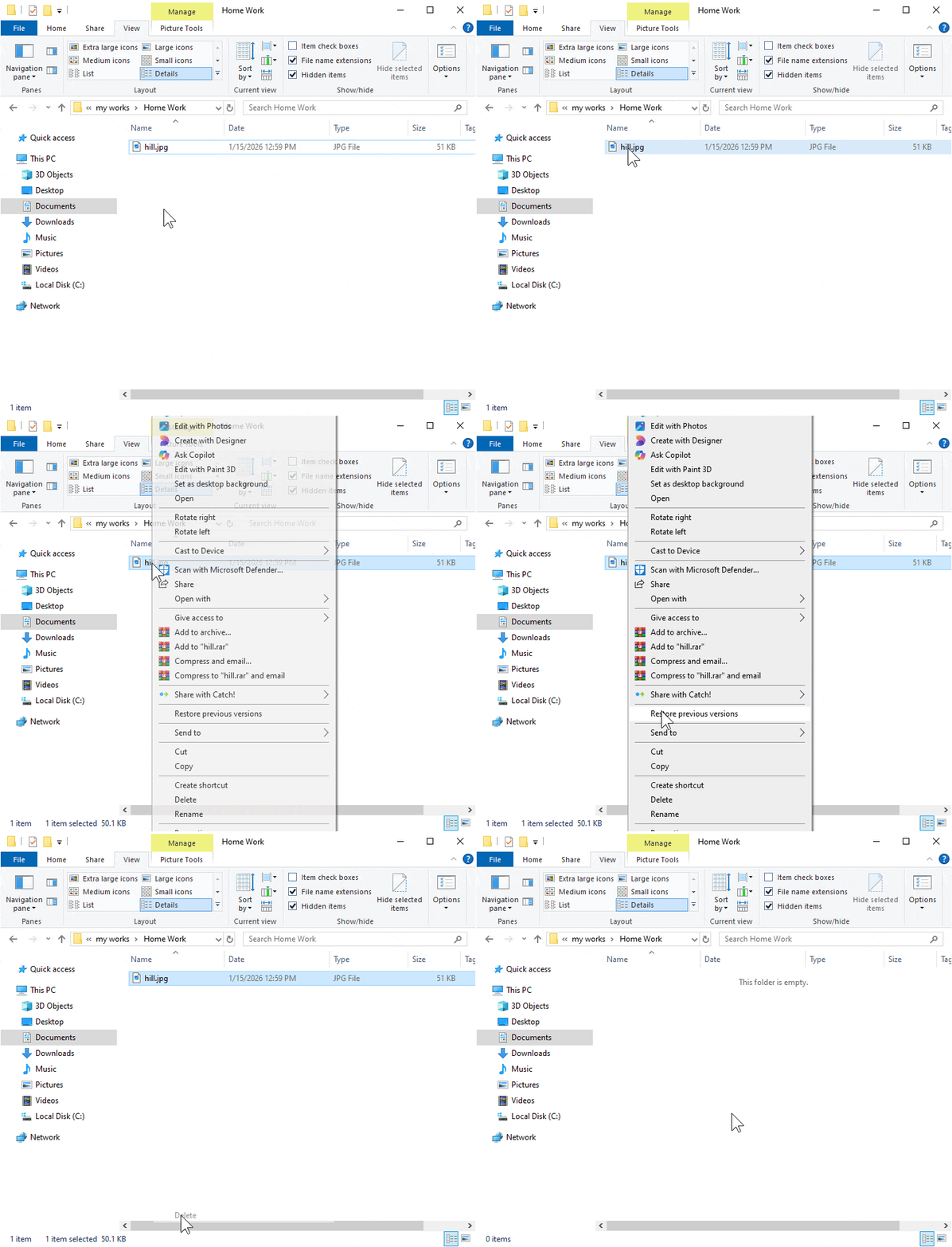
The file "hill" is now in the Recycle Bin and can be restored later.
Deleted files go to the Recycle Bin
Practice these steps to keep your files organized and safe. Kids can try creating, saving, copying, and deleting files on their own computer.
Additional visual materials will be explained directly during the class session.