Hands-On Lab: Excel INDIRECT for Dependent Dropdown Lists
⏳ Training Duration: 25–45 Minutes
🎯 Level: Intermediate
🧠 Method: Hands-on Practice
📦 Material Format: Interactive, can be used offline
📌 Requirements: Basic understanding of Excel Data Validation
🎯 Objective: Participants will be able to create automatic dependent dropdown lists using the INDIRECT function and Data Validation.
Have you ever created a Province dropdown and wanted the City list to change automatically? 😱
In Excel, this can be done using a combination of Data Validation and the INDIRECT function.
This technique is commonly used for:
- Data entry forms
- Customer databases
- Province and city area systems
- Interactive dashboards
- Simple administration applications in Excel
🌟 Benefits of INDIRECT in Excel
-
Create automatic dependent dropdown lists
The second dropdown changes based on the first dropdown selection. -
Make forms look more professional
Data becomes cleaner and easier to select. -
Reduce input errors
Users only need to select from available data. -
Perfect for regional databases
Very useful for Provinces, Cities, Districts, and more.
The INDIRECT technique is often used in professional Excel applications because it makes data entry feel like a real application 😄
📘 Functions Used
- Data Validation → creates dropdown lists
- INDIRECT → reads range names dynamically
🧠 Practice Data Structure
In this practice, we will create:
- First dropdown → Provinsi
- Second dropdown → City/Regency
📍 Provinsi List
Jabar
Jakarta
Central Java
Yogyakarta
East Java
📍 Banten Data
Serang City
Serang
Tangerang City
Tangerang Regency
Pandeglang
Lebak
📍 Jabar Data
Bandung Barat
Garut
Sumedang
Tasikmalaya
Ciamis
🧭 Steps to Create Dependent Dropdown Lists
- Create the Province list in one Excel column.
- Create city lists for each province.
- Select the Province data and create a named range: Provinsi
- Select the Banten data and create a named range: Banten
- Select the Jabar data and create a named range: Jabar
- Create the first dropdown using Data Validation:
=Provinsi
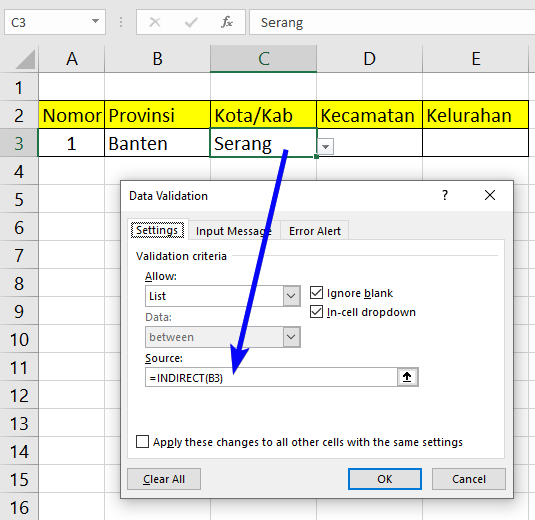
Next, create the second dropdown using the INDIRECT function:
=INDIRECT(B3)
If cell B3 contains: Banten, Excel will automatically retrieve data from the range named Banten 😱
📘 How INDIRECT Works
The INDIRECT function converts text into a range reference.
Example:
Banten
Then:
=INDIRECT(B3)
will be interpreted by Excel as:
=Banten
That is why the second dropdown can automatically change based on the user's selection.
🖼️ Practice Illustration



⚠️ Common Mistakes
- The range name is different from the dropdown value
- Spaces are used in range names
- Incorrect INDIRECT formula
- Wrong reference cell selected
- Named Range has not been created yet
The range name must exactly match the first dropdown value.
🎥 Excel INDIRECT Video Tutorial
The video above demonstrates how to create automatic dependent dropdown lists using INDIRECT and Data Validation in Excel.
🎉 Congratulations! Now we have successfully created dependent dropdown lists in Excel.
This technique is commonly used for:
- 🏢 Administration forms
- 📍 Automatic regional input
- 📋 Customer databases
- 🧾 Registration forms
- 🚀 Interactive Excel dashboards
The more often we practice using features like this, the faster our Excel skills will improve 😄
Want to Learn Excel and Computer Skills for Free?
Learn various practical Excel tricks, automatic dropdown lists, interactive dashboards, and many other Excel formulas with TTC.