Hands-On Lab: Excel Flash Fill with CTRL + E – Excel Can Read Patterns
⏳ Training Duration: 20–40 Minutes
🎯 Level: Beginner
🧠 Method: Hands-on Practice
📦 Material Format: Interactive, available offline
📌 Requirements: Basic understanding of data entry in Excel
🎯 Objective: Participants will be able to use the Flash Fill feature to automatically create data patterns from just one example.
Have you ever typed names one by one and felt exhausted? It turns out Excel has a hidden feature called Flash Fill that can recognize patterns from just one example 😱
By pressing the shortcut CTRL + E, Excel will automatically follow the writing pattern we create. This technique is very useful for speeding up data entry and processing tasks.
🌟 Benefits of Flash Fill in Excel
-
Speeds up data entry tasks
No need to type results manually one by one. -
Makes Excel feel smarter
Excel can recognize patterns from just one example. -
Beginner-friendly
No complicated formulas are required to create automatic results. -
Helps clean data
Very useful for separating or combining text. -
Improves productivity
Administrative tasks become much faster 🚀
Many participants are amazed the first time they see Flash Fill 😄 because Excel looks like it can “read the user's mind.”
📘 Features Used
In this exercise we will use Excel’s built-in features:
- Flash Fill → automatically recognizes patterns
- CTRL + E → shortcut to run Flash Fill
🧠 How Flash Fill Works
Flash Fill works by reading patterns from the example data we type. Once the pattern is recognized, Excel will automatically continue the results for the remaining data.
CTRL + E
If we type:
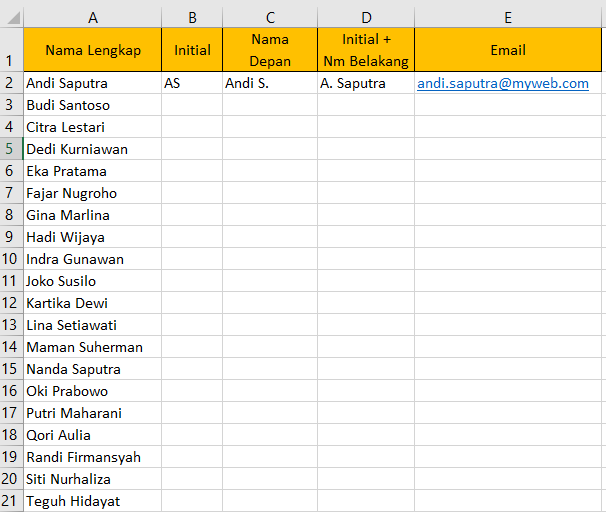
Andi Saputra → AS
Excel will try to create a similar pattern for the other names automatically.
Flash Fill works better when the first example is written clearly and consistently.
🧭 Steps to Use Flash Fill
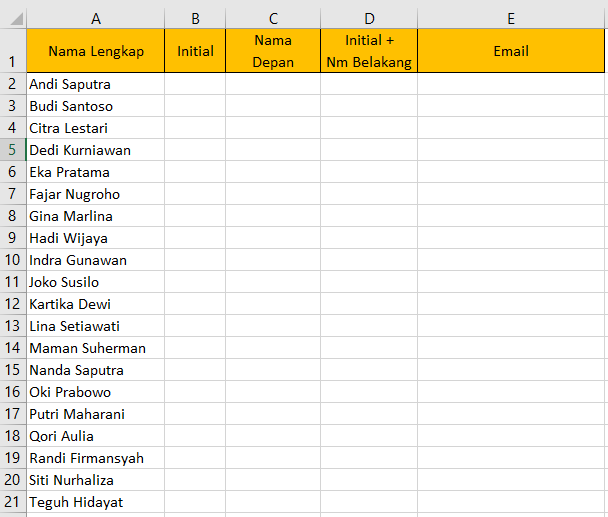
- Create a table of names in Excel.
- Create a result column next to it.
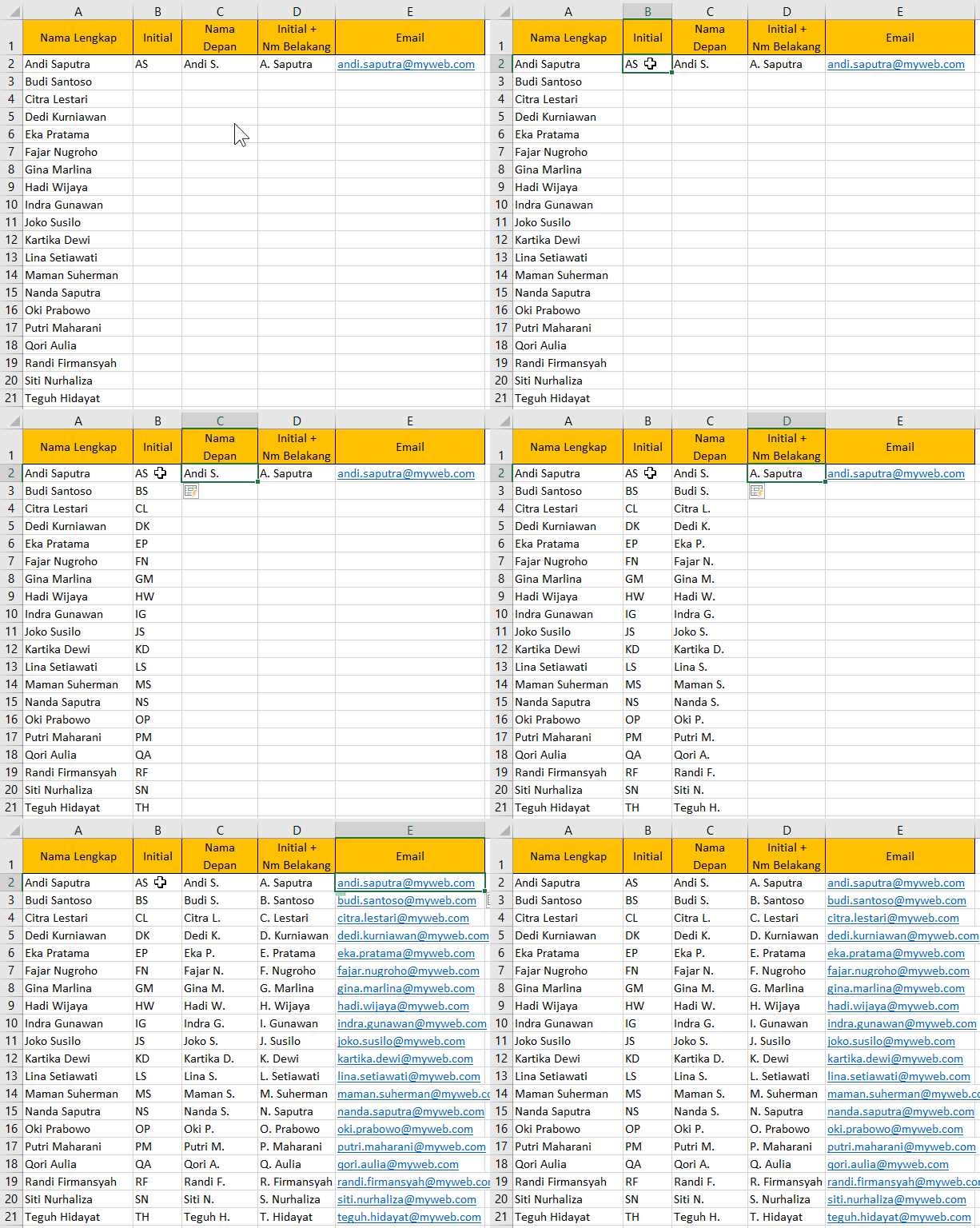
- Type one example result based on the desired pattern.
- Select the next cell in the result column.
- Press CTRL + E.
- Excel will automatically fill the remaining data.
🧪 Flash Fill Case Studies
Here are some examples of Flash Fill usage:
- Andi Saputra → AS
- Dewi Lestari → Dewi
- Budi Hartono → budi.hartono@gmail.com
With this technique, Excel can help create name initials, extract first names, generate email addresses automatically, and even clean text data.
⚠️ Common Mistakes When Using Flash Fill
- The first pattern example is inconsistent
- Selecting the wrong data column
- Forgetting to press CTRL + E
- Data contains mixed formats that confuse Excel
- Providing too few examples
🎥 Excel Flash Fill Video Tutorial
The video above shows how Excel can recognize patterns automatically using the Flash Fill feature and the CTRL + E shortcut.
🎉 Congratulations! Now we have successfully used Flash Fill in Excel.
This feature is often used to speed up administrative tasks, clean data, create automatic text formatting, and handle various office-related tasks.
After understanding this concept, we can develop various needs such as:
- 🪪 Creating automatic name initials
- 📧 Generating email addresses automatically
- 👨💼 Cleaning employee databases
- 📋 Separating first and last names
- 🚀 Speeding up Excel data entry
The more often we practice using features like this, the faster and more enjoyable Excel work will feel 😄
Want to Learn Excel and Computer Skills for Free?
Learn various practical Excel tricks, Flash Fill, automatic dashboards, and many other Excel formulas together with TTC.