Hands-On Lab: Dynamic Search Formula in Excel Using INDEX, SMALL, and SEARCH
⏳ Training Duration: 35–60 Minutes
🎯 Level: Intermediate
🧠 Learning Method: Hands-on Practice
📦 Material Format: Interactive, available offline
📌 Requirements: Basic understanding of Excel formulas and cell references
🎯 Objective: Participants will learn how to build an automatic search feature similar to a database system using INDEX, SMALL, SEARCH, and IFERROR functions.
Have you ever seen an automatic search feature on a website or application? By combining the INDEX, SMALL, and SEARCH functions, we can create a dynamic search feature in Excel that feels like a simple database or SQL system.
When users type a keyword into the search box, Excel will instantly display all matching data automatically. This technique creates a search experience similar to a lightweight database or SQL query system.
🌟 Benefits of Dynamic Search in Excel
-
Make Excel feel like a database application
Users simply type a keyword, and matching data appears automatically. -
Search large datasets more efficiently
No need to scroll through thousands of rows just to find a specific name or record. -
Improve intermediate-level formula skills
Participants begin learning array concepts, data lookup techniques, and formula combinations. -
Foundation for interactive dashboards
This technique is commonly used in professional Excel dashboards. -
Enhance problem-solving skills
Participants learn how Excel can solve real-world data management problems.
Many participants are amazed when Excel can perform searches similar to Google 😄 This usually sparks curiosity to learn more advanced formulas.
📘 Functions Used
In this exercise, we combine several Excel functions:
- SEARCH → finds the position of text
- SMALL → retrieves matching data order
- INDEX → displays the search result
- ROW → helps generate array numbering
- IFERROR → handles errors when no data is found
🧠 Main Dynamic Search Formula
In this exercise, we use several search formulas to automatically display matching data based on keywords typed into cell C2.
=IFERROR(INDEX(Datamaster!B$2:B$51,SMALL(IF(ISNUMBER(SEARCH($C$2,Datamaster!C$2:C$51)),ROW(Datamaster!C$2:C$51)-ROW(Datamaster!C$2)+1),ROW(A1))),"")
=IFERROR(INDEX(Datamaster!C$2:C$51,SMALL(IF(ISNUMBER(SEARCH($C$2,Datamaster!C$2:C$51)),ROW(Datamaster!C$2:C$51)-ROW(Datamaster!C$2)+1),ROW(A1))),"")
=IFERROR(INDEX(Datamaster!D$2:D$51,SMALL(IF(ISNUMBER(SEARCH($C$2,Datamaster!C$2:C$51)),ROW(Datamaster!C$2:C$51)-ROW(Datamaster!C$2)+1),ROW(A1))),"")
=IFERROR(INDEX(Datamaster!E$2:E$51,SMALL(IF(ISNUMBER(SEARCH($C$2,Datamaster!C$2:C$51)),ROW(Datamaster!C$2:C$51)-ROW(Datamaster!C$2)+1),ROW(A1))),"")
After typing the array formula, press Ctrl + Shift + Enter to ensure the formula works correctly.
In this exercise, the search is performed based on the Position data located in column C of the Datamaster sheet.
The formula above is used to search all data in column B that contains text matching the keyword entered in cell F2.
🧭 Steps to Create Dynamic Search
- Create 2 worksheets: Datamaster and Dashboard.
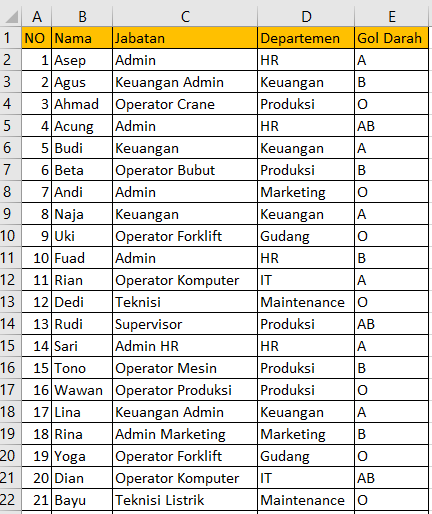
- In the Datamaster worksheet, create a table containing: Name, Position, Department, and Blood Type.
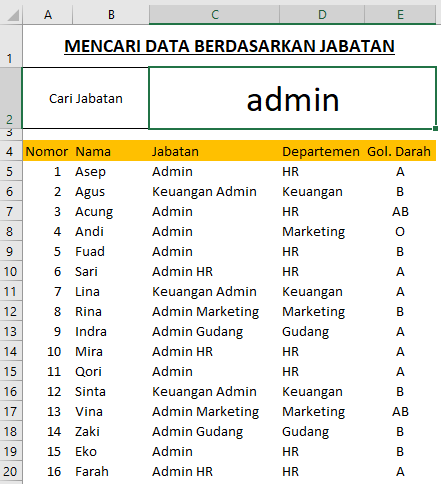
- In the Dashboard worksheet, create a search box in cell C2.
- Enter the search formula in the result area.
- Press Ctrl + Shift + Enter if using an older version of Excel.
- Type a keyword into the search box.
- Excel will automatically display all matching results.
🧪 Search Case Examples
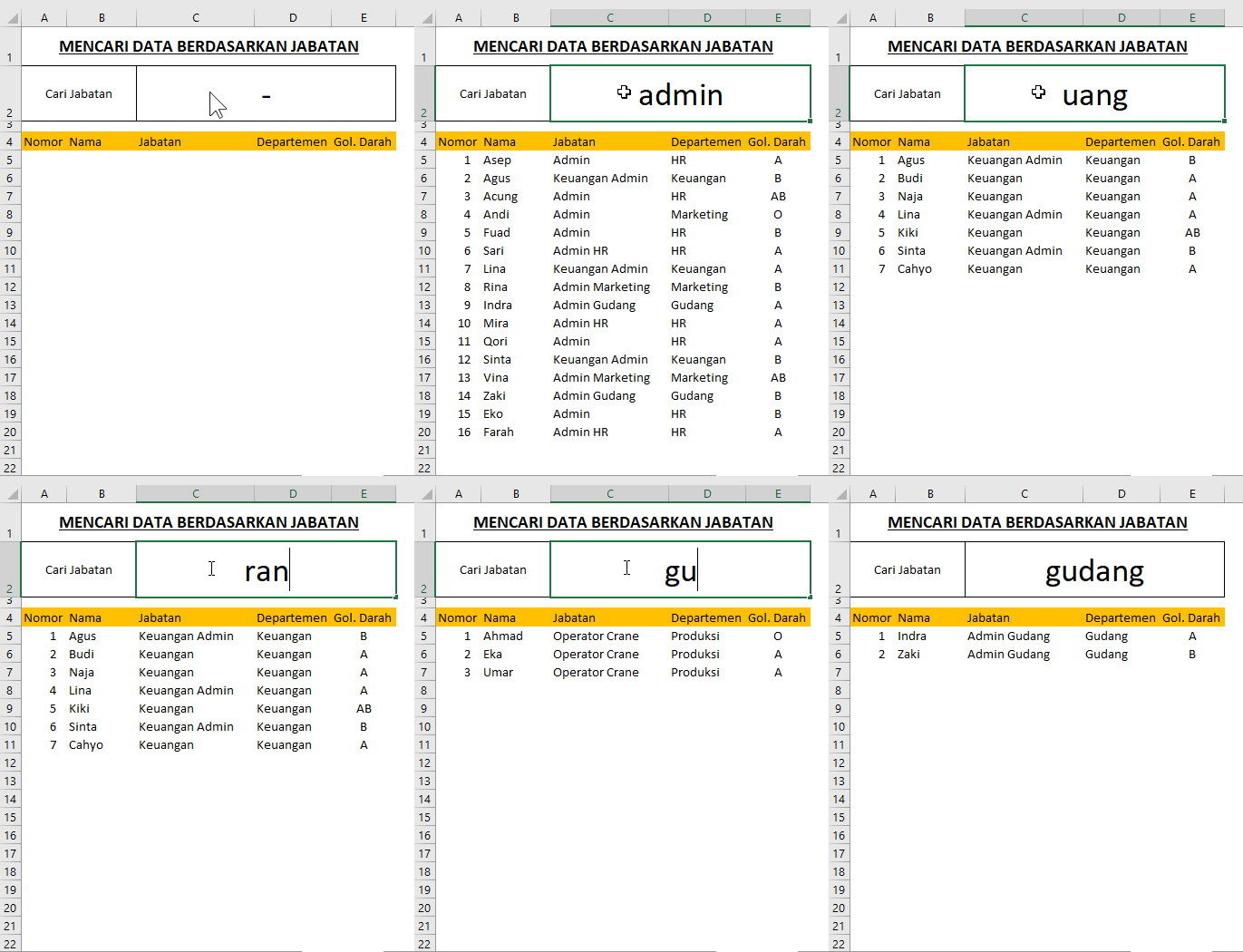
For example, if users type:
- admin → displays all data with admin positions
- operator → displays operator data
- gudang → displays warehouse department data
If no matching data is found, the result area will remain blank or display a custom message using IFERROR.
⚠️ Common Mistakes When Creating Dynamic Search
- Forgetting to press Ctrl + Shift + Enter in older Excel versions
- Inconsistent data ranges
- Incorrect starting ROW reference
- INDEX and SMALL formulas not synchronized properly
- Data positions changed without updating the formula
🎥 Dynamic Search Formula Tutorial Video in Excel
The video above demonstrates how Excel can be used to create an automatic search feature using a combination of INDEX, SMALL, and SEARCH formulas.
🎉 Congratulations! You have successfully created an automatic search feature in Excel.
This technique is commonly used in professional dashboards, participant search systems, inventory databases, and interactive reporting tools.
After understanding this concept, you can expand it into features such as:
- 🔍 Participant search engines
- 📦 Inventory search systems
- 👨🎓 Student databases
- 🏥 Patient records
- 📊 Interactive Excel dashboards
The more frequently you practice formulas like these, the stronger your Excel logic and analytical thinking skills will become 🚀
Want to Learn Excel and Computer Skills for Free?
Explore various Excel formulas, automatic dashboards, dynamic search techniques, and many other practical Excel tips together with TTC.