Section 9: Creating and Formatting Tables in Microsoft Word
⏳ Training Duration: 2 Hours
🎯 Level: Beginner
🧠 Method: Theory and Practice
📦 Material Format: Interactive (offline/online)
📌 Requirements: Basic understanding of text and paragraph formatting
🎯 Objective: Participants are able to insert and format tables professionally in Word documents.
📊 Ever seen messy data in Word? Hard to read and not well organized?
With tables, we can organize data into a structured, professional, and easy-to-read format in just a few clicks!
Tables are very useful for organizing data into rows and columns. This feature is commonly used to present information such as grade lists, schedules, and financial reports.
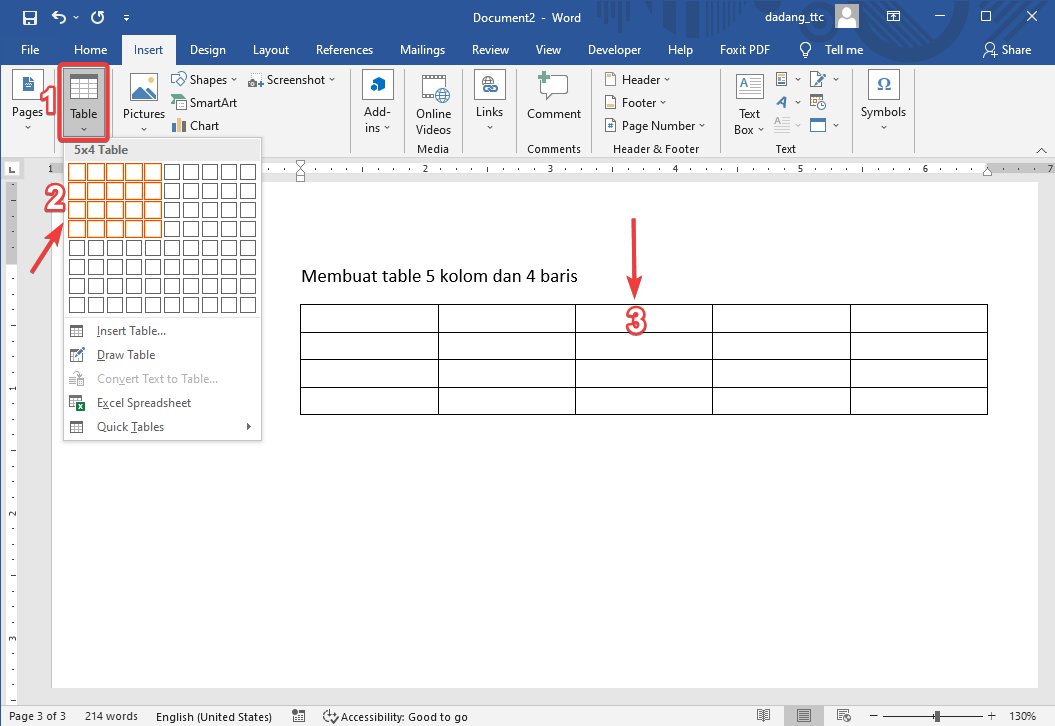
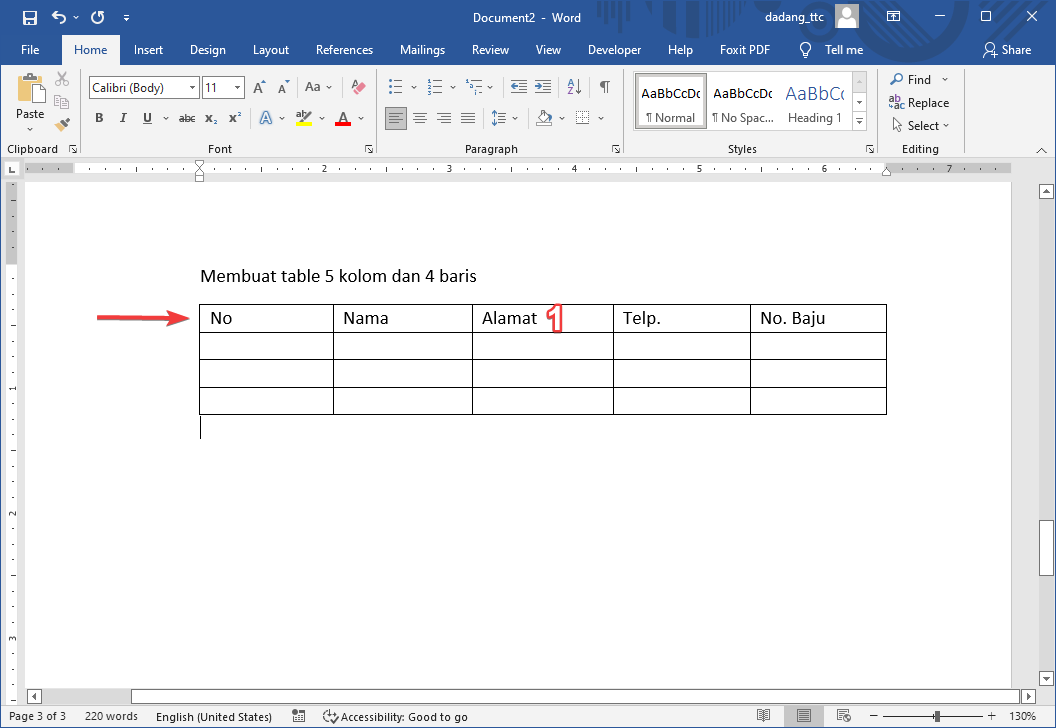
1. Inserting a Table
- Go to the Insert tab on the Ribbon.
- Click Table and select the number of rows and columns.
2. Managing the Table
After inserting a table, you can customize its appearance to match your document needs.
Once the table is created, you can:
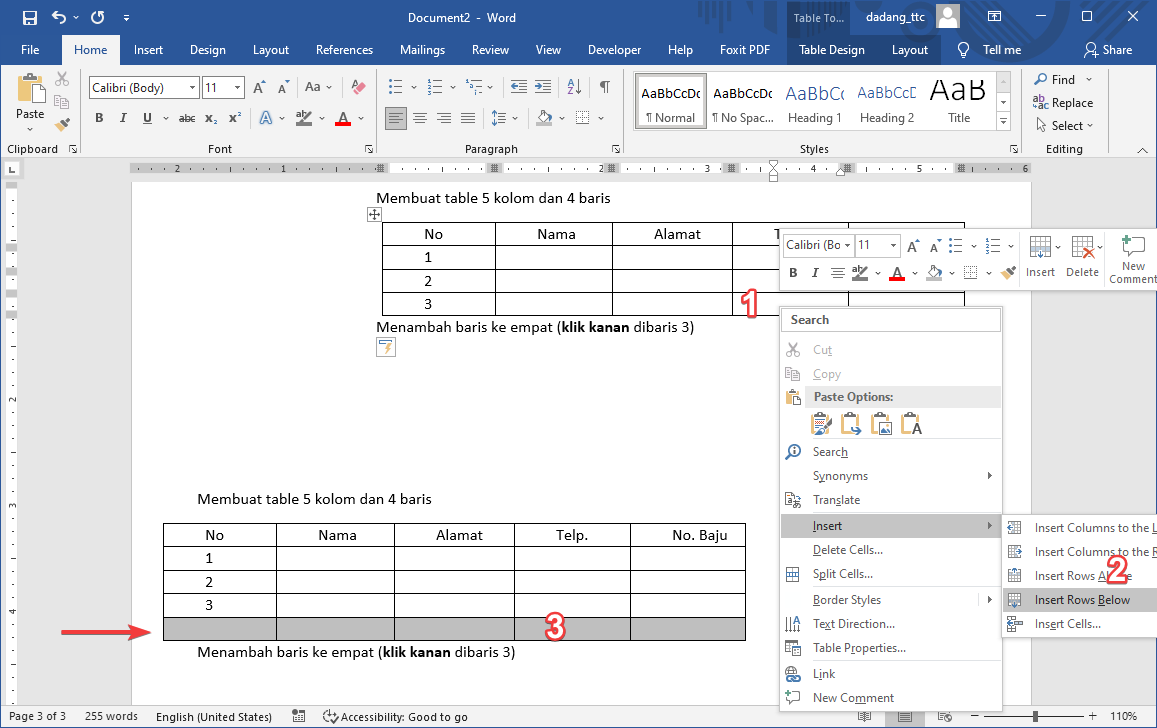
- Add or delete rows and columns.
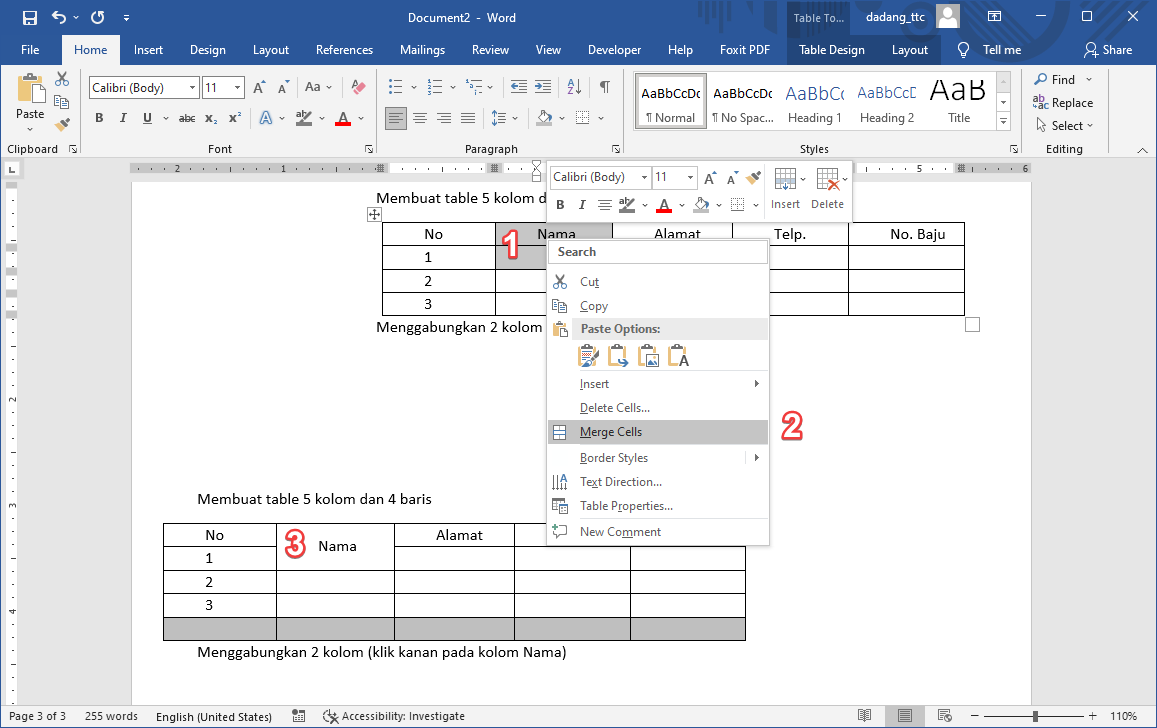
- Merge cells.
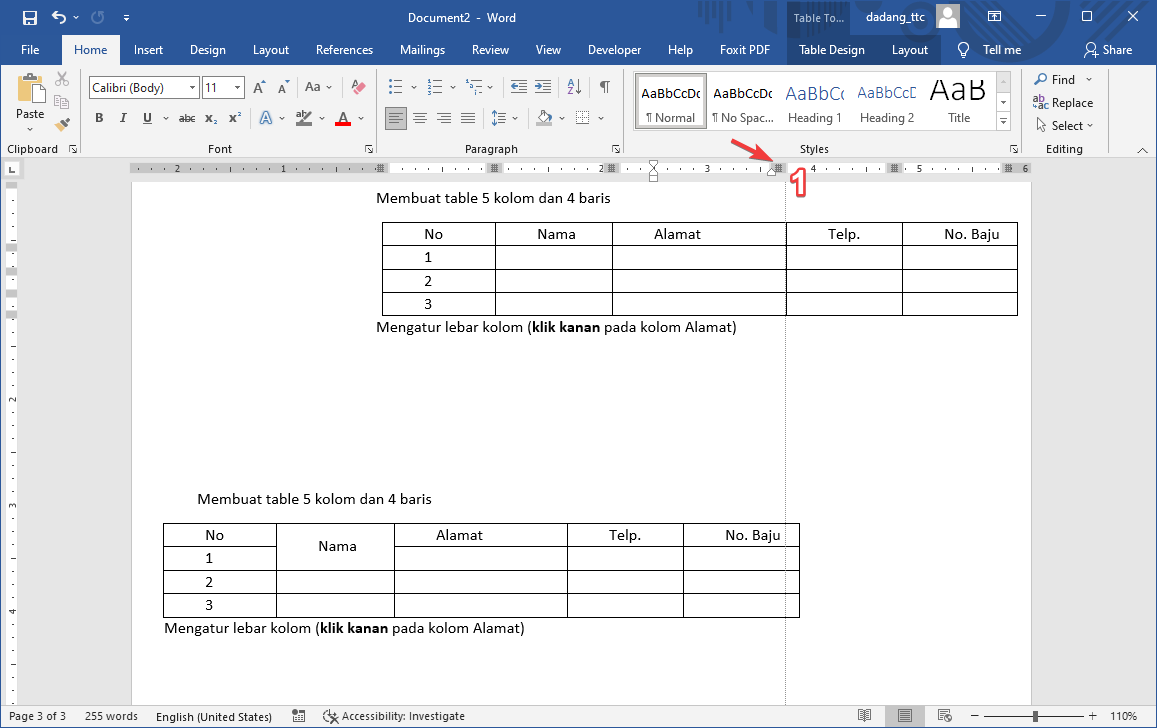
- Adjust column width and row height.
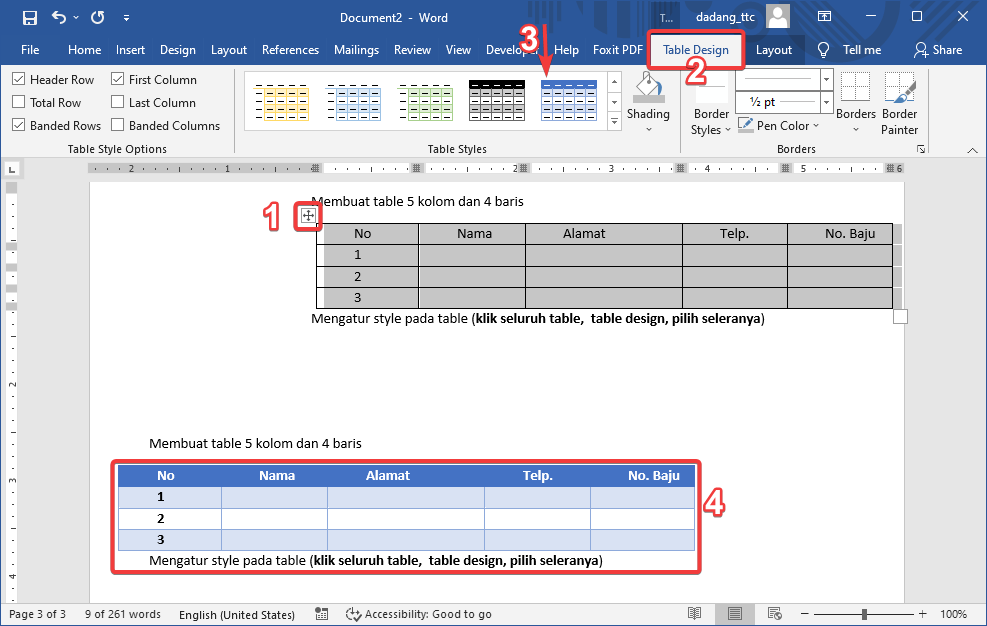
- Use Table Design to apply styles.
- Use AutoFit so the table adjusts to its content.
- Avoid too many colors to keep the table professional.
- Use Merge Cells to create table titles.
- Creating tables using spaces instead of the Table feature.
- Not adjusting column width, resulting in messy text.
- Using too many colors, making the table hard to read.
📝 Interactive Practice Table
| No | Name | Class | Score |
|---|---|---|---|
| 1 | Budi | XI IPA 1 | 88 |
| 2 | Sari | XI IPA 2 | 92 |
| 3 | Andi | XI IPA 3 | 85 |
👉 Hover over the table to see the interactive effect!
📌 When Should You Use Tables?
- 📊 Student grade data
- 📅 Activity schedules
- 💰 Simple financial reports
- 📋 Inventory lists
📌 Conclusion:
- Tables are used to organize data into rows and columns.
- They make information more structured and easier to read.
- Use features like Merge Cells, Insert Row, and Table Design to enhance appearance.
- Avoid overusing tables for regular text.
📝 Practice:
- Create a 3x4 table with student names, class, and scores.
- Merge the top cells to create a title.
- Apply a Grid Table style.