Section 7: Paragraph – Alignment, Spacing, and Indentation
⏳ Training Duration: 2 Hours
🎯 Level: Beginner
🧠 Method: Theory & Hands-on Practice
📦 Material Format: Interactive (offline/online)
📌 Requirements: Basic understanding of text writing and editing
🎯 Objective: Participants are able to format paragraphs neatly using alignment, spacing, and indentation features in Microsoft Word.
📖 Summary: Learn how to format paragraphs in Microsoft Word using alignment, line spacing, and indentation to create clean, professional, and easy-to-read documents.
Well-structured and readable paragraphs are essential in professional documents. Microsoft Word provides various paragraph formatting tools such as alignment, line spacing, and indentation to improve readability and text appearance.
💡 TTC Secret Tip: A clean paragraph is not just about appearance—it helps readers understand information more easily. Try combining alignment, spacing, and indentation: justify for formal reports, center for titles/subtitles, and different spacing to highlight important points. 🎯 Small adjustments can turn a simple document into a professional and attractive one! ✨
📌 Pro Tip: Use Ctrl + T for quick Hanging Indent or Ctrl + L / Ctrl + R / Ctrl + E to align text left, right, or center. These shortcuts make paragraph formatting fast and effortless—perfect for reports or papers that need to look neat in minutes!
📌 What is a Paragraph?
In general: A paragraph is a group of sentences that discuss a single idea or topic. It is usually separated by pressing Enter/Line Break. Even an empty line is considered a paragraph.
In Microsoft Word: A paragraph is treated as a single unit of text. All formatting such as alignment (Left, Center, Right, Justify), spacing, indentation, and tabs are applied to the paragraph, not individual sentences.
Tabs in Word: Still part of a paragraph. Tabs can be used to create manual lists, simple tables, or adjust text spacing. All lines before pressing Enter are considered one paragraph.
💡 TTC Tip: Understanding paragraphs helps you apply alignment, spacing, and indentation more effectively. Small adjustments can make your document look professional and easier to read.
1. Paragraph Alignment
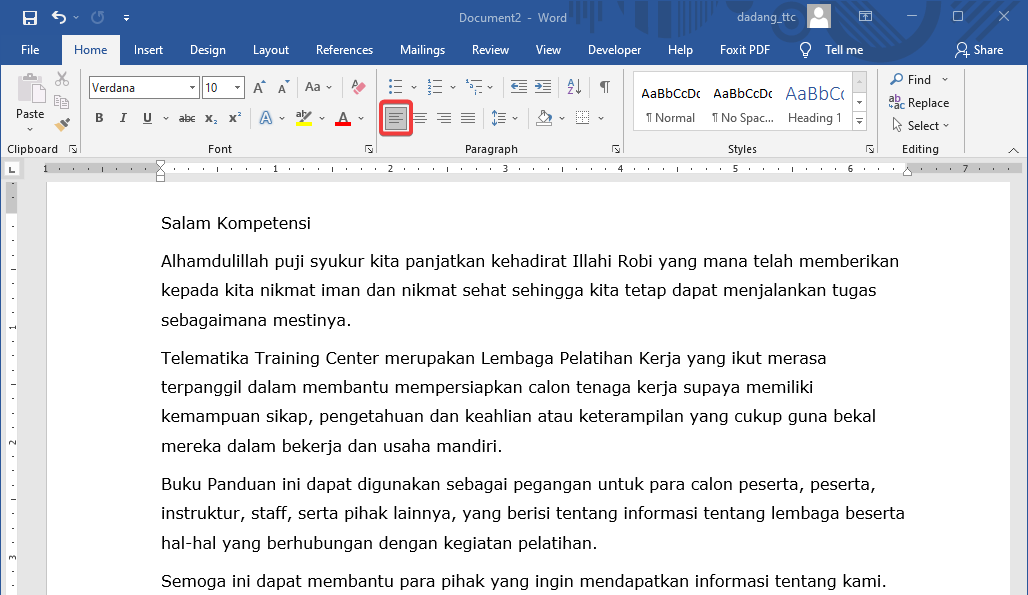
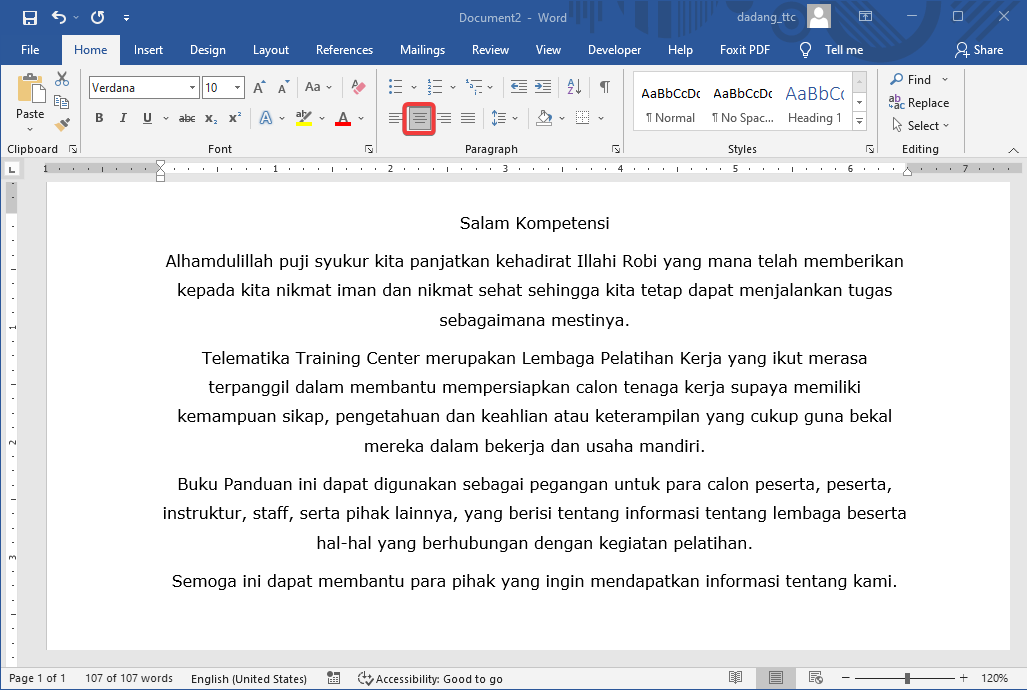
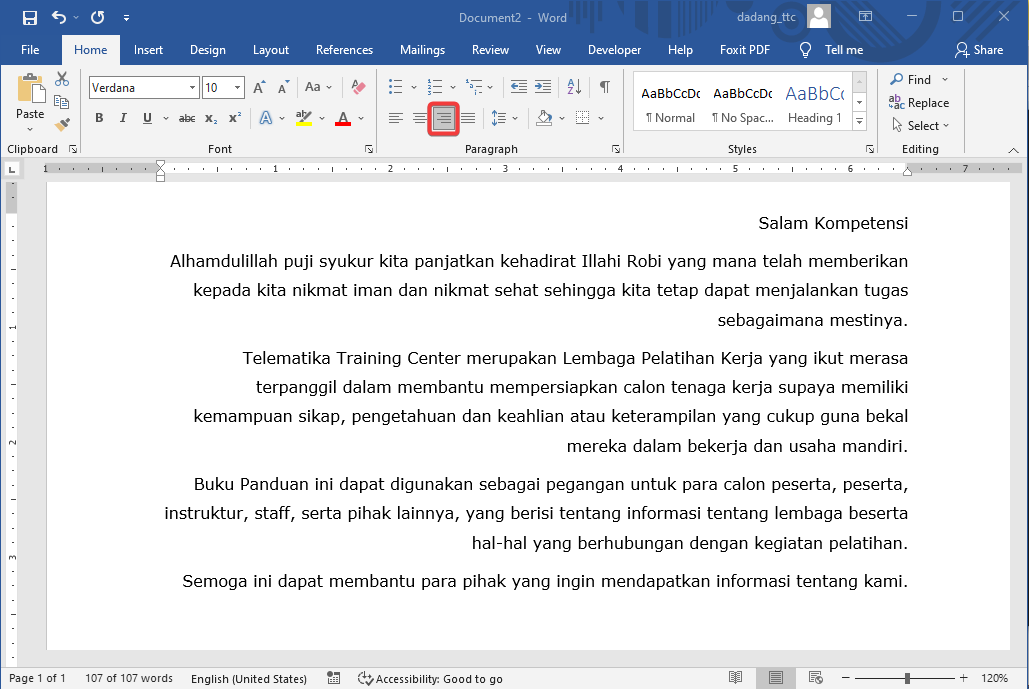
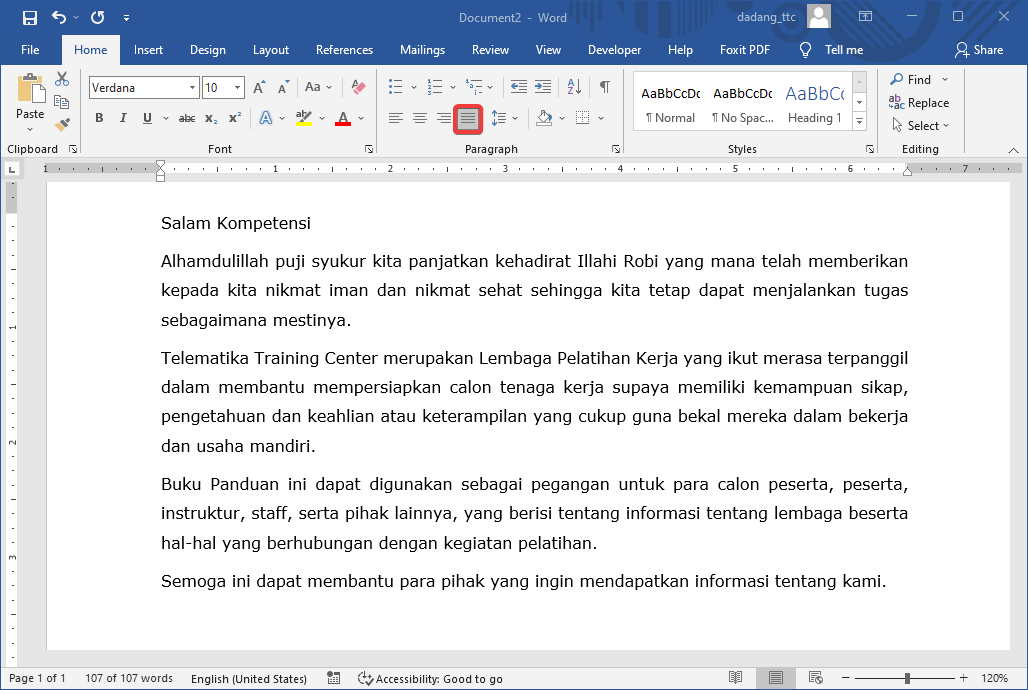
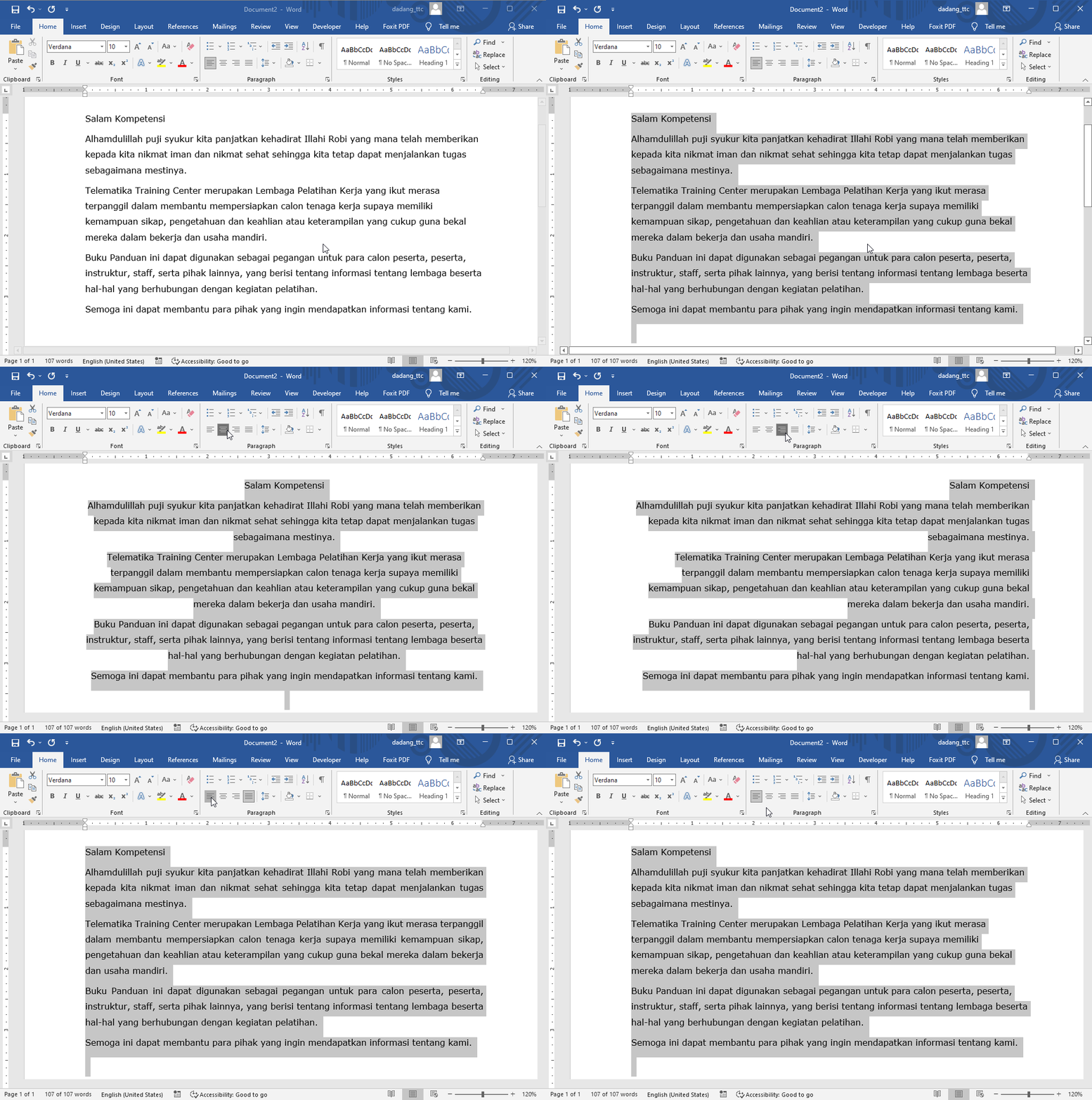
Alignment determines how text is positioned relative to page margins:
- Align Left: Text aligned to the left (default).
- Center: Text positioned in the middle.
- Align Right: Text aligned to the right.
- Justify: Text aligned evenly on both left and right sides.
2. Line Spacing
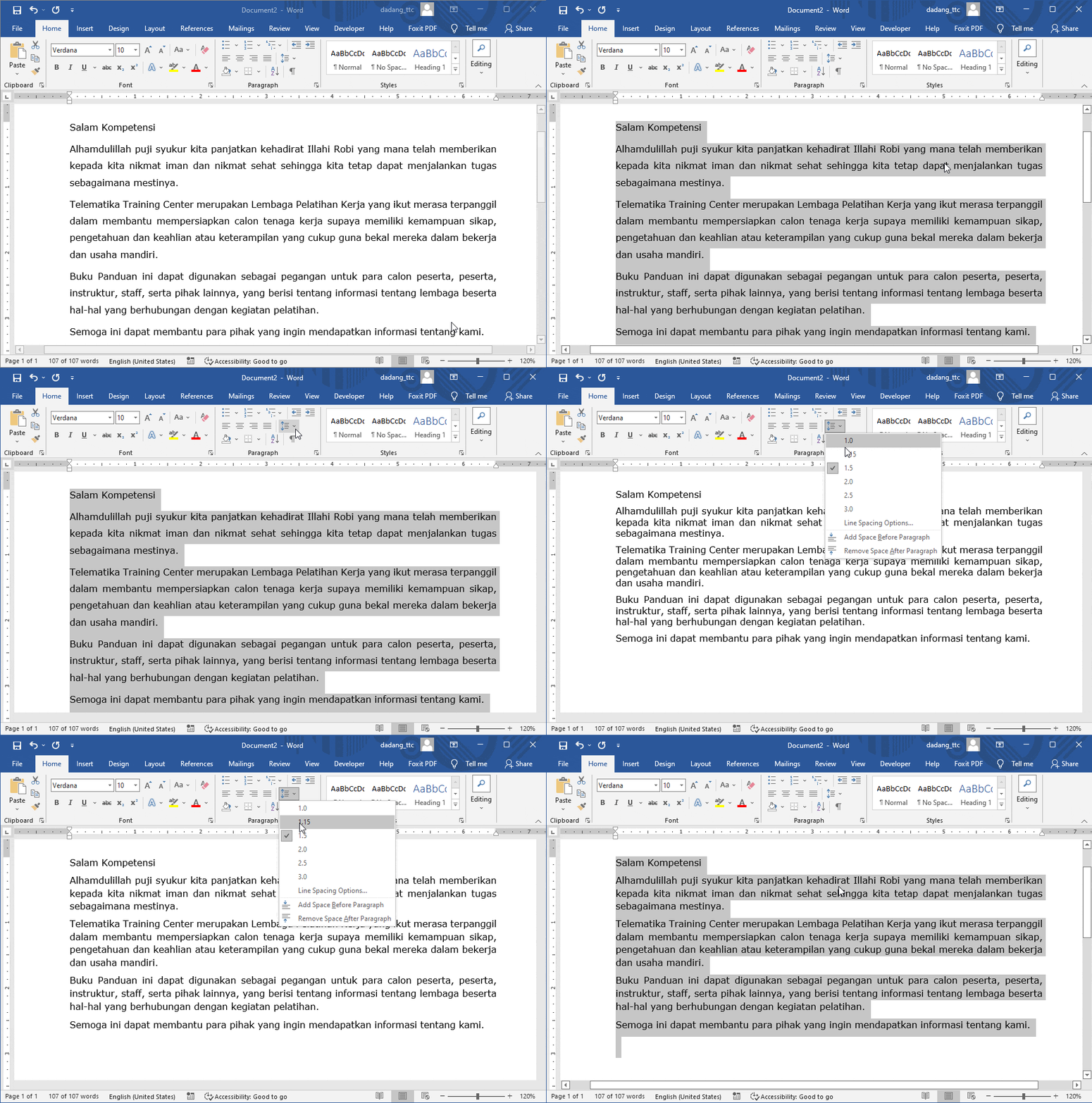
Line spacing determines the distance between lines in a paragraph. You can choose 1.0, 1.5, 2.0, and more via Home > Line and Paragraph Spacing.
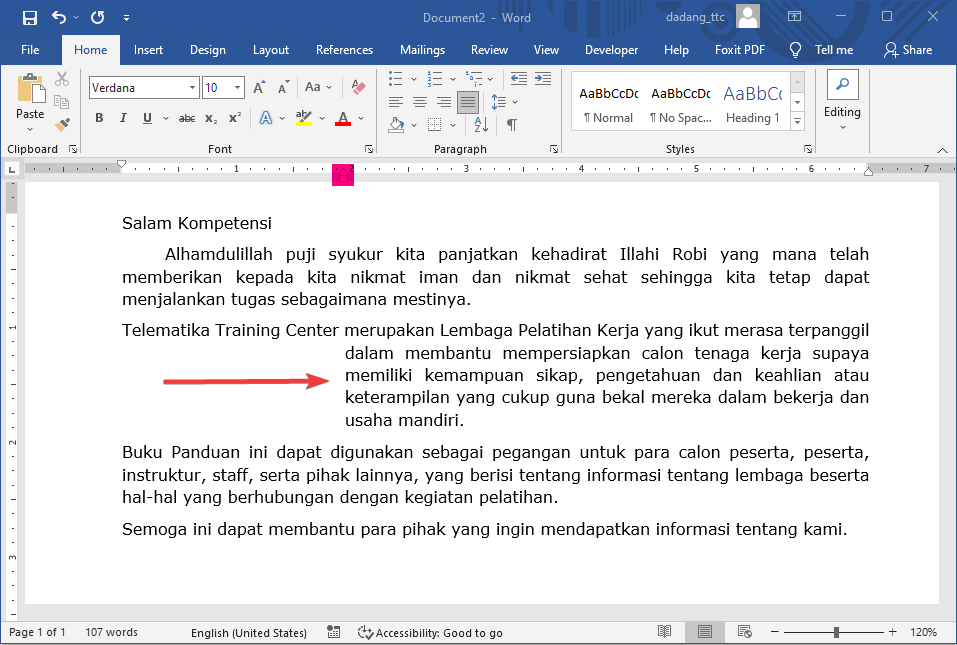
3. Paragraph Indentation
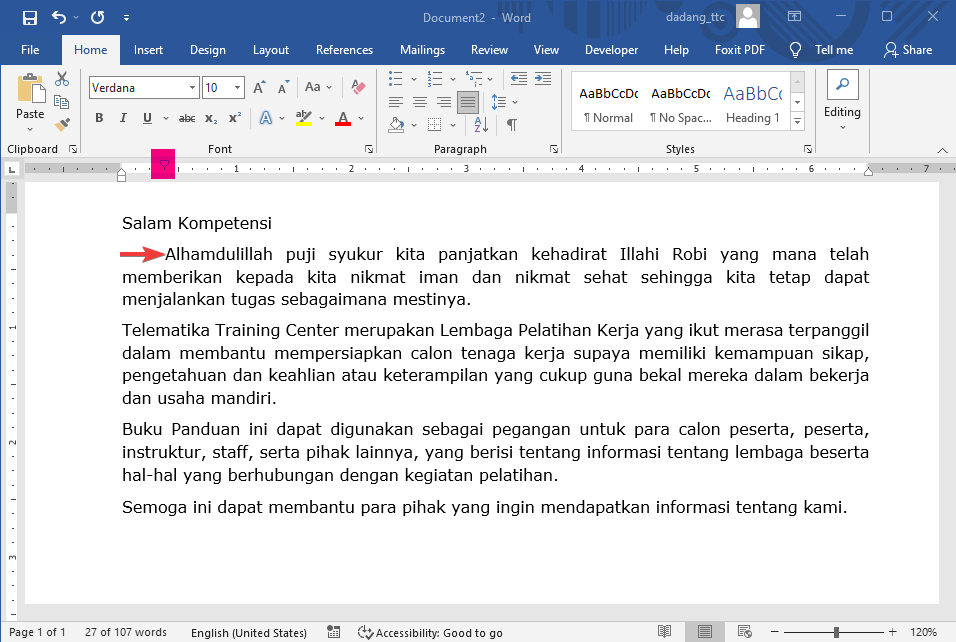
Indentation adds space at the beginning of a paragraph. There are two types:
- First Line Indent: Only the first line is indented.
- Hanging Indent: All lines except the first are indented.
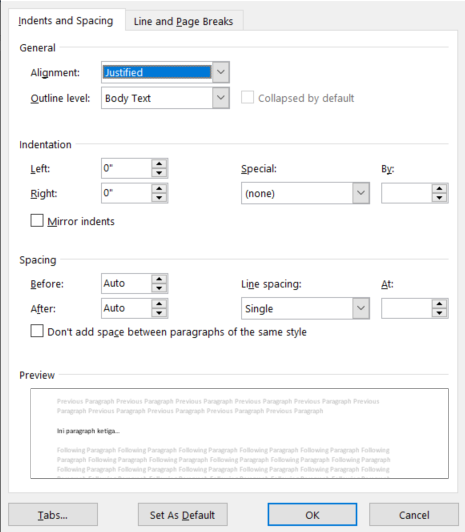
These settings can be accessed via Home > Paragraph > Dialog Box Launcher (small arrow icon).
4. Tabs in Word: Left, Center, Right
By default, when you press the Tab key without setting custom tabs, the cursor jumps to predefined tab stops (usually every 1.27 cm or 0.5 inch from the left margin).
Tabs are used to position text within a paragraph. When pressing Tab, the cursor moves based on the selected tab type:
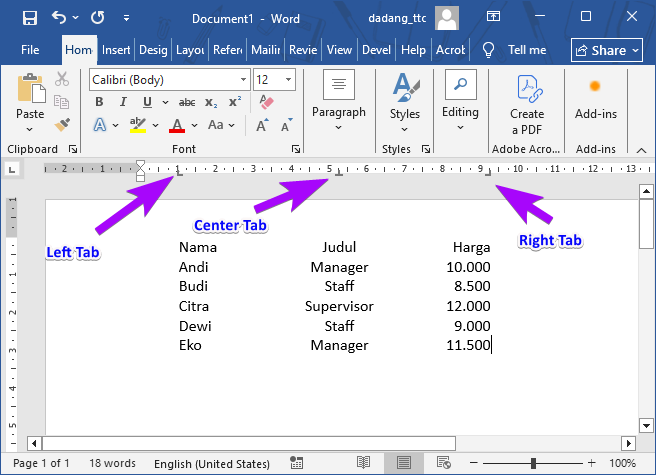
- Left Tab: Text starts from the tab position and moves right.
- Center Tab: Text is centered on the tab position.
- Right Tab: Text ends at the tab position (aligned right).
💡 Practical Example:
      Nama           Left Tab
      Judul          Center Tab
      Harga          Right Tab
      --------------------------------
      Andi           Manager        10,000
      Budi           Staff           8,500
      Citra          Supervisor     12,000
      Dewi           Staff           9,000
      Eko            Manager        11,500
With tabs, text is automatically aligned without using manual spaces. This is perfect for lists, invoices, or simple tables in Word.
📌 Conclusion
By understanding paragraph formatting in Word—alignment, line spacing, indentation, and tabs—your documents will look cleaner, more professional, and easier to read.
- Tabs are essential for organizing text or data horizontally.
- Tab types: Left, Center, Right allow flexible column alignment.
- Use tabs with rulers and shortcuts for efficiency.
- Avoid manual spaces—use tabs for consistent formatting.
📝 Exercise:
- Create three short paragraphs in your Word document.
- First paragraph: left align, spacing 1.0, no indentation.
- Second paragraph: justify, spacing 1.5, first line indent.
- Third paragraph: center, spacing 2.0.
After completing this exercise, you will be more confident in creating neat and professional paragraphs.
🔗 Learn also: Text Writing & Editing and Bullets & Numbering to enhance your Microsoft Word skills.