Hands-On Lab: Conditional Formatting Without IF
⏳ Training Duration: 2 Hours
🎯 Level: Intermediate – Advanced
🧠 Method: Brief explanation & hands-on practice
📦 Material Format: Interactive (usable offline/online)
📌 Prerequisite: Familiar with data entry and basic Excel formulas
🎯 Objective: Participants can apply Conditional Formatting without IF formulas and understand the differences between rule types using a single consistent dataset.
Welcome to the Hands-On Lab (HOL) session with TTC! On this page, you will learn how to use
Conditional Formatting in Excel without relying on IF formulas.
This technique is ideal for creating visually clear and interactive data using only a few clicks and simple logic.
Many Excel users depend on IF formulas for conditional coloring, even though there is a more efficient
approach using logical operators directly within the Conditional Formatting menu.
This tutorial will guide you step by step through real-world examples that you can practice immediately.
Let’s start practicing and prove that beautifying Excel data doesn’t have to be complicated!
📊 Dataset Used
Throughout this Conditional Formatting tutorial series, we use a single main dataset in the form of a student score list with the following characteristics:
- Number of students: 15
- Classes: A and B
- Subjects: Religion, Science, Social Studies, Indonesian Language, Sports
- Score range: 55 – 90
This dataset was intentionally selected because it contains high, medium, and low values, making it ideal for practicing various types of Conditional Formatting without IF formulas.
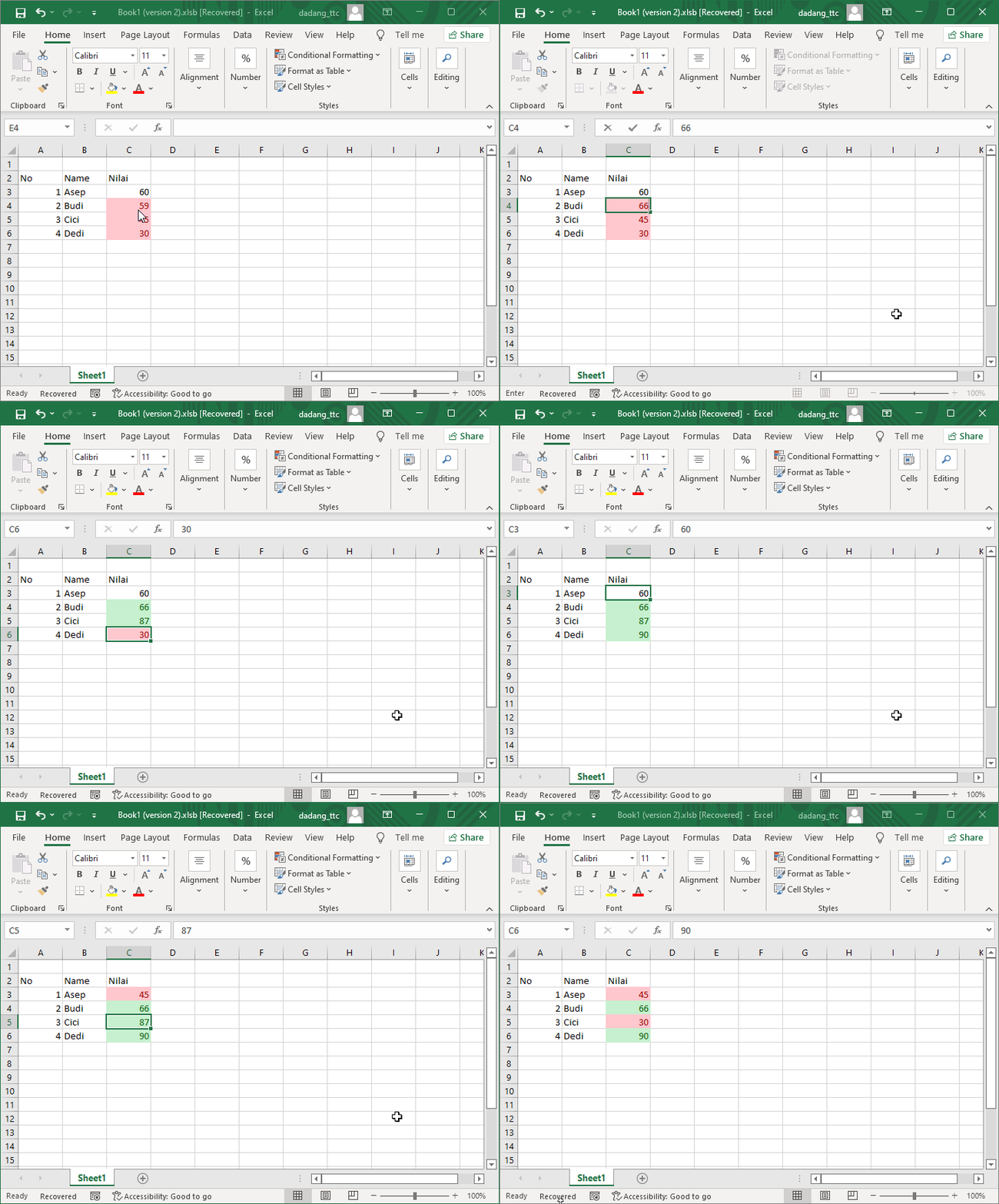
🧩 Initial Case Study (Simple Example)
Before working with the full dataset, we start with a simple example to understand the basic concept of automatic formatting using Highlight Cells Rules.
You have a score table like this:
    | Name | Score |
    |------|-------|
    | Asep | 60    |
    | Budi | 59    |
    | Cici | 45    |
    | Dedi | 30    |
Objective: automatically apply color formatting to the Score column:
- Score < 60: Light red (Needs remedial)
- Score ≥ 60: Light green (Pass)
✨ Step-by-Step
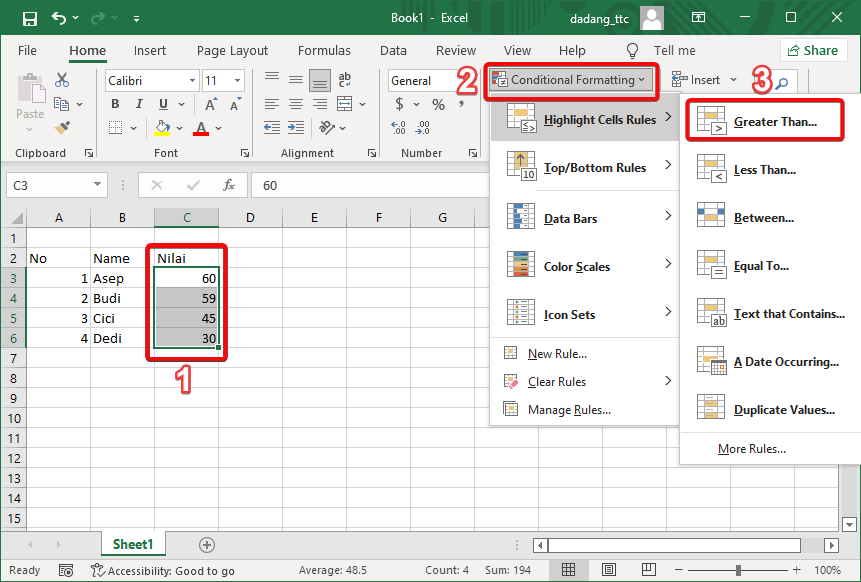
- Select the score column, for example cells
C3:C6. - Go to Home → Conditional Formatting → Highlight Cells Rules.
- Select the "Greater Than..." option.
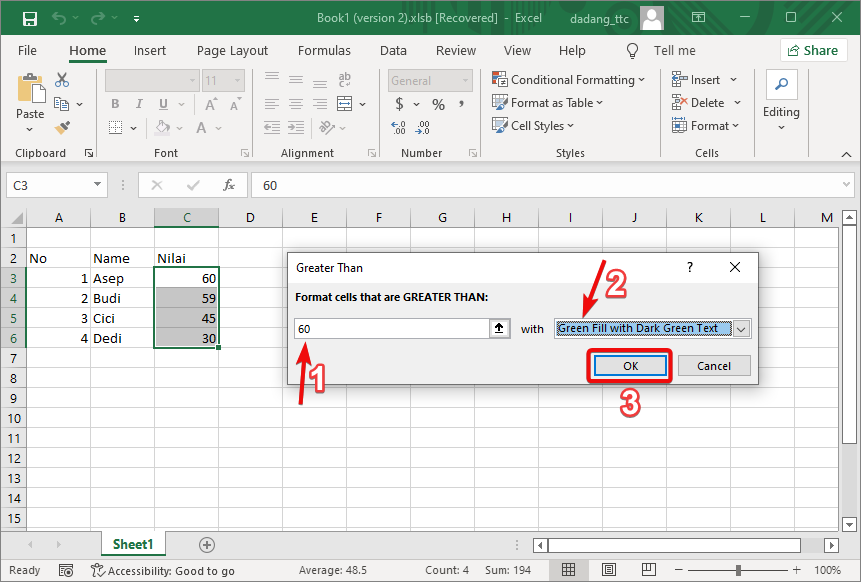
- Enter the value without using IF:
60
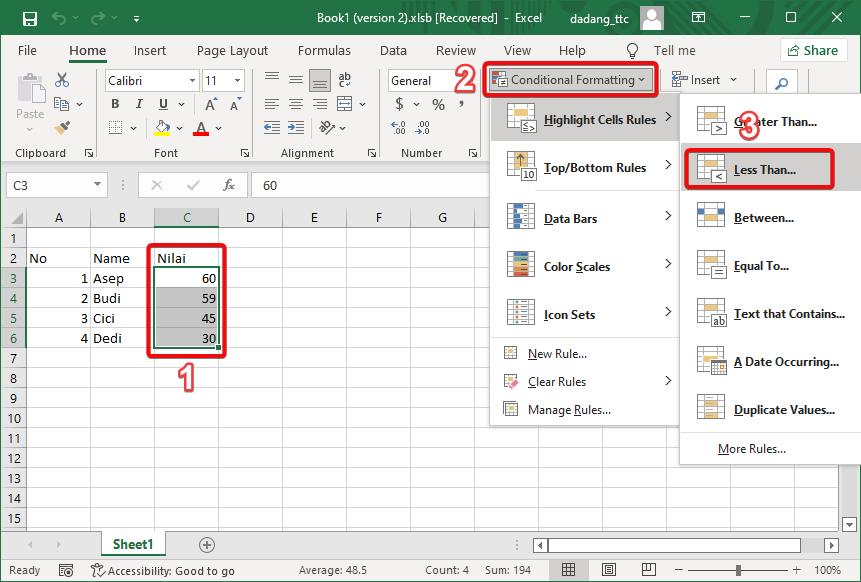
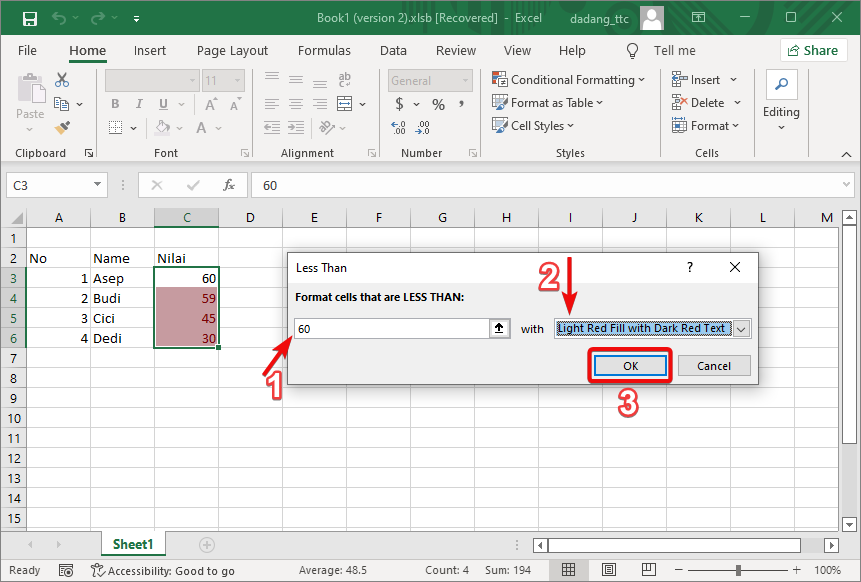
then choose Green Fill with Dark Green Text. - Repeat step 2 for the failing condition:
60
using Light Red Fill with Dark Red Text.
💡 Important Notes
- Use direct logical rules without the
IF()formula. - Excel treats the first selected cell as the reference and applies formatting downward automatically.
- This method is cleaner and renders faster in Excel.
🧭 Types of Conditional Formatting Covered
-
Highlight Cells Rules
Used to highlight values based on specific conditions (for example: pass or remedial). (Video available)
🎥 Video Tutorial: Highlight Cells Rules
📥 Sample Excel File (Highlight Cells Rules)
This Excel file contains the same dataset and examples used in the Highlight Cells Rules video so you can practice directly.
⬇️ Download Excel Demo File-
Top / Bottom Rules ✅
Automatically highlights the highest or lowest values (example: Top 3 Science scores or Bottom 5 Social Studies scores). (Video available)
🎥 Video Tutorial: Top & Bottom Rules
📥 Sample Excel File (Top & Bottom Rules)
Use this file to practice highlighting the highest and lowest values using Top / Bottom Rules in Conditional Formatting.
⬇️ Download Excel Demo File-
Data Bars, Color Scales & Icon Sets
Visualize data using bars, color gradients, and icon indicators to quickly identify patterns and trends. (Video available)
🎥 Video Tutorial: Data Bar, Color Scale & Icon Sets
📥 Sample Excel File (Data Bars, Color Scales & Icon Sets)
This file is used in the video to demonstrate visual data analysis using Data Bars, Color Scales, and Icon Sets.
⬇️ Download Excel Demo FileAll of these features are applied using the same dataset, allowing you to visually compare the results of each formatting approach.
📌 Summary
Conditional Formatting allows us to interpret Excel data visually without lengthy IF logic. Using a single dataset, we can clearly see the differences and benefits of each formatting rule type.
📝 Exercise:
- Open Excel and enter 10 items along with their quantities.
- Format the data as a table using a blue style.
- Ensure the “My table has headers” option is checked.
Want to Learn Excel and Computer Skills for Free?
Visit our complete guides and join TTC’s free classes: