Section 16: Symbols & Mathematical Equations
⏳ Training Duration: 45 Minutes
🎯 Level: Intermediate
🧠 Method: Theory & Practice
📦 Material Format: Interactive (offline/online)
📌 Requirements: Basic Word typing skills
🎯 Objective: Participants are able to insert symbols and create mathematical equations in Word documents.
Microsoft Word is not only used for typing regular documents, but it can also display symbols and mathematical equations professionally. This feature is very important for students, educators, and technical report writers.
By using the Symbol and Equation menus, we can write various symbols such as π, α, and even complex formulas like integrals, fractions, and exponents without needing additional applications.
This capability makes documents look more structured, scientific, and ready for academic or professional use.
Inserting Symbols
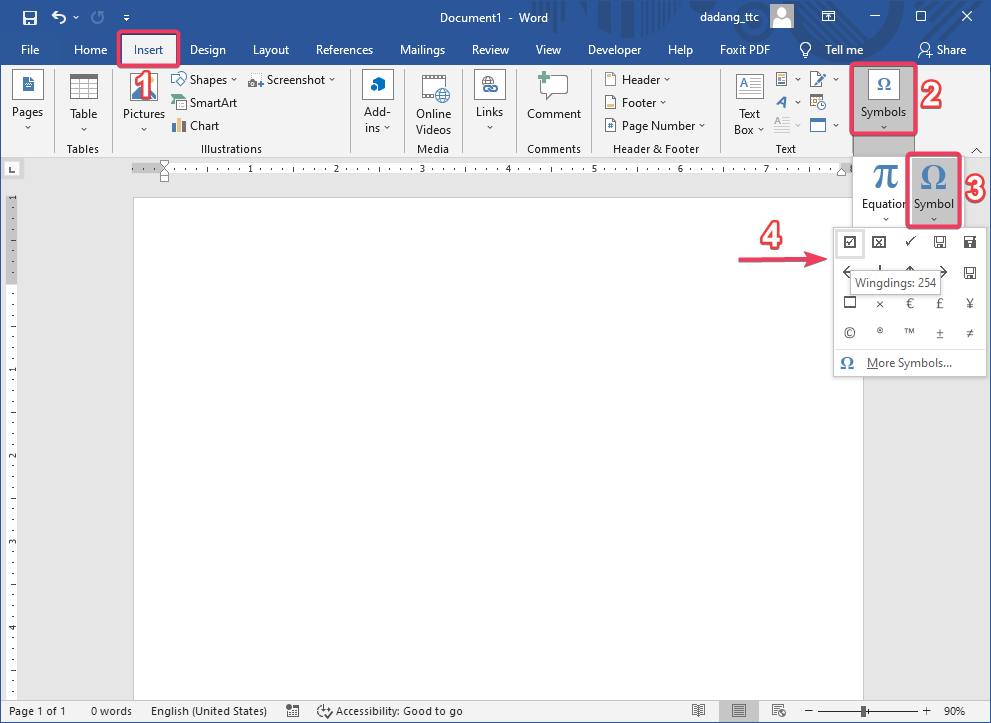
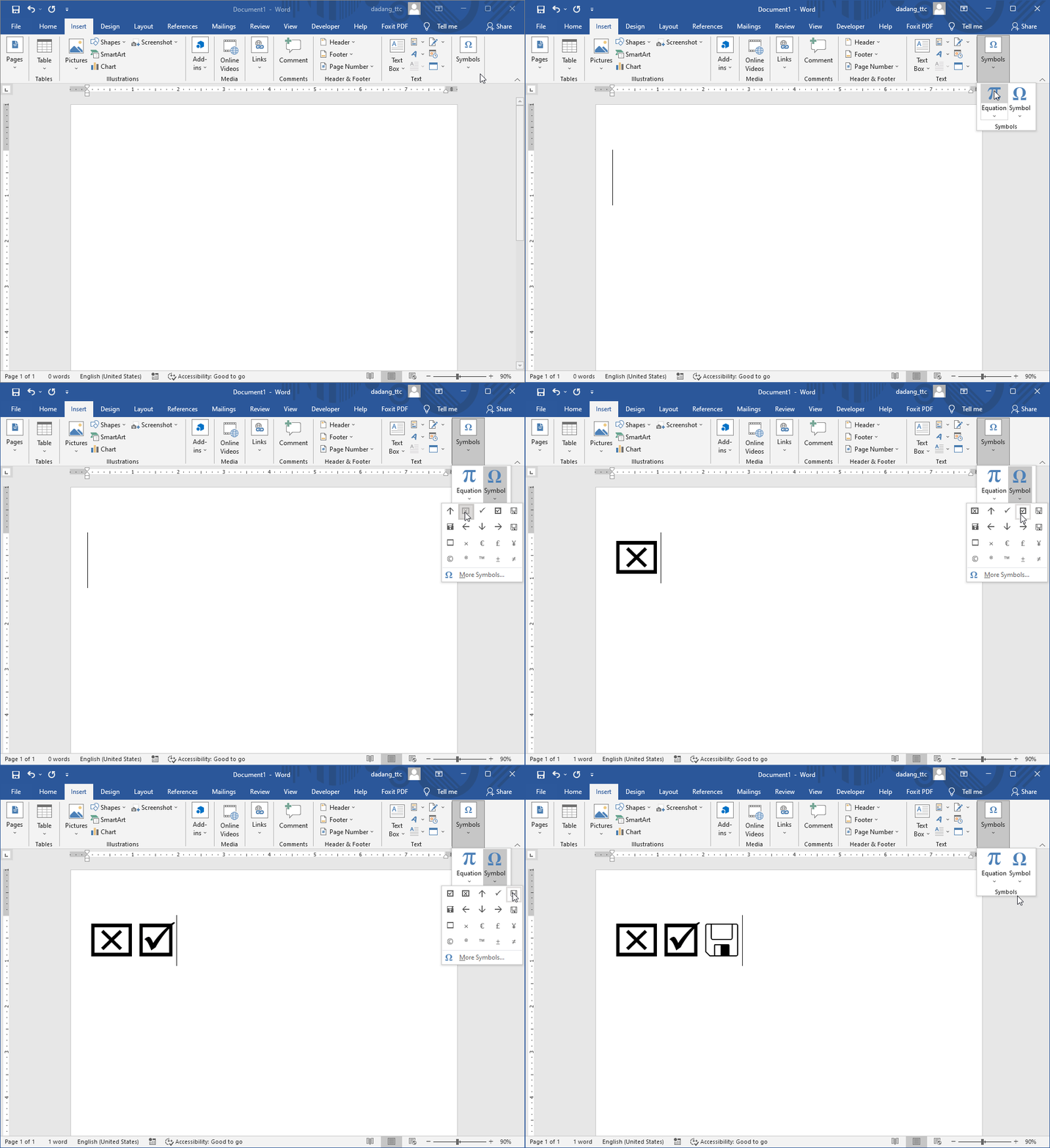
- Click the Insert menu, then select Symbol.
- Choose common symbols such as π, α, ¥, and others.
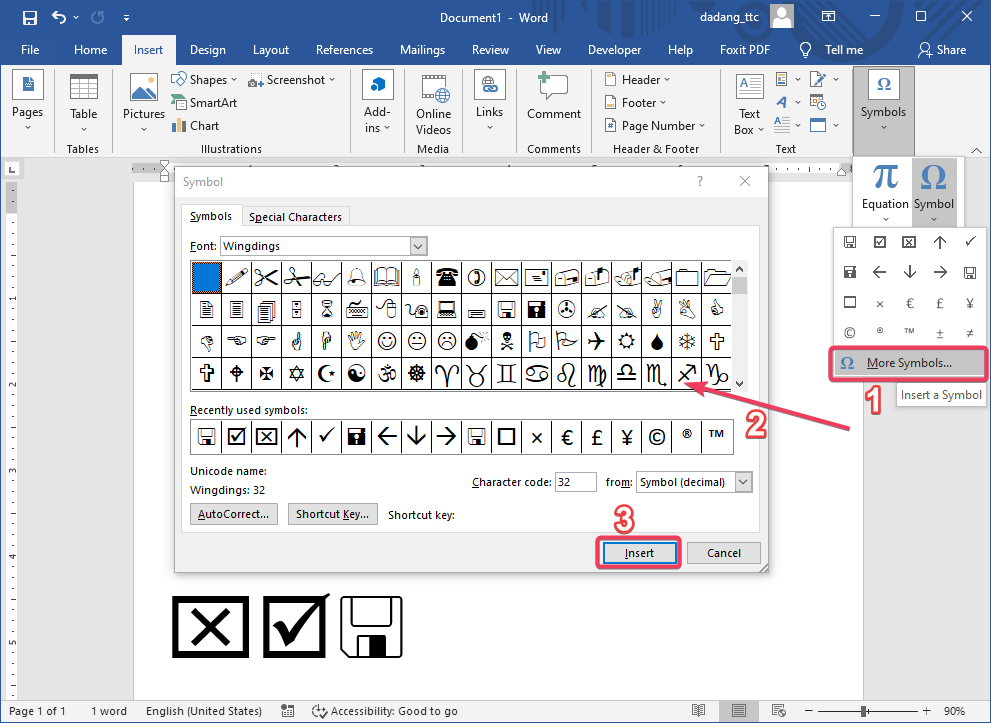
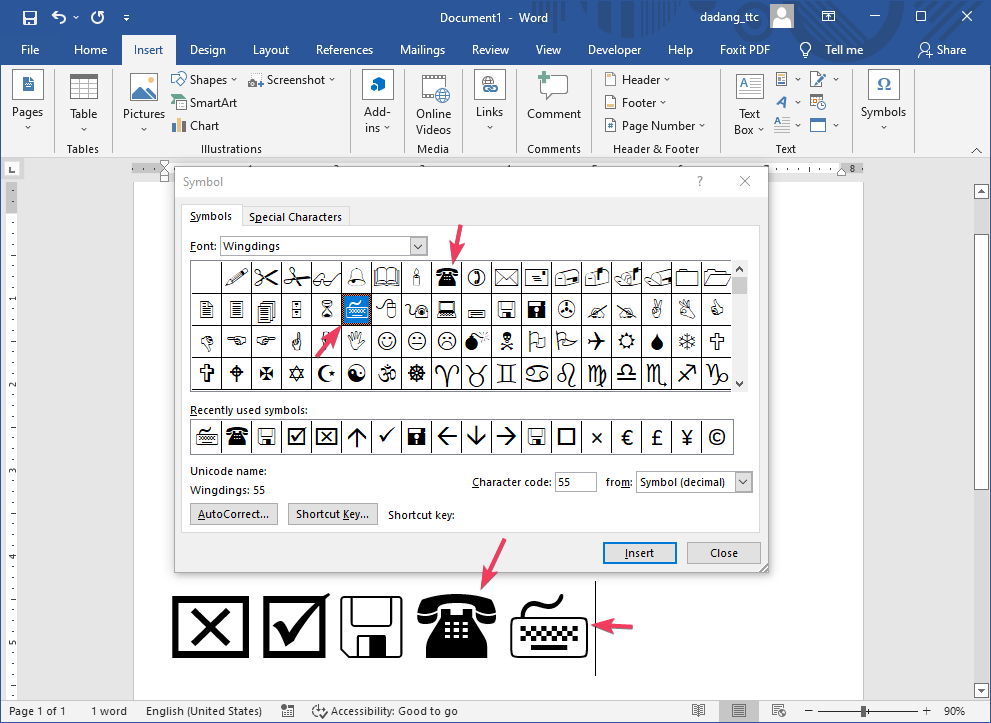
- Click More Symbols to access advanced symbols.
Adding Mathematical Equations
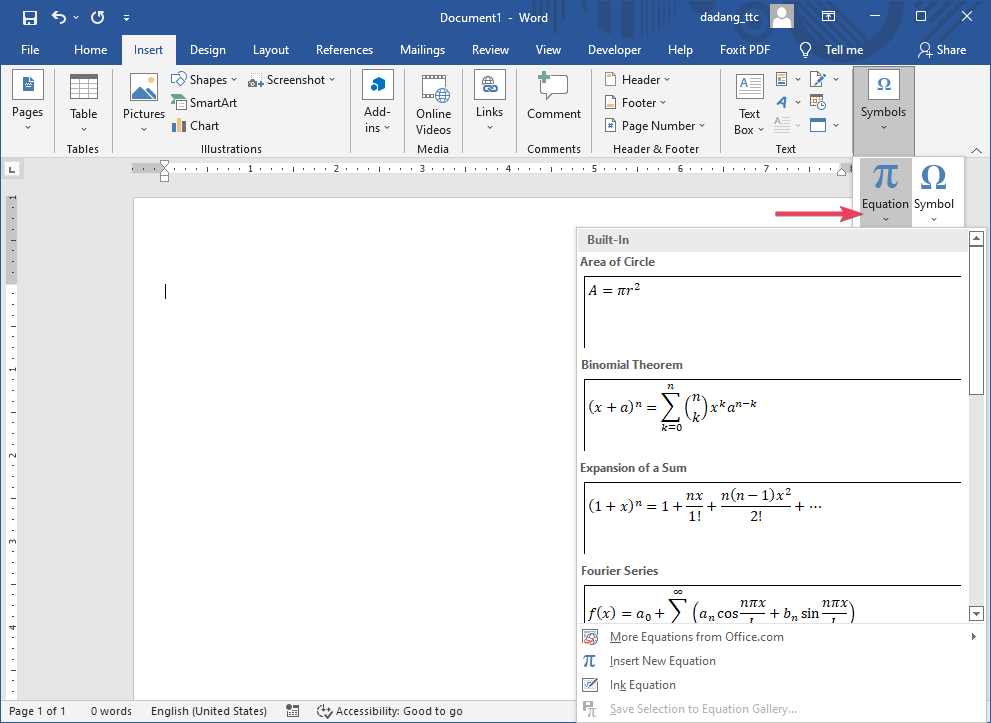
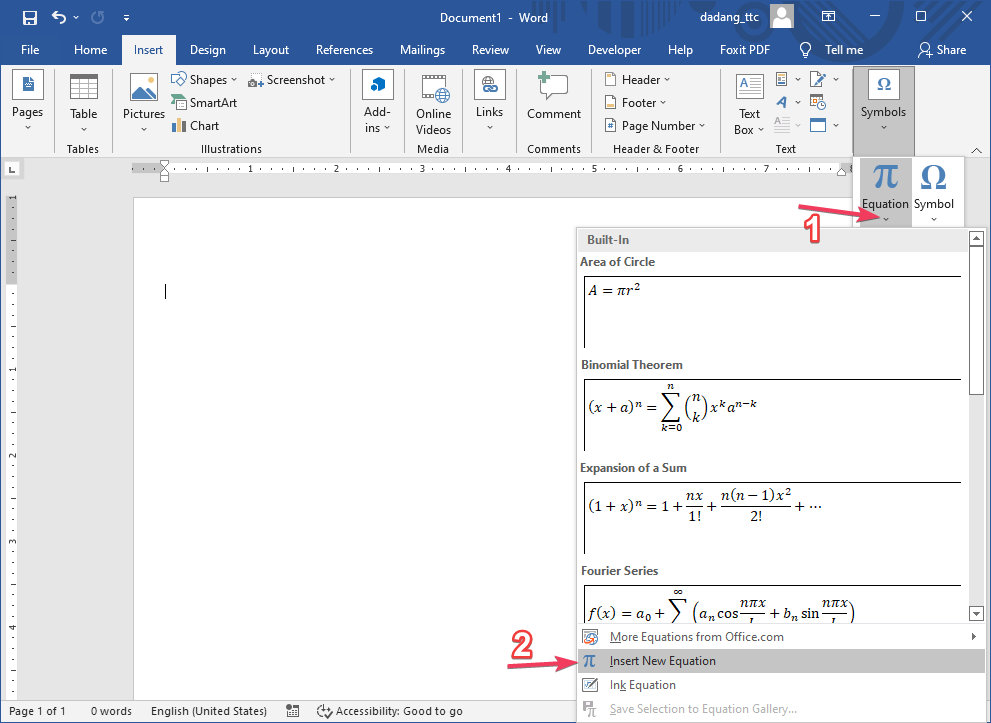
- Select the Insert tab, then click Equation.
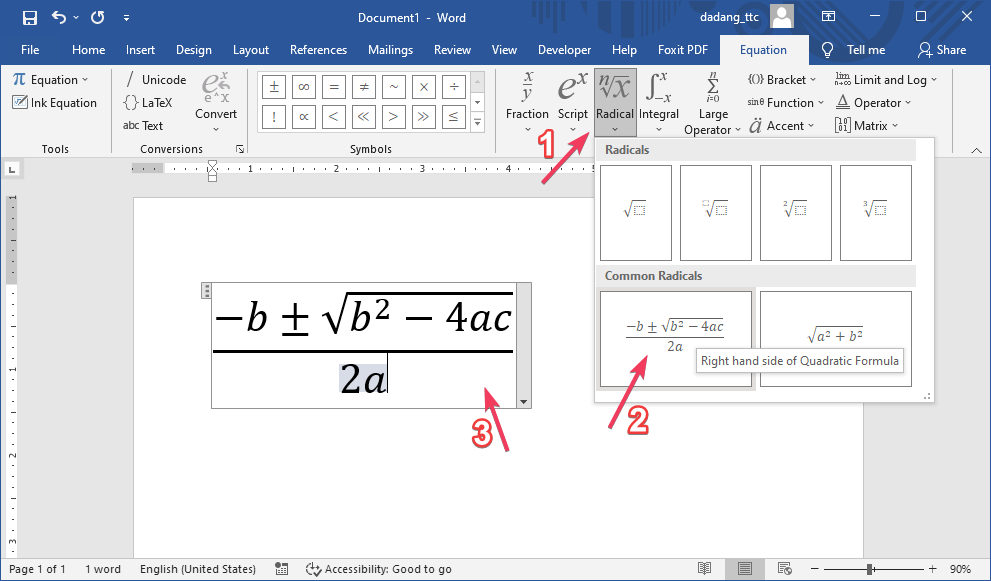
- Use Equation Tools to write formulas such as integrals, roots, exponents, and more.
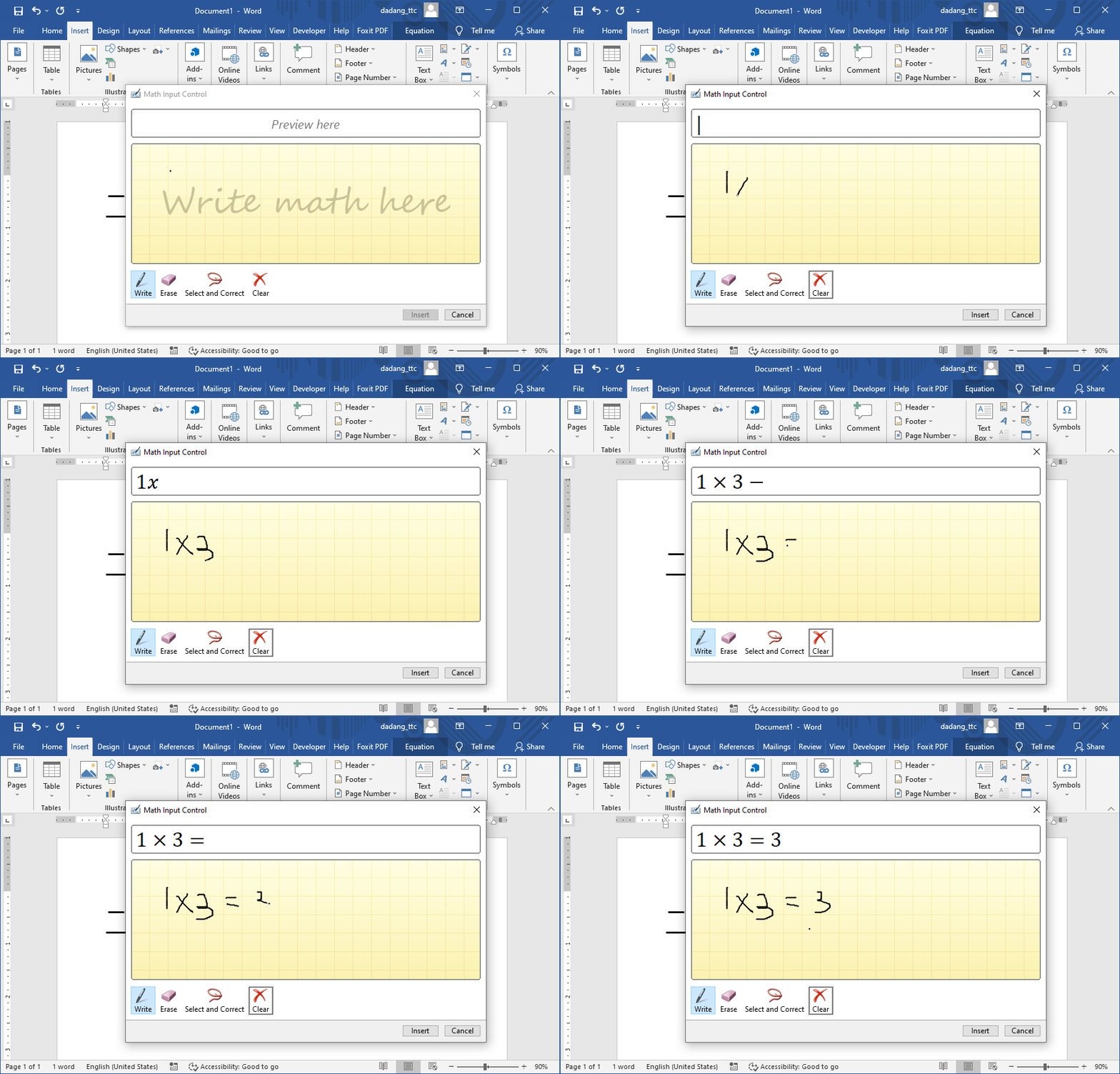
- You can also use the Ink Equation feature to write by hand (on touchscreen devices).
Examples of Common Equations
Here are some examples of equations that can be created using the Equation feature in Word:
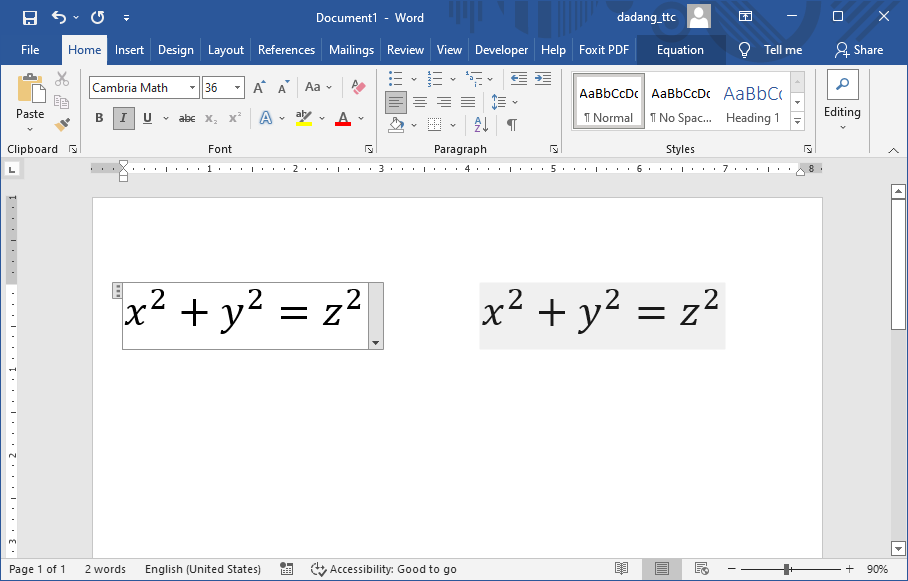
- Pythagorean Formula: x² + y² = z²
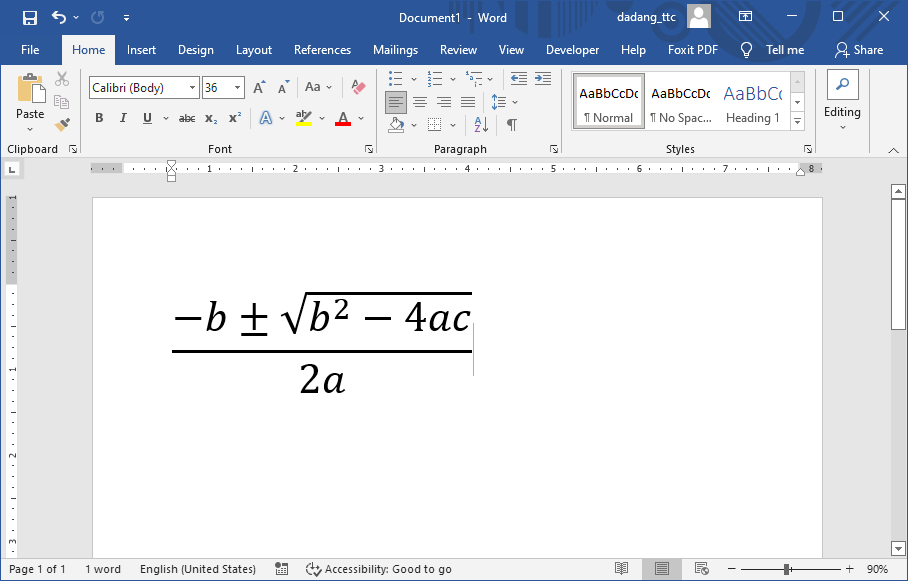
- Quadratic Formula: (-b ± √(b² - 4ac)) / 2a
- Average Formula: (x₁ + x₂ + ... + xₙ) / n
With Equation Tools, all these formulas can be displayed in a clean and professional format like in textbooks or scientific journals.
📝 Practice:
- Create a new document and insert mathematical symbols such as Σ, θ, or √.
- Create a complete equation such as x² + y² = z² using the Equation feature.
The Symbol and Equation features in Microsoft Word allow us to create more professional documents, especially for mathematics, science, and technical reports.
By understanding these two features, we no longer need additional applications to write formulas. Everything can be done directly in Word with clean and publication-ready results.
Tip: Use the shortcut Alt + = to quickly open Equation in Word.